Optimized Charging Holds Your Mac at 80%
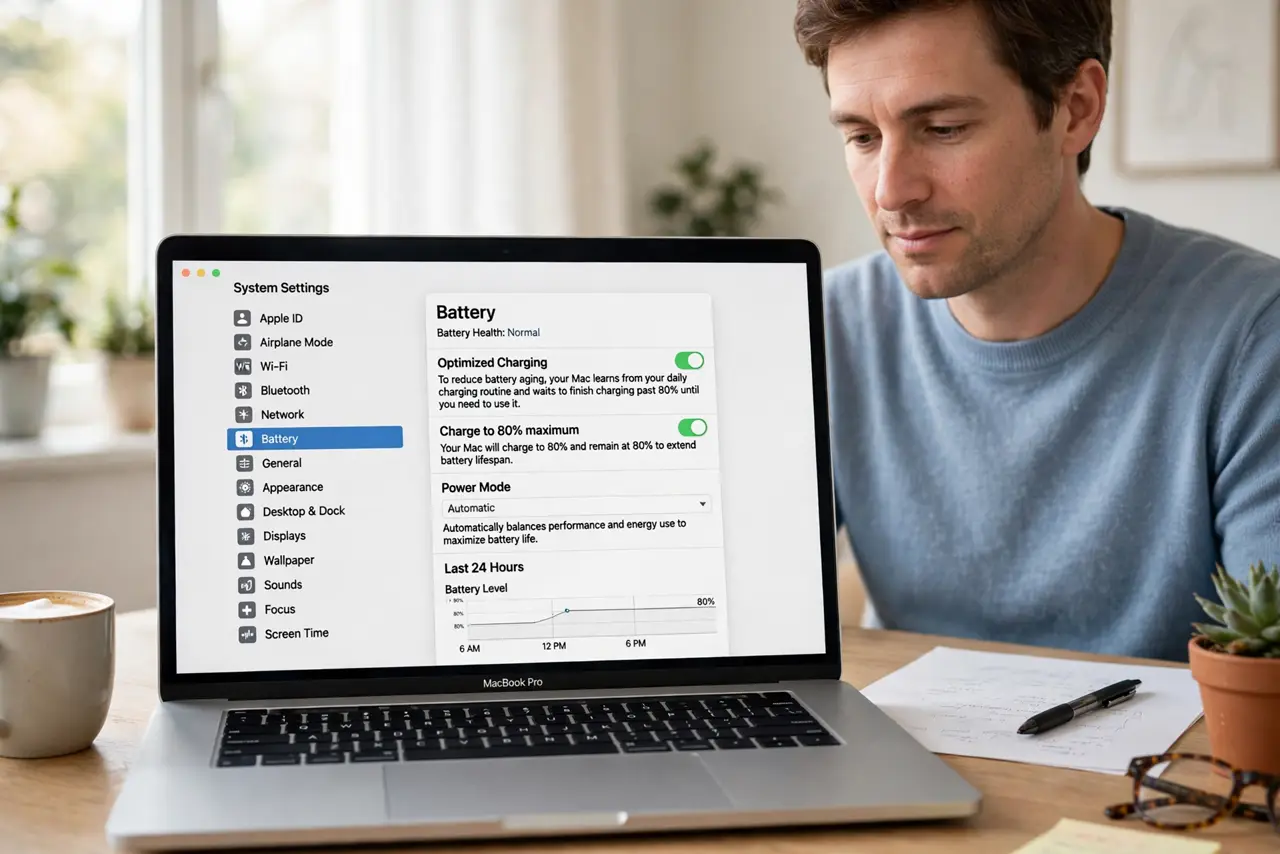
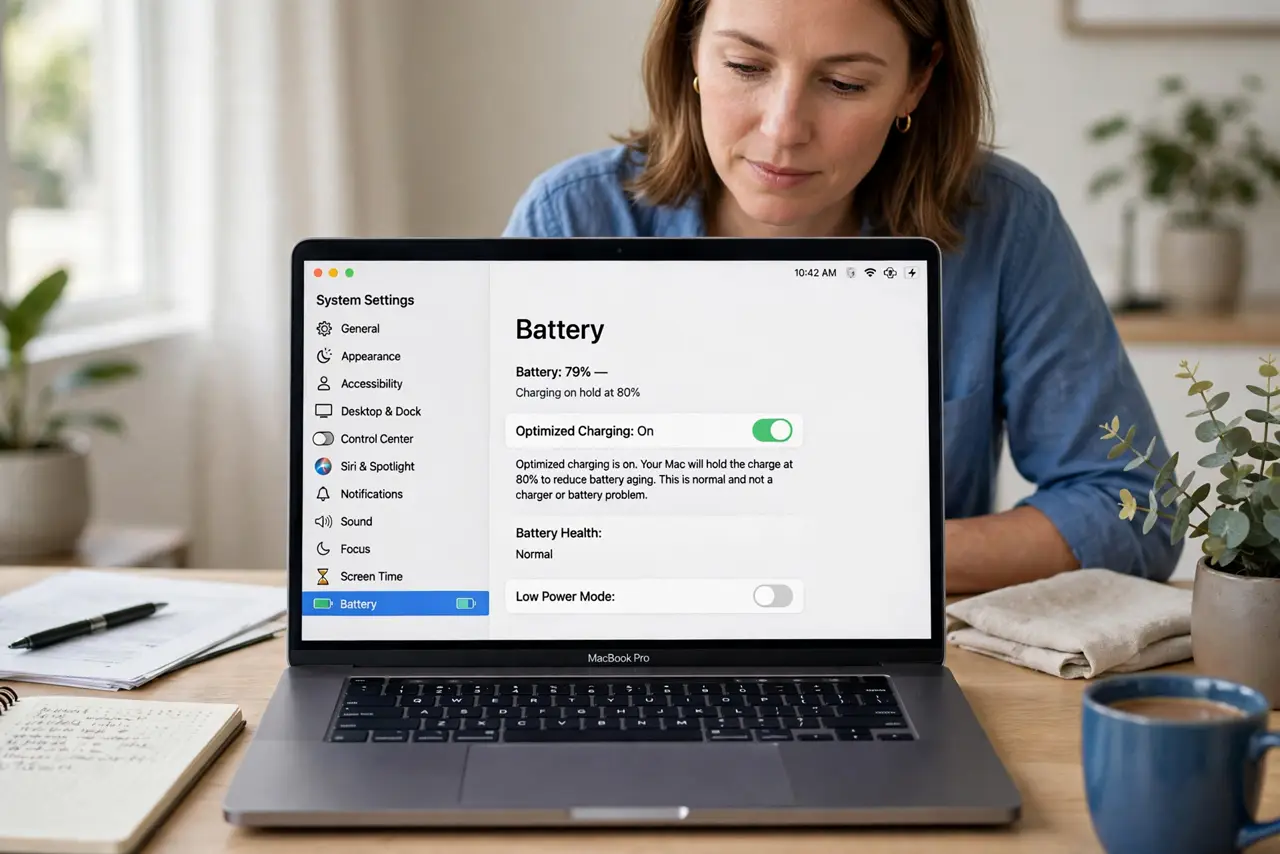
Optimized charging holding your Mac at 80% looks like a fault, but it is a battery health feature. macOS learns your routine and delays the final 20% until just before you usually unplug, so the battery spends less time sitting fully charged.
TL;DR / Quick Fix
Quick fix: if you need a full charge now, click Charge to Full Now in Battery settings or on the battery menu. Otherwise leave optimized charging on, and the Mac will finish charging before your usual unplug time. Test the fix, then keep the setting that works.
Follow these steps
- Recognize the feature. Check Battery settings to confirm optimized charging is on. If it is, holding at 80% is the feature working, not a charger or battery problem.
- Charge to full now. When you need a full battery today, use the Charge to Full Now option in Battery settings or from the battery status menu. That overrides the hold for this charge only.
- Let it learn your routine. Keep a regular charging routine for a few weeks so macOS learns when you unplug. A predictable routine lets it time the final charge accurately.
- Check your unplug time. If the Mac never reaches full before you leave, check whether your unplug time changed. A changed routine confuses the prediction until it relearns.
- Turn it off if needed. If you always need a full charge at unpredictable times, turn optimized charging off in Battery settings. You trade some long-term battery health for immediate full charges.
- Judge battery health over months. Optimized charging pays off slowly, by reducing time spent at full charge. Judge it by battery health over months, not by one day at 80%.
What NOT to do
- Do not buy a new charger over an 80% hold. The hold is a software battery feature, and a new charger will hold at 80% exactly the same way.
- Do not turn optimized charging off permanently without reason. The feature exists to slow battery wear, and turning it off trades future capacity for no benefit on normal days.
- Do not force full charges daily by unplugging and replugging. Repeated topping up to full defeats the feature and adds charge cycles.
- Do not assume the battery is faulty at 80%. A faulty battery shows warnings or sudden drops, while a steady 80% hold is optimized charging doing its job.
Frequently asked questions
Why does my Mac stop charging at 80%?
Because optimized charging is on. It holds the battery at 80% and finishes charging just before you usually unplug, to protect long-term health.
How do I get a full charge now?
Use Charge to Full Now in Battery settings or the battery menu. That fills the battery for this charge without turning the feature off.
Should I turn optimized charging off?
Only if you regularly need unpredictable full charges. Otherwise leave it on, since it slows battery wear over time.