Photos Library Won't Open After Moving It
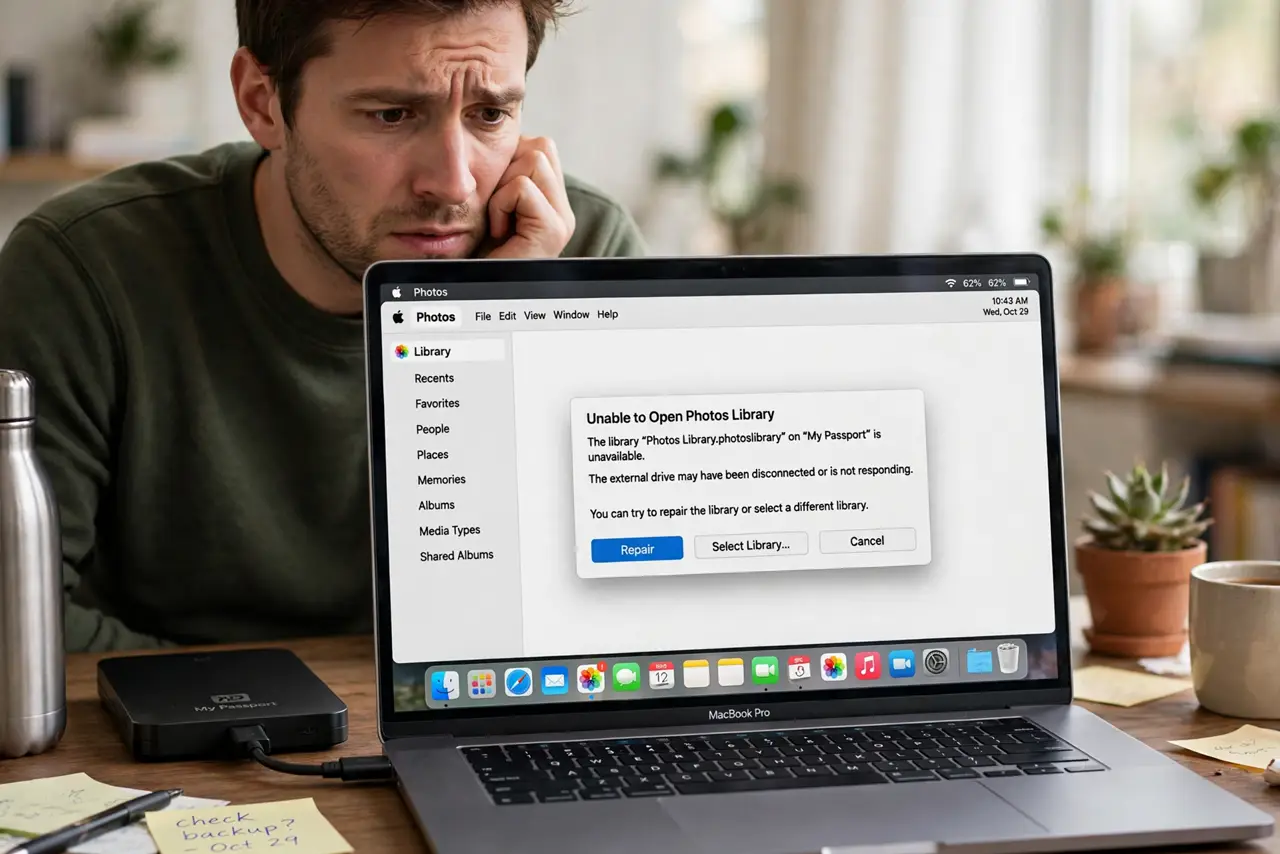
You moved your Photos library to a new drive to free space, and now Photos refuses to open it — errors about permissions, formats, or a library that 'can't be opened.' The move itself is fine; the library just needs the right conditions to be recognized. This guide gets it opening again.
TL;DR / Quick Fix
Quick fix: confirm the library sits on a Mac-formatted drive owned by your account, then hold Option while opening Photos and select the moved library. Designate it as the System Photo Library afterward. Never keep a working library on a network drive.
Follow these steps
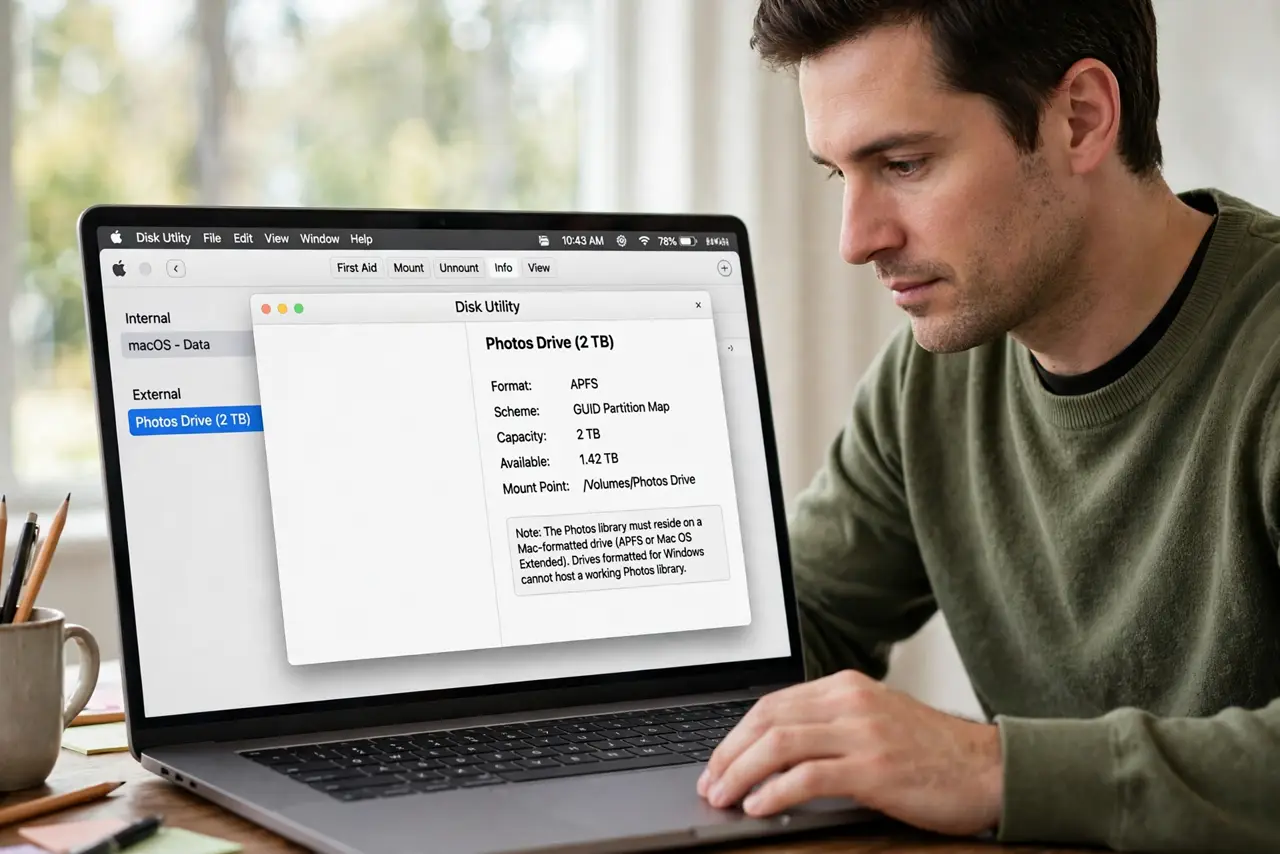
- Check the drive's format. The library must live on a Mac-formatted drive (APFS or Mac OS Extended). Drives formatted for Windows cannot host a working Photos library — copy it back to a Mac drive.
- Fix ownership and permissions. Select the library in Finder, press Command + I, and confirm your account owns it with read and write access. A library copied from another Mac often arrives owned by someone else.
- Open it with the Option key. Hold Option while launching Photos, then choose the moved library in the picker. This tells Photos exactly which library to use instead of guessing.
- Designate it as the System library. In Photos > Settings > General, choose 'Use as System Photo Library' for the moved library. iCloud features only work with the designated system library.
- Keep the drive connected and awake. If the library lives on an external drive, prevent the drive from sleeping during use. A drive that naps mid-session corrupts the library's expectations.
- Repair as a last resort. Hold Option + Command while opening Photos and choose Repair. Repair rebuilds the library database — slow, but it fixes a move that scrambled the index.
What NOT to do
- Do not keep the library on a Windows-formatted drive. It may seem to work, then corrupt — Mac format is a requirement, not a suggestion.
- Do not open the library over a network share. Photos libraries on network drives corrupt; keep the library on a directly connected drive.
- Do not delete the old library until the new one works. Keep both copies until the moved library opens, syncs, and shows every photo.
- Do not interrupt a Repair. Let it finish completely — stopping mid-repair leaves the database worse than before.
Frequently asked questions
Can I move my Photos library to an external drive?
Yes, if the drive is Mac-formatted and directly connected. Hold Option at launch to point Photos at the new location.
Why does Photos say the library is in use?
Another process or a second Photos window holds it. Quit Photos fully, wait a minute, and try again.
Will moving the library break iCloud Photos?
No, as long as you designate the moved library as the System Photo Library afterward.