Set a Mac Recovery Key
If you ever forget your Apple ID password and lose your trusted devices at the same time, Apple can lock you out of your own account — unless you set up a recovery key first. A recovery key is a 28-character code that proves you are you, no Apple ID password required. It takes two minutes to create and can save your digital life.
TL;DR / Quick Fix
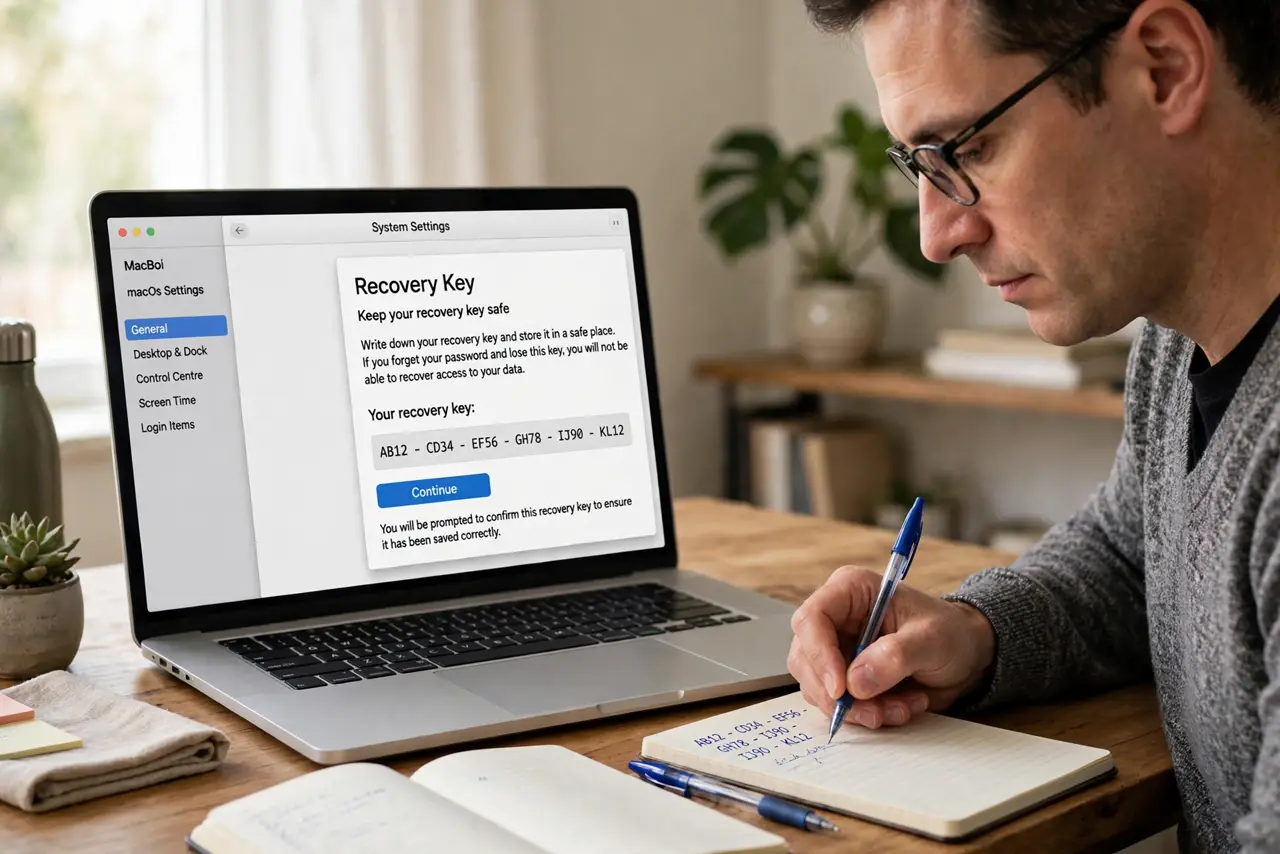
Quick fix: on your Mac go to System Settings, your Apple ID, Sign-In and Security, Account Recovery, and turn on Recovery Key. Write the 28-character code on paper and store it somewhere safe — not just on the Mac. That code plus your devices gets you back in.
Follow these steps
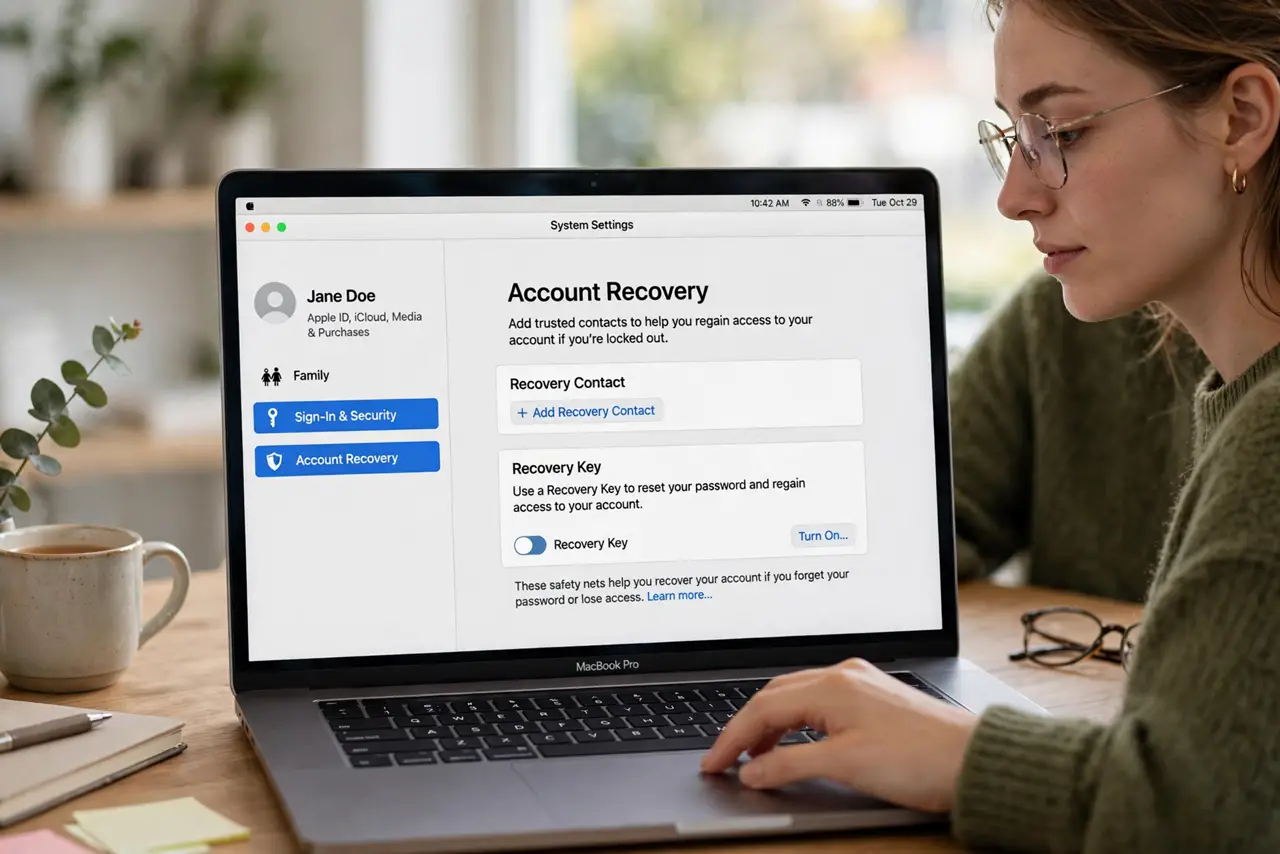
- Open Account Recovery settings. Go to System Settings, click your name at the top, then Sign-In and Security, then Account Recovery. This is where Apple keeps all the 'locked out' safety nets.
- Turn on Recovery Key. Click Manage next to Recovery Key and follow the prompts. Apple will generate a 28-character code — this replaces the standard account recovery process with one you control.
- Write the code on paper. Print it or hand-write it and store it somewhere physically safe — a fireproof box, a safe, or with trusted family. A code saved only on the Mac it protects is useless when that Mac is the problem.
- Confirm you understand the tradeoff. Apple will warn you: with a recovery key active, Apple Support cannot help you regain access without it. That is the point — nobody can social-engineer their way into your account either.
- Tell one trusted person where it is. If something happens to you, your family needs to know the code exists and where to find it. A recovery key nobody can locate helps nobody.
- Know what to do if you lose it. If the key is gone but you can still sign in, generate a new one immediately in the same settings. If you are already locked out without it, you face the standard recovery process — which is exactly what the key was meant to avoid.
What NOT to do
- Do not store the key only on the Mac. If the Mac dies or is stolen, the key dies with it — paper in a separate location is the rule.
- Do not photograph the key and leave it in your camera roll. Cloud photo libraries are exactly the kind of account this key protects — keep it offline.
- Do not share the key over text or email. Anyone with the code and your Apple ID can take over the account — treat it like a master password.
- Do not set it up and forget where you put it. An unfindable recovery key is worse than none, because it blocks Apple's normal help too.
Frequently asked questions
What is the difference between a recovery key and a recovery contact?
A recovery key is a code you keep; a recovery contact is a trusted person who can vouch for you. You can use both — the contact helps if you lose the code.
Can Apple reset my account if I lose the key?
No — that is the tradeoff. With a recovery key active, Apple cannot bypass it, which is why the paper copy matters so much.
Should everyone set a recovery key?
If losing your Apple ID would be catastrophic — photos, purchases, devices — yes. If you would rather keep Apple's support as a fallback, use a recovery contact instead.