Reinstall macOS, Keep Files
macOS is misbehaving deeply — strange crashes, settings that will not stick, updates that fail — and the nuclear option (erase everything) would take your files with it. There is a middle path: reinstalling macOS over your existing system replaces the operating system while leaving your user accounts, apps, and files in place. It is Apple's own repair escalation, and it works more often than people expect. Start from Recovery Mode and follow the safe sequence.
TL;DR / Quick Fix
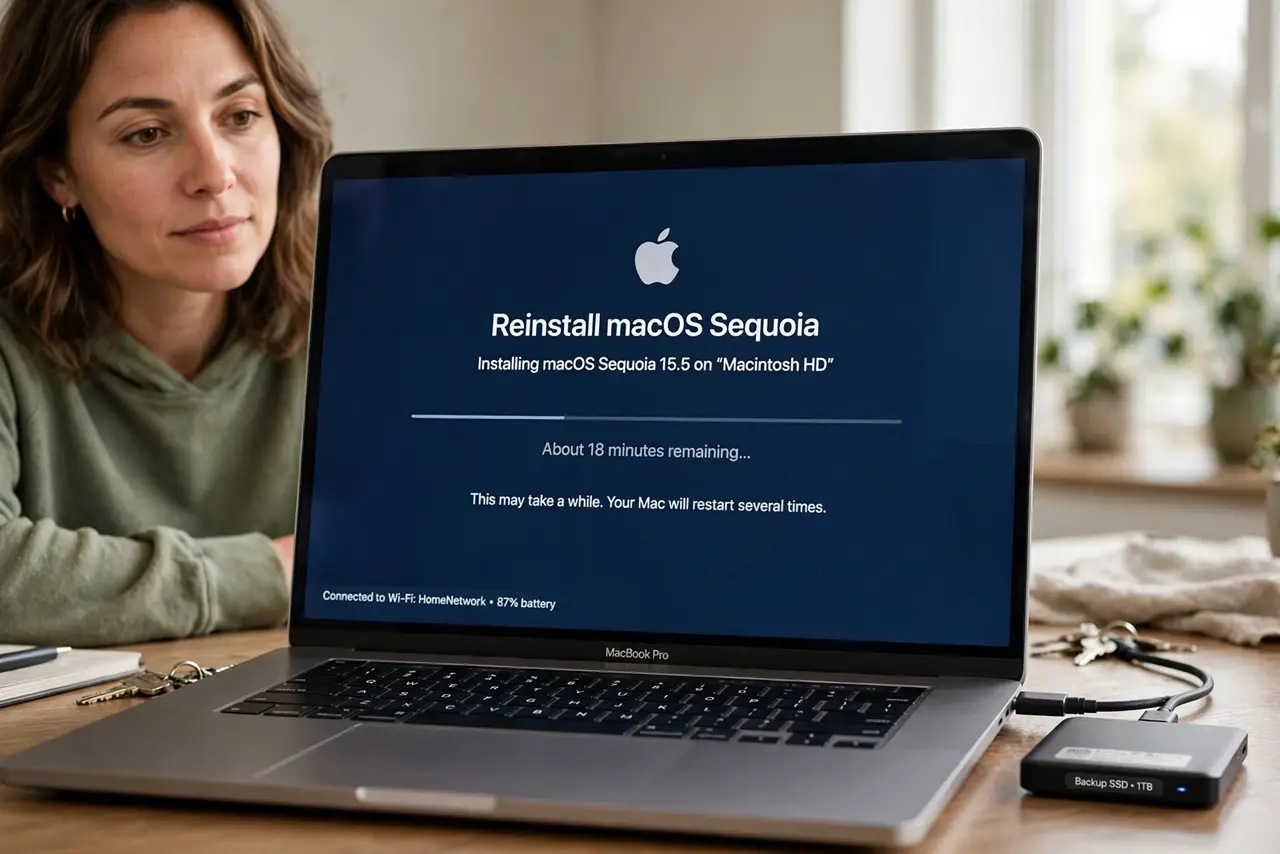
Quick fix: to reinstall macOS without losing files, back up first, restart into Recovery Mode, choose Reinstall macOS, and install over your current system — your user accounts and files stay in place. This fixes deep system problems while leaving data alone. Verify the backup before you start.
Follow these steps
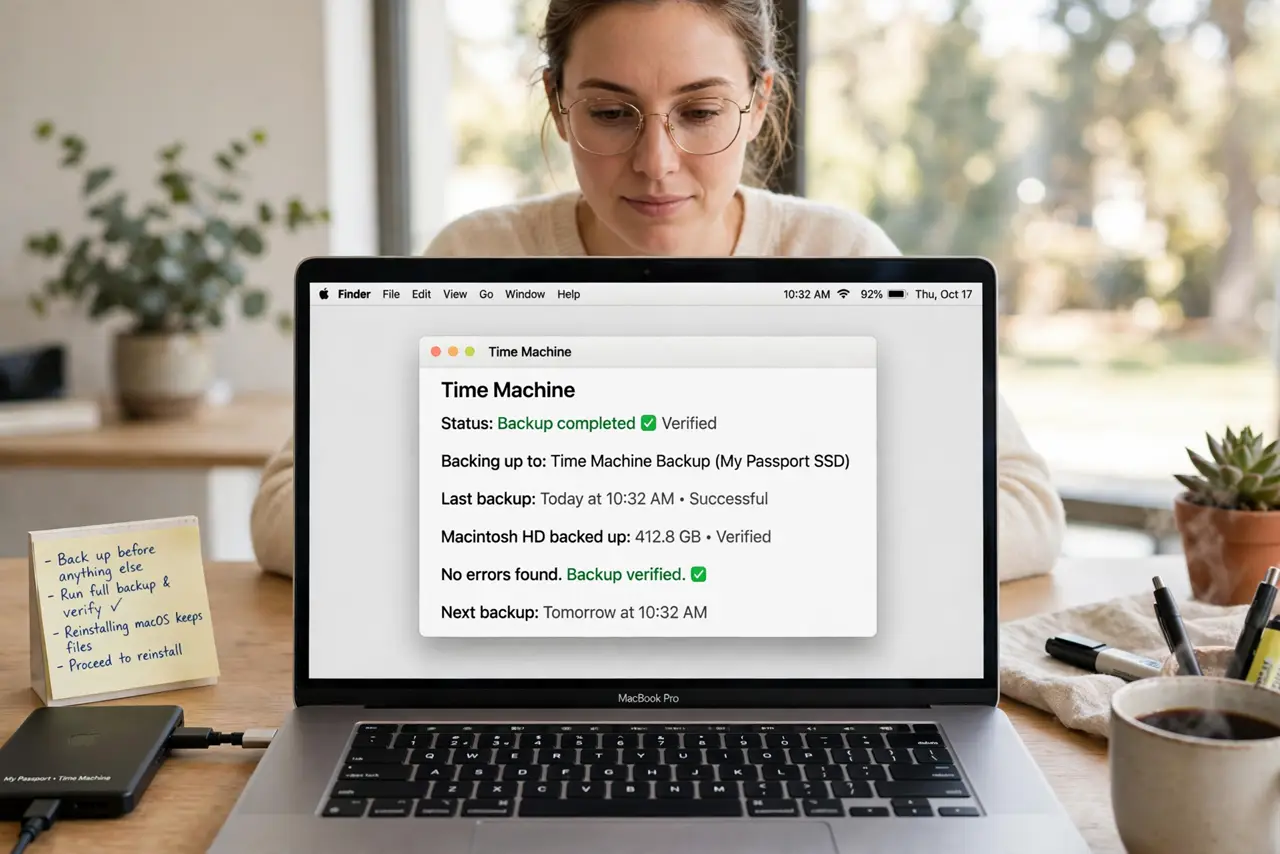
- Back up before anything else. Run a full backup (Time Machine or equivalent) and verify it completed. Reinstalling over the system preserves files by design, but 'by design' is not a backup — the backup is the backup.
- Restart into Recovery Mode. Apple silicon: shut down, press and hold power until startup options appear, choose Options. Intel: restart holding Command+R. Recovery is the safe workshop where the reinstall happens.
- Choose Reinstall macOS — not Disk Utility. In Recovery's main window, select 'Reinstall macOS' and continue. Do NOT choose Disk Utility's erase — that is the nuclear option. Reinstall targets the system volume only.
- Install onto your existing drive. When asked where to install, pick your current startup disk (usually 'Macintosh HD'). The installer replaces system files and leaves the Data volume — your files — untouched.
- Let it finish without interruption. The install takes a while with several restarts. Keep the Mac plugged into power and do not force it off mid-install — patience here prevents the exact disaster you are avoiding.
- Verify files and test the problem. After setup completes, check your documents open, then test the original misbehavior. If the deep problem persists, the cause lives in your user data or hardware — the system itself is now clean.
What NOT to do
- Do not choose Erase in Disk Utility 'to be thorough.' Erasing deletes everything — that is a different operation with a different name for a reason.
- Do not skip the backup because 'reinstall preserves files.' Preserves-by-design still fails occasionally — the backup is non-negotiable.
- Do not interrupt the installer. A forced shutdown mid-reinstall can leave the system unbootable — plug in power and wait.
- Do not reinstall to fix a hardware problem. Clicking drives, dead pixels, and swelling batteries are not software — reinstalling wastes an afternoon.
Frequently asked questions
How long does the reinstall take?
Typically 30–60 minutes plus downloads, depending on your Mac and connection. The several automatic restarts are normal — do not panic at a black screen.
Will I need my Apple ID and passwords?
Yes — have your Apple ID, Wi-Fi password, and Mac login password handy before starting. Recovery may ask for all three.
What if the problem survives the reinstall?
Then it lives in your user account, your apps, or the hardware. Next steps: test in a fresh user account, then consider the erase-and-restore path with your verified backup.