Reinstall macOS? How To
Something is deeply wrong — crashes, corruption, weirdness that survives restarts — and you suspect the system itself. Reinstalling macOS lays down a fresh copy of the operating system while leaving your files alone. It is the 'have you tried turning it off and on again' of last resorts, and it works more often than people expect.
TL;DR / Quick Fix
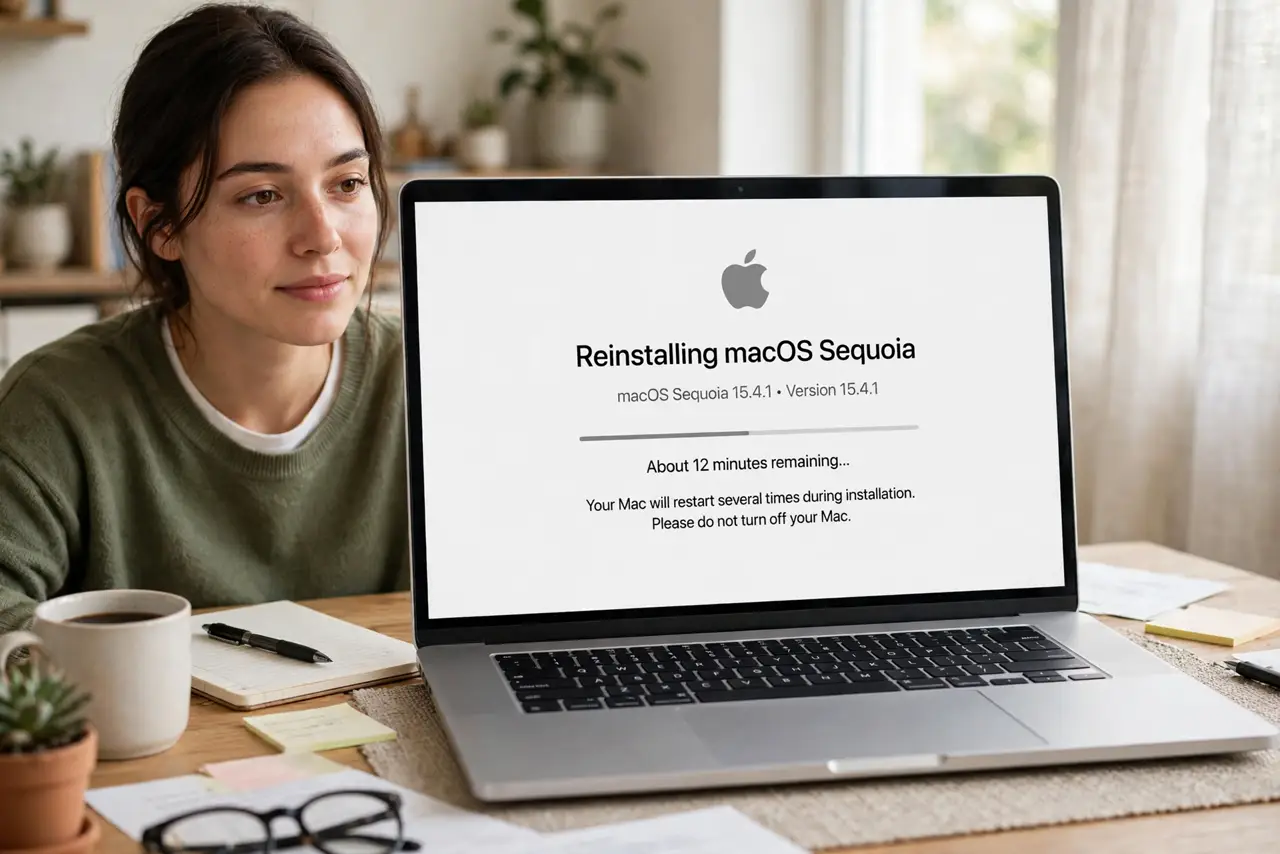
Quick fix: restart into macOS Recovery, choose Reinstall macOS, and let it download a fresh copy — your files stay put with this method. Back up first anyway, because anything can go wrong. A full erase-and-reinstall is the deeper option for stubborn problems or selling the Mac.
Follow these steps
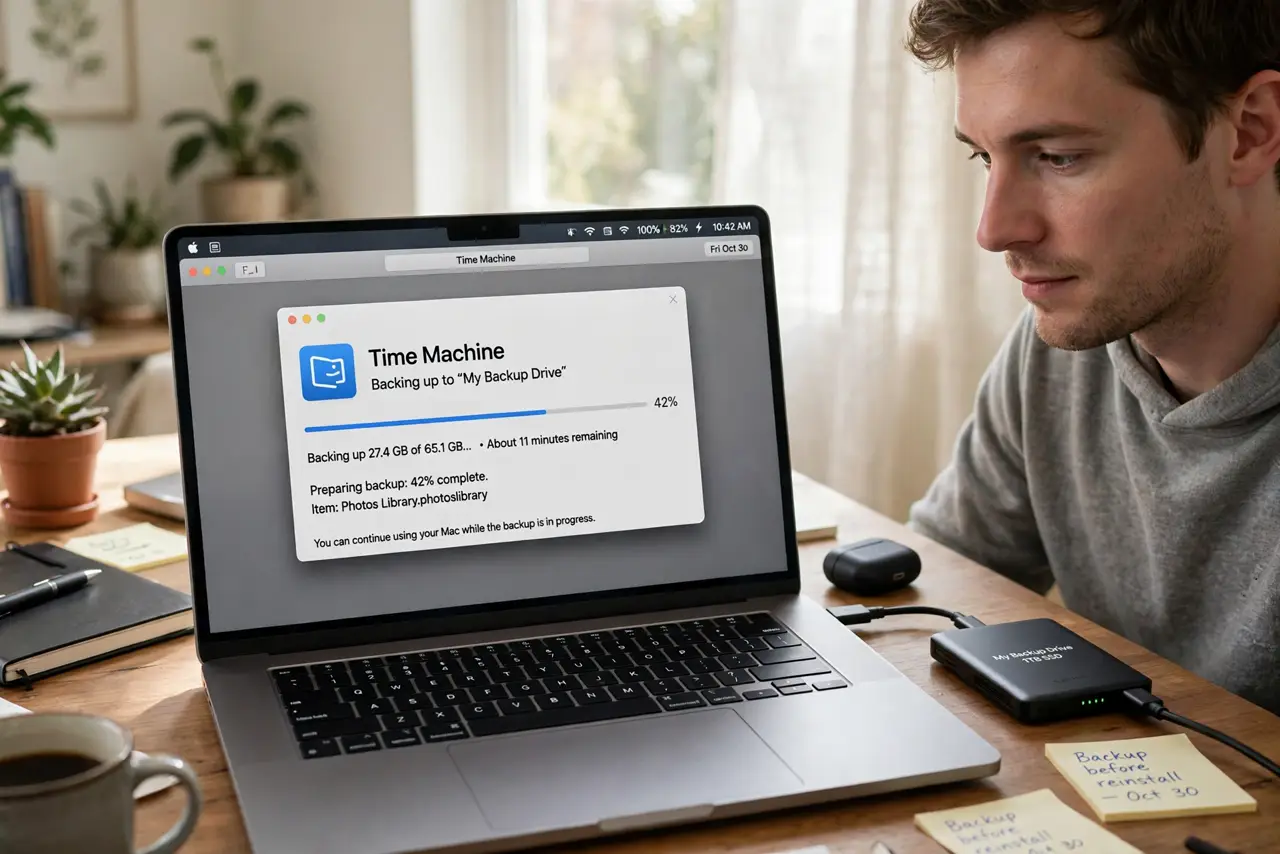
- Back up first, no exceptions. Run a Time Machine backup before touching Recovery. Reinstalls preserve data, but 'preserve' is a promise, not a guarantee.
- Enter macOS Recovery. Apple silicon: shut down, then press and hold power until options appear. Intel: restart holding Command-R.
- Choose Reinstall macOS. This downloads a fresh system and installs it over yours. Apps, files, and settings stay in place.
- Stay on power and Wi-Fi. The installer downloads gigabytes. A dead battery or dropped connection mid-install creates the exact mess you are fixing.
- Let it finish without interference. The Mac restarts several times with long progress bars. Walk away — interrupting an install is how systems get corrupted.
- Consider erase-and-install for deep problems. If the plain reinstall does not fix it, erase the disk in Disk Utility first, then reinstall — the nuclear option that fixes nearly everything software.
What NOT to do
- Do not reinstall to fix one misbehaving app. Delete and reinstall the app — reinstalling the whole OS for an app bug is surgery for a splinter.
- Do not skip the backup because 'files are preserved.' Preserved usually, guaranteed never — the backup is the insurance.
- Do not interrupt the installer. Power loss mid-install is one of the few ways to genuinely break a Mac — stay plugged in.
- Do not erase before trying the plain reinstall. Erasing is irreversible; the non-destructive reinstall fixes most system issues alone.
Frequently asked questions
Will I lose my files?
The standard reinstall preserves them. The erase-and-install variant deletes everything — know which one you chose before clicking.
How long does it take?
The download dominates — 30 minutes to a few hours depending on connection. The install itself is usually under an hour.
Do I need my Apple ID?
For downloading the installer, generally yes — the Mac verifies eligibility. Keep your credentials handy.