Smart Lists in Reminders?
Your Reminders app is filling up with grocery items, work tasks, and random ideas, and scrolling the whole pile is getting old. Smart Lists are saved filters that gather matching reminders automatically — everything tagged #errands, everything due today, everything flagged. You set the rules once and the list keeps itself current. Here is how to build them.
TL;DR / Quick Fix
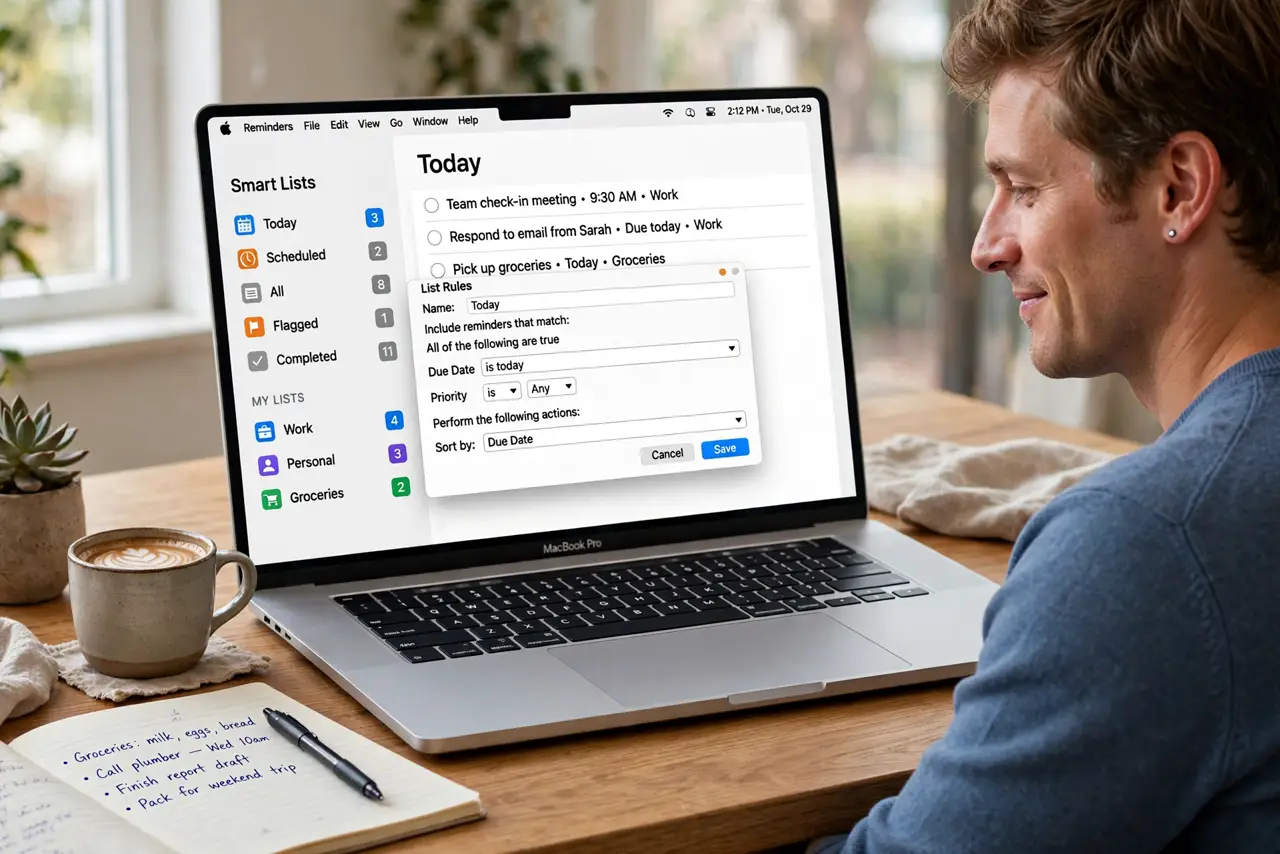
Quick fix: open Reminders, click Add List in the sidebar, choose Smart List, and set your filters — tags, dates, flags, or locations. Name it something clear like 'Today' or 'Errands.' Reminders matching the rules appear automatically, and new ones join as soon as they match.
Follow these steps
- Understand what a Smart List does. A Smart List is not a folder — it is a live filter over all your reminders. Anything matching your rules shows up there automatically, including reminders you add later. Delete the list and the reminders themselves stay safe.
- Create your first Smart List. In Reminders, click Add List at the bottom of the sidebar and choose Smart List. Pick your filters: tags, date, time, location, flag, or priority. Combine them with 'all' (AND) or 'any' (OR) logic.
- Use tags as the backbone. Tags like #groceries or #work make the most flexible filters. Tag reminders as you create them, then build Smart Lists around the tags — it beats sorting lists by hand every week.
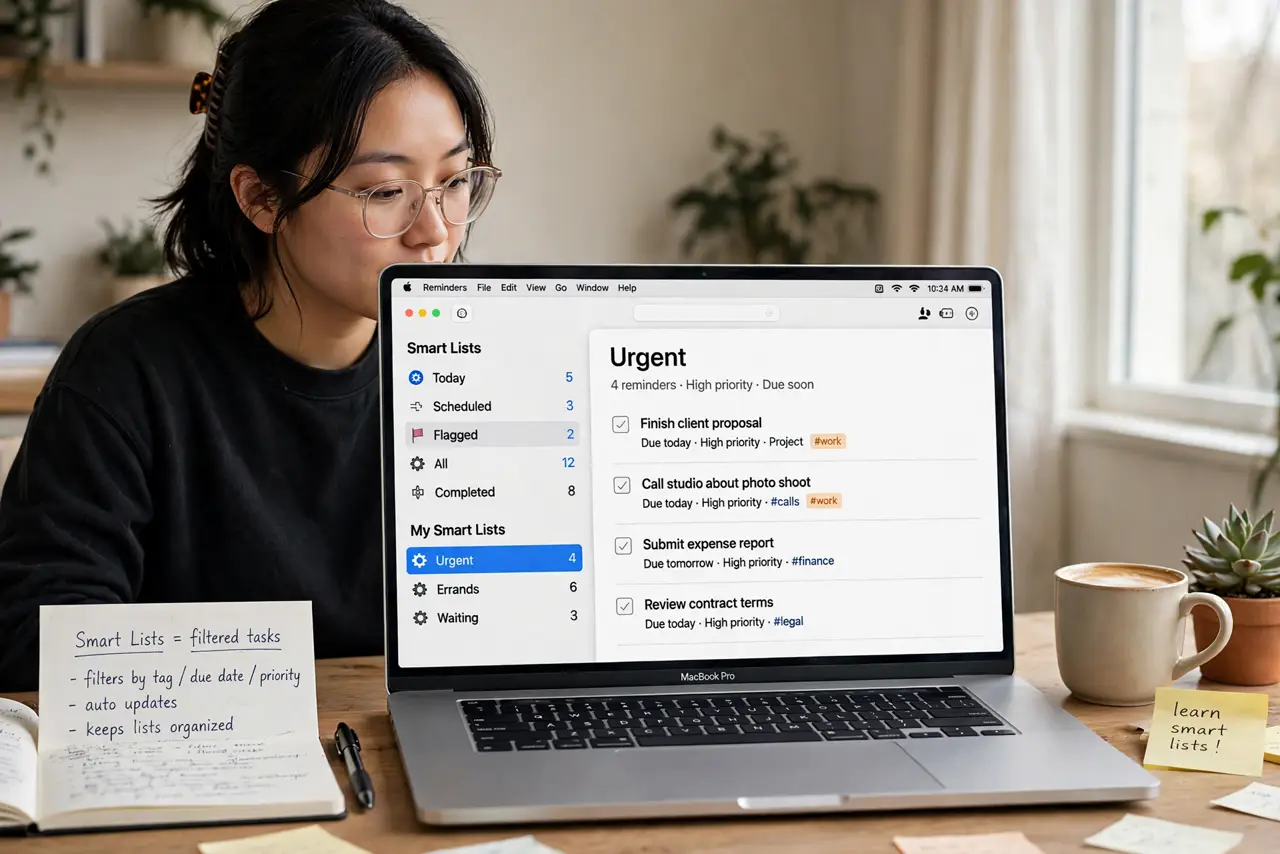
- Build the classics: Today, Flagged, Errands. A 'Due Today' list catches deadlines across every list. A 'Flagged' list surfaces your must-dos. A location-based list shows errands when you arrive at the store. These three cover most people.
- Edit or delete lists without fear. Right-click a Smart List to edit its rules, rename it, or delete it. Editing the rules never deletes reminders; deleting the list only removes the filter, not the tasks inside.
- Try templates for repeatable setups. If you rebuild similar list sets often — weekly reviews, trip packing — save the structure as a reusable starting point with our Reminders templates guide.
What NOT to do
- Do not confuse Smart Lists with regular lists. Moving a reminder INTO a Smart List does nothing — it appears there because it matches the rules, not because you filed it.
- Do not build overly clever filters. Ten conditions make a list nobody understands — two or three clear rules beat a logic puzzle.
- Do not forget tags need to exist first. A Smart List filtering for #urgent shows nothing until you actually tag reminders #urgent.
- Do not panic if a reminder vanishes from a Smart List. It just stopped matching the rules — check the original list; the reminder is still there.
Frequently asked questions
Why is my Smart List empty?
No reminders currently match your filters. Check the rules for typos in tags, and confirm the logic is 'any' vs 'all' as intended — 'all' with conflicting rules matches nothing.
Do Smart Lists sync to iPhone?
Yes — they sync through iCloud to iPhone and iPad automatically, rules included. Create on Mac, use everywhere.
Can I share a Smart List?
You can share the underlying reminders by sharing a regular list, but the Smart List filter itself is personal — each person builds their own view.