Revive a Dead Mac
You press the power button and get absolute nothing — no chime, no logo, no fan, a very expensive paperweight. Before despair (or a repair bill), work the power chain: most 'dead' Macs are really power-delivery problems — a failed charger, a tripped outlet, a deeply discharged battery — and the fixes are free. This guide goes from the outlet to the logic board in order, so you only pay for a repair when the free steps truly fail. If it powers on but will not boot, Recovery on Apple silicon is the next stop.

TL;DR / Quick Fix
Quick fix: a Mac that will not power on usually needs power troubleshooting first — try a different charger and outlet, then hold the power button ten seconds and try again. On Apple silicon, a long press can revive a deeply discharged machine. Still nothing means a hardware repair.
Follow these steps
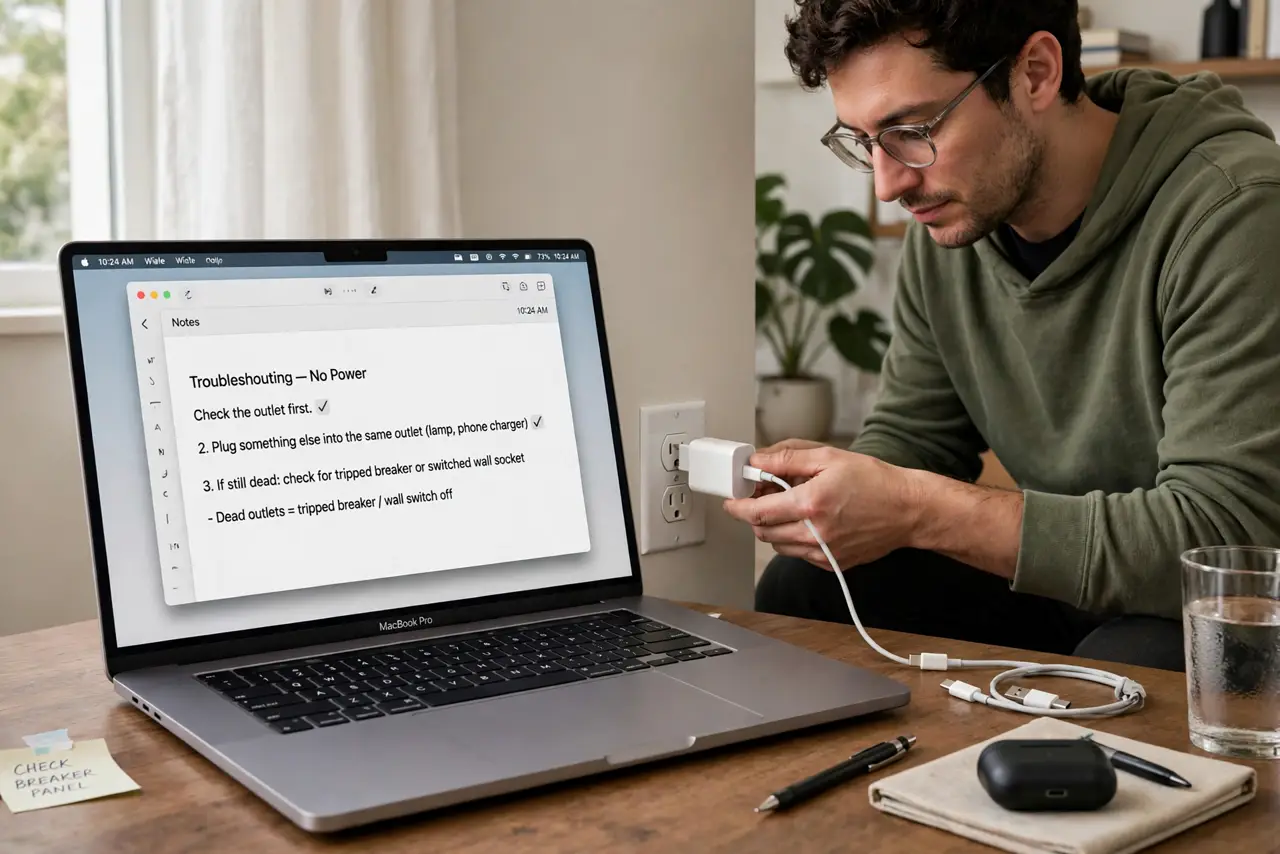
- Check the outlet first. Plug something else (a lamp, a phone charger) into the same outlet. Dead outlets — tripped breakers, switched wall sockets — cause more 'dead Mac' panics than any hardware failure.
- Try a different charger and cable. Borrow a known-good Apple charger with enough wattage. Frayed cables and dead bricks are common; the Mac cannot tell you the charger died — it just looks dead itself.
- Hold power for a full ten seconds. Press and hold the power button (or Touch ID button) for ten slow seconds, release, wait a few seconds, then press normally. This drains residual power and forces a clean power-on attempt.
- Disconnect everything. Unplug all docks, drives, monitors, and adapters — a shorted peripheral can hold the power system down. Try booting with only the charger connected.
- Let a deeply discharged Mac charge. A battery drained to absolute zero can need 15–30 minutes on the charger before it shows any sign of life. Plug in, walk away, come back — patience is a diagnostic step.
- Listen and look for any sign. Fan twitch, charging chime, faint screen glow, caps-lock light — any sign of life means power reaches the board and the problem is narrower. Total silence after all steps means professional repair.
What NOT to do
- Do not open the Mac yourself. Modern Macs have no user-serviceable internals — opening one voids coverage and risks the battery.
- Do not keep force-restarting a truly dead machine. Repeated attempts on a hardware fault change nothing — work the checklist once, carefully.
- Do not use a sketchy third-party charger for testing. A bad charger can damage a healthy Mac — test with genuine or certified power only.
- Do not assume your data is gone. A dead logic board does not mean dead storage — Apple silicon storage needs professional recovery, but 'will not power on' is not 'data destroyed'.
Frequently asked questions
How do I know it is the charger vs the Mac?
The swap test decides: known-good charger plus known-good outlet and still nothing — the Mac is the problem. Any sign of life with the swap — the charger was.
Will Apple revive it for free?
If under warranty or AppleCare, likely yes. Out of warranty, diagnostics usually have a fee — but the free steps in this guide cost nothing to try first.
Should I try SMC or NVRAM resets?
On Apple silicon there is no SMC reset — the ten-second hold covers it. On Intel, an SMC reset is worth trying; NVRAM will not help a machine with zero power.