Safari Extensions Disappeared? Fix It
After a macOS update your Safari extensions are gone: no icons in the toolbar, nothing in settings, as if you never installed them. Updates sometimes disable extensions or move their settings. This guide walks you through finding them and turning them back on.
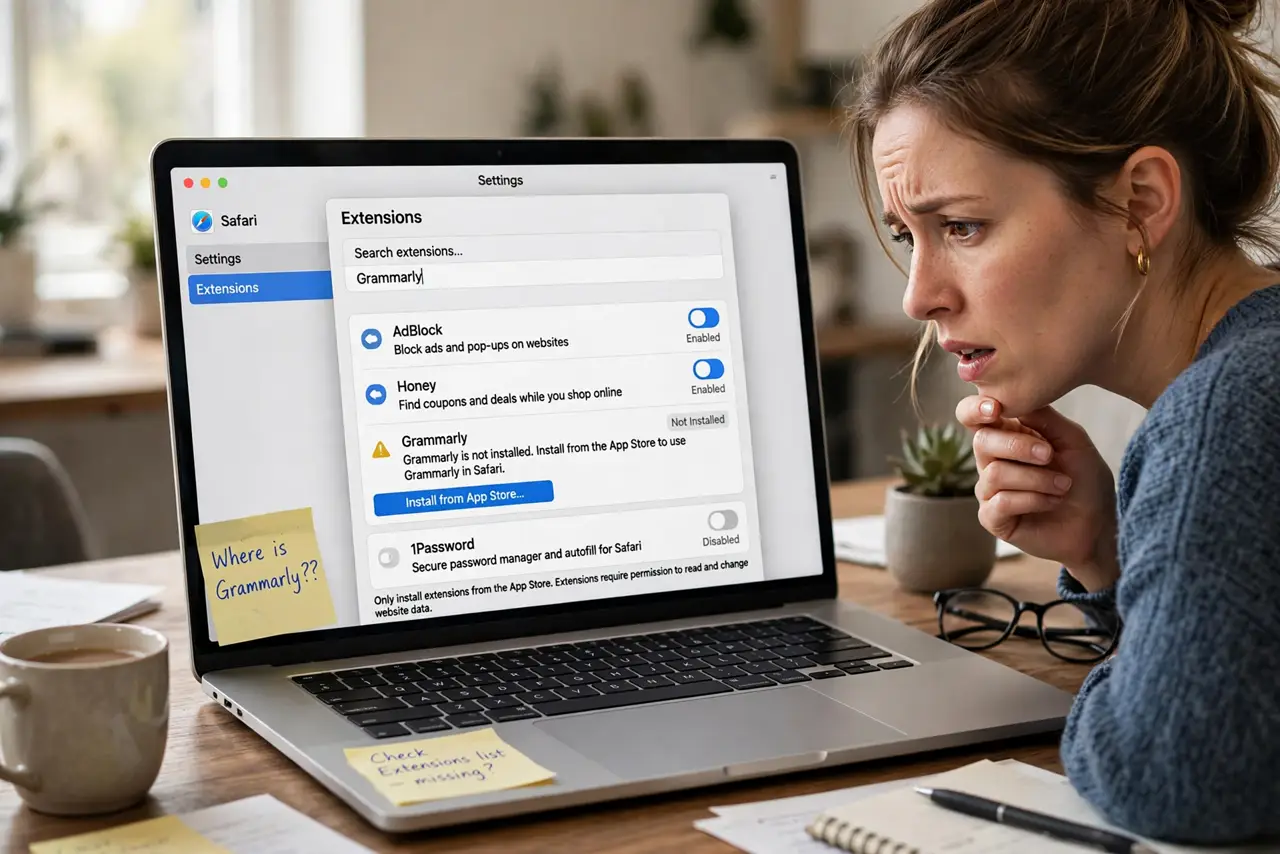
TL;DR / Quick Fix
Quick fix: open Safari settings, go to the Extensions tab, and re-check the boxes for your extensions. If they are missing entirely, reopen each extension's app once from Applications, then fully restart Safari and carefully check the toolbar customize menu.
Follow these steps
- Look in Safari's Extensions settings. Open Safari, go to Settings, then Extensions. Updated extensions are often just unchecked rather than deleted, so tick the boxes to bring them back.
- Reopen each extension's app. Many Safari extensions are apps in disguise. Open each one from Applications once, which re-registers it with Safari, then check the Extensions tab again.
- Check the toolbar customize menu. If the extension is enabled but its icon is missing, right-click the toolbar and choose Customize Toolbar. Drag the icon back into place.
- Update the extensions from the App Store. Open the App Store and install any pending updates. An extension built for the old macOS may stay hidden until its update arrives.
- Test whether reloads are related. If your Safari tabs keep reloading too, a single broken extension may cause both problems. Disable all extensions and re-enable them one by one.
- Remove and reinstall the stubborn one. Delete the extension app, restart Safari, then reinstall it fresh from the App Store. A clean reinstall fixes corrupted extension registrations.
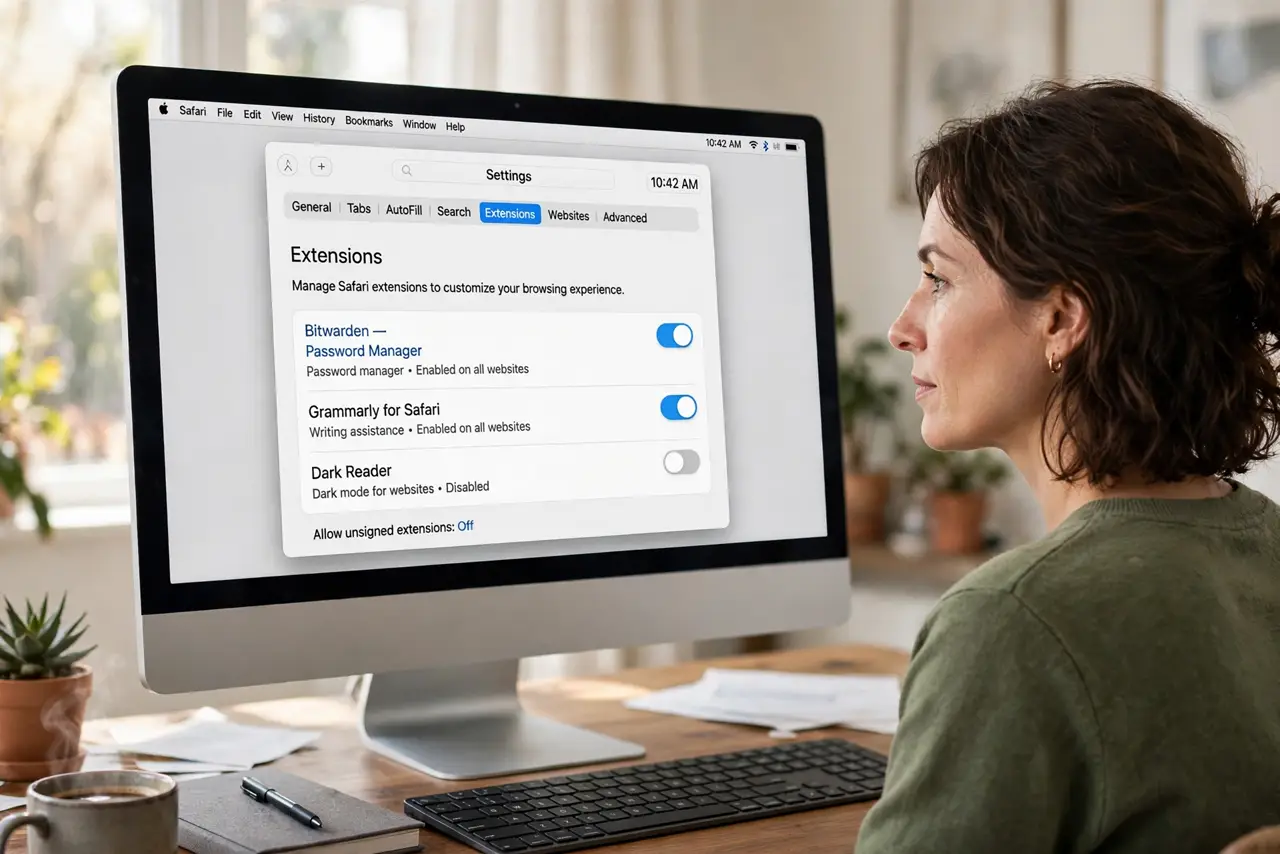
What NOT to do
- Do not download extensions from random websites. Stick to the App Store or the developer's official site to avoid malware posing as helpers.
- Do not enable every extension you ever installed. Each one slows Safari and adds failure points, so keep only the ones you use.
- Do not grant an extension more permissions than it needs. A coupon extension does not need to read your banking pages.
- Do not assume the update deleted your data. Extension settings usually survive; only the enabled state or registration gets lost.
Frequently asked questions
Why do Safari extensions vanish after updates?
Updates can invalidate an extension's registration or disable it for compatibility. Reopening the app re-registers it.
Where did the extension icon go?
It may be enabled but removed from the toolbar. Customize the toolbar to drag it back.
Can I use Chrome extensions in Safari?
No. Safari uses its own extension format, so you need the Safari version from the App Store.