Let Safari Highlight Key Info
Long pages bury the useful bits — the hotel address, the phone number, the summary — under paragraphs of filler. Safari's Highlights feature detects key information on a page and surfaces it in a clean panel: addresses, links, summaries, even music and video. This guide shows where to find it and how to use it.
TL;DR / Quick Fix
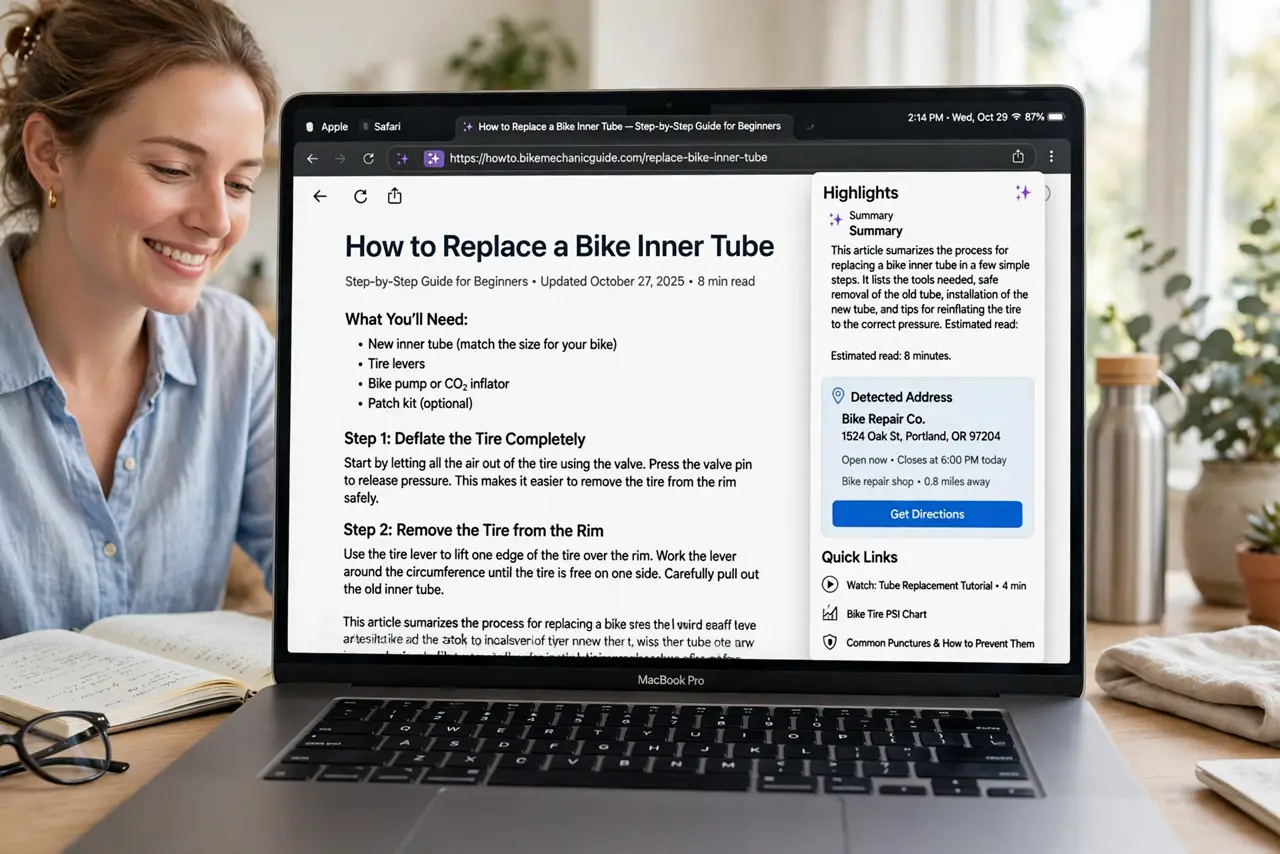
Quick fix: in Safari, look for the Highlights icon in the address bar — it appears when Safari detects key info. Click it to see a clean panel with the page's summary, detected addresses, phone numbers, and links. Click any item to act on it directly.
Follow these steps
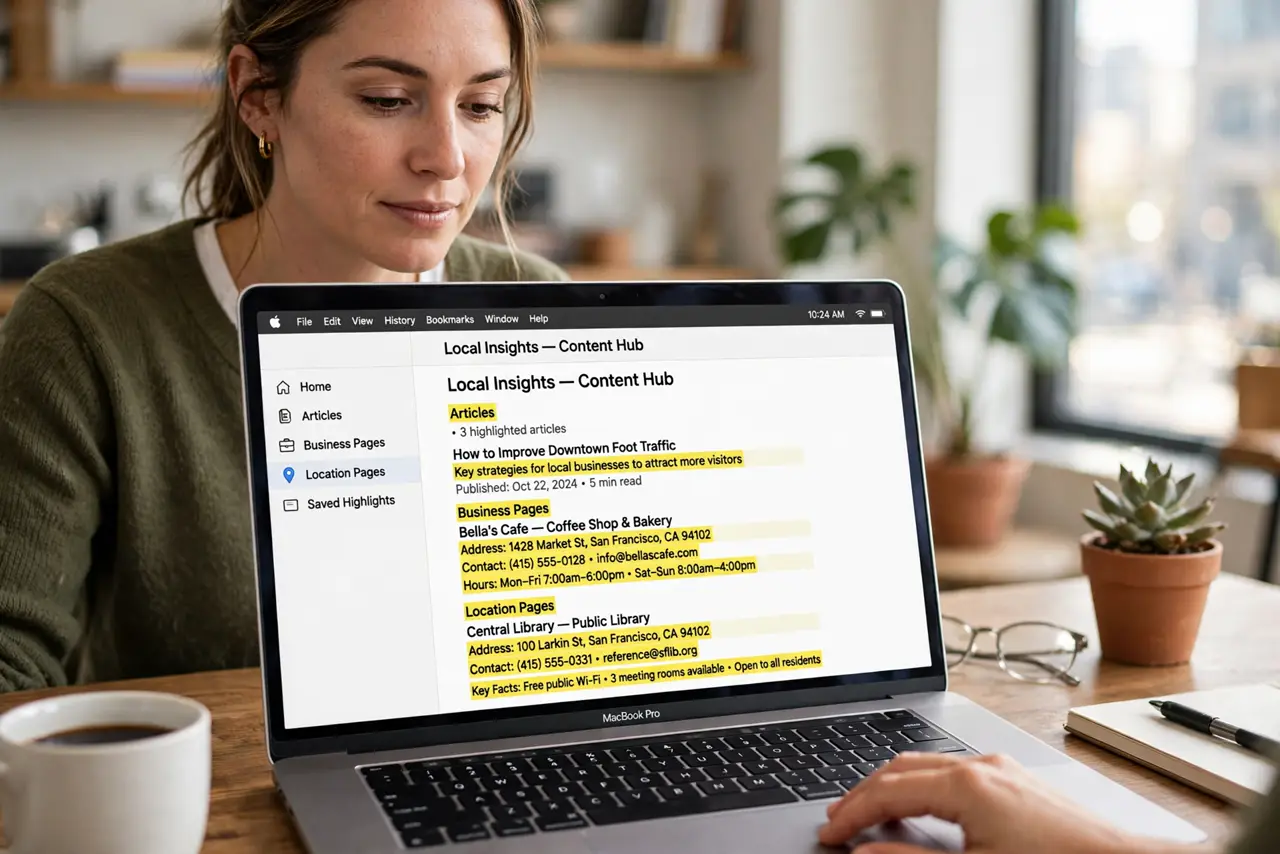
- Open a content-rich page. Highlights shines on articles, business pages, and location pages — anywhere with addresses, contacts, or key facts buried in text.
- Look for the Highlights icon. When Safari detects highlightable information, an icon appears in the address bar. No icon means the page has nothing to highlight.
- Click to open the Highlights panel. The panel shows what Safari found: a page summary, people, music, locations, and key links — each as a tappable card.
- Act on items directly. Tap an address to open Maps, a phone number to call, a link to jump to it. Highlights turns buried details into one-tap actions.
- Read the summary first. For long articles, the summary card gives you the gist in seconds — decide whether the full read is worth your time.
- Know it is automatic. There is nothing to configure. Safari analyzes pages on-device as you browse and offers Highlights wherever it finds something useful.
What NOT to do
- Do not expect Highlights on every page. Simple or sparse pages have nothing to detect — the icon only appears where it helps.
- Do not treat the summary as the full story. It is a gist for triage; important decisions still deserve the actual article.
- Do not confuse Highlights with Reader mode. Reader reformats the article; Highlights extracts the key facts into cards.
- Do not worry about privacy here. The page analysis happens on your device, not on a server.
Frequently asked questions
Which pages get Highlights?
Pages with detectable entities — addresses, contacts, summaries, media. News articles, business listings, and location pages are the sweet spots.
Can I turn Highlights off?
There is no global off switch to hunt for — it is a passive feature that only appears when useful. Ignoring the icon is the off switch.
Does it work on iPhone too?
Yes — Safari on iPhone offers the same Highlights in the address bar on supported pages.