Mac Safari Home Page Changed? Restore It Fast
Safari now opens a page you did not choose, and it feels like someone changed your browser. Usually an extension or a changed setting did it. Reset the home page, check extensions, and confirm the change sticks.
TL;DR / Quick Fix
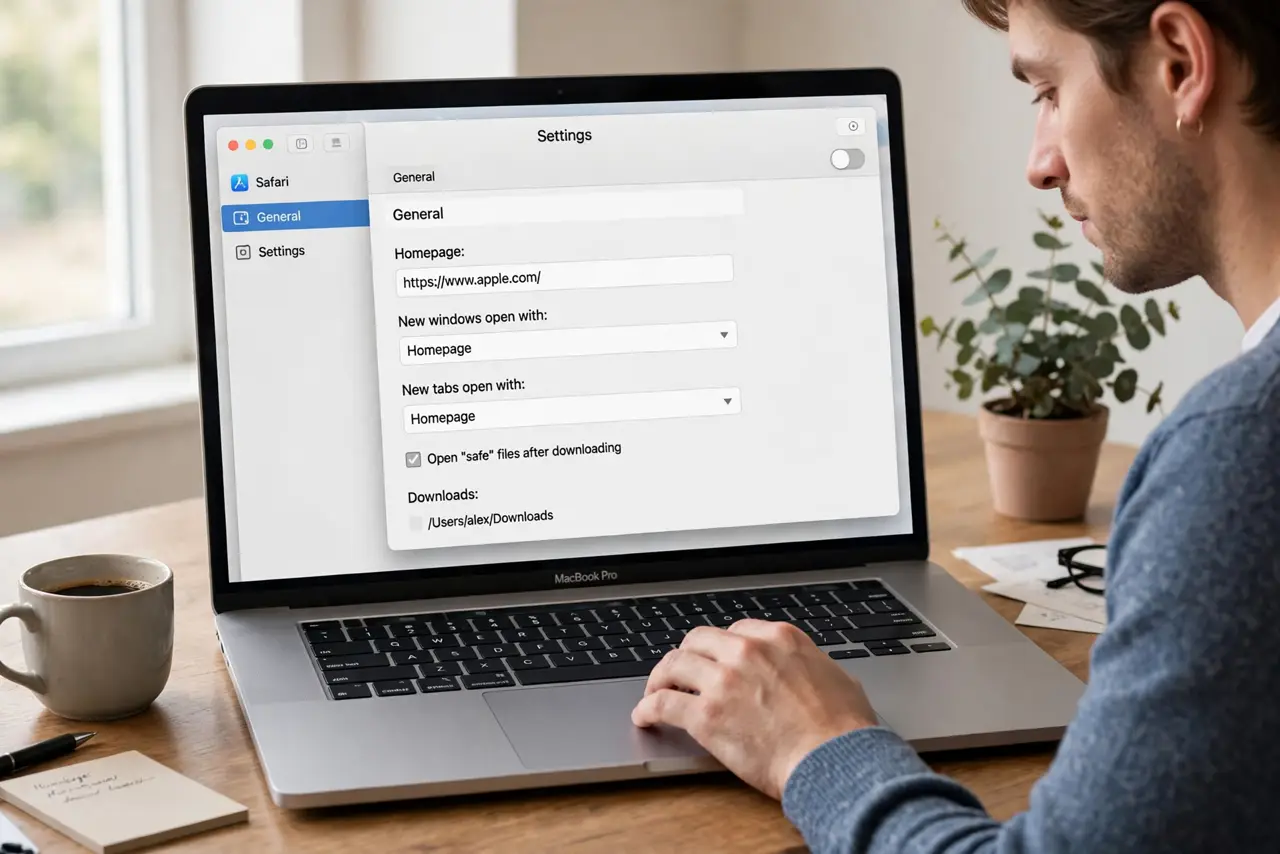
Quick fix: open Safari, then Settings, then General, and set the home page to the page you want. Check Extensions for anything unfamiliar, turn it off, then quit and reopen Safari. Then test the fix for a full day before changing anything else.
Follow these steps
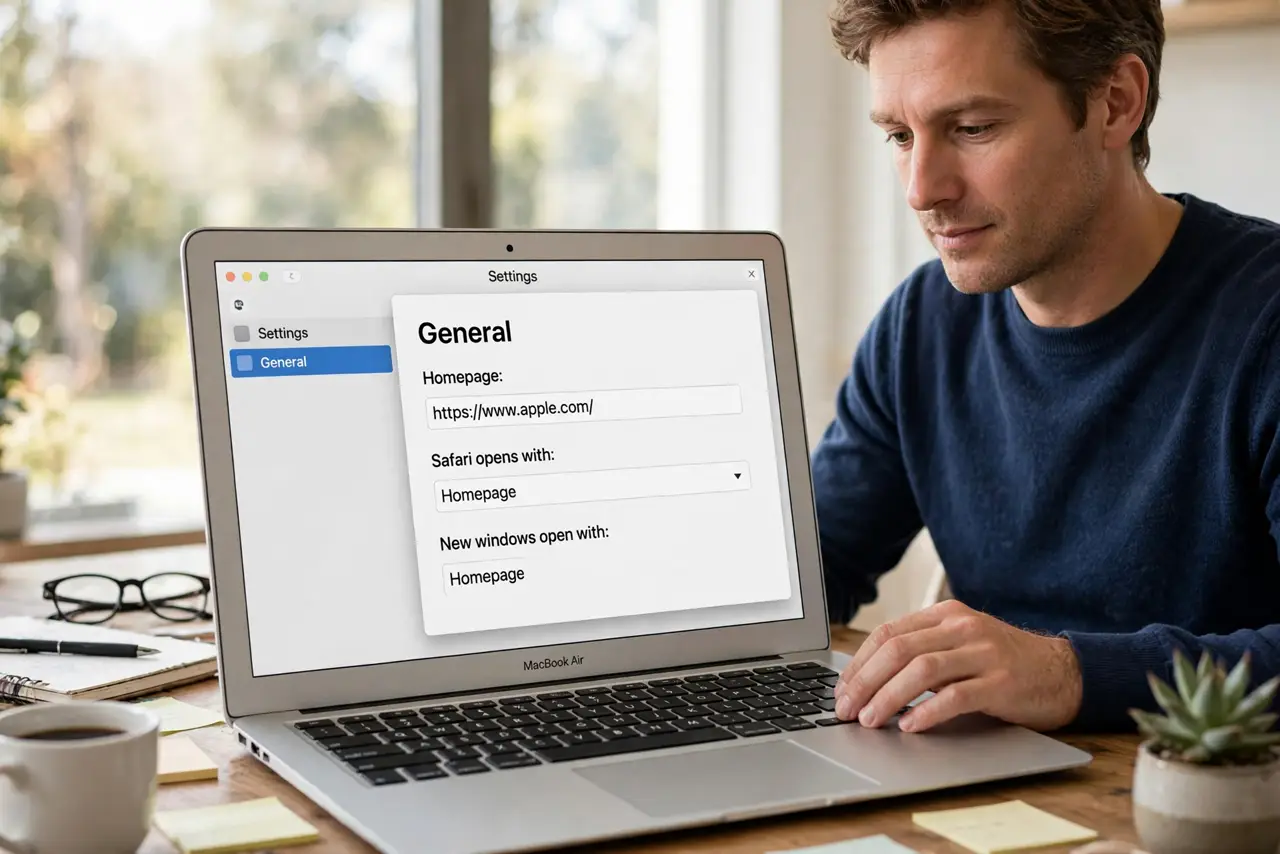
- Set the home page you want. Open Safari, then Settings, then General, and type the home page address you want in the Homepage field. Use a page you trust and can recognize.
- Check the new windows setting. In the same General pane, check what Safari opens with for new windows and new tabs. Set both to match the home page behavior you expect.
- Review installed extensions. Open Safari, then Settings, then Extensions, and look for anything you do not recognize. Turn off unfamiliar extensions one at a time and test.
- Remove suspicious extensions. If an extension keeps changing the home page, uninstall it instead of just turning it off. Then reset the home page again and test.
- Quit and reopen Safari. Quit Safari fully, then reopen it and check the start page. If the unwanted page returns, an extension or profile is still changing it.
- Check for unwanted profiles. Open System Settings, then Privacy and Security, then Profiles, if present, and look for profiles you did not install. Remove only profiles you are sure you did not intend.
What NOT to do
- Do not keep using the unwanted start page. Some start pages push ads or track searches, so reset it instead of accepting it.
- Do not install a cleaner tool to fix the home page. Safari settings and extensions are enough, and extra tools can add new problems.
- Do not click Allow on every extension prompt. An extension you approve casually can change start pages and search settings.
- Do not ignore a home page that keeps changing back. That persistence means an extension or profile is still active and needs removal.
Frequently asked questions
Why did my home page change?
Usually an extension changed it, or a setting changed during an install. Resetting it and removing the extension fixes most cases.
Is a changed home page dangerous?
It can be. Some unwanted pages push ads or misleading search results, so do not trust the new page until you check it.
What if the page changes back every time?
An extension or profile is resetting it. Remove the suspect extension or profile, then set the home page again.