Mac Screen Flickering or Wrong Resolution? Fix It
A flickering screen or text that suddenly looks huge or blurry is distracting, but it is often a setting that changed after an update, or a loose cable on an external display. Check the simple causes before worrying about the screen itself.
TL;DR / Quick Fix
Quick fix: Restart the Mac and note when the flicker happens. Check the display resolution. Check the refresh rate. Check the cable and ports on an external display. Test with only the built-in display. Update macOS and check the app. Reset display settings to a known good state.
Follow these steps
- Restart the Mac and note when the flicker happens. Restart first, then watch whether the flicker happens everywhere or only in one app or on an external display. Flicker in one app points to that app; flicker everywhere points to display settings or hardware.
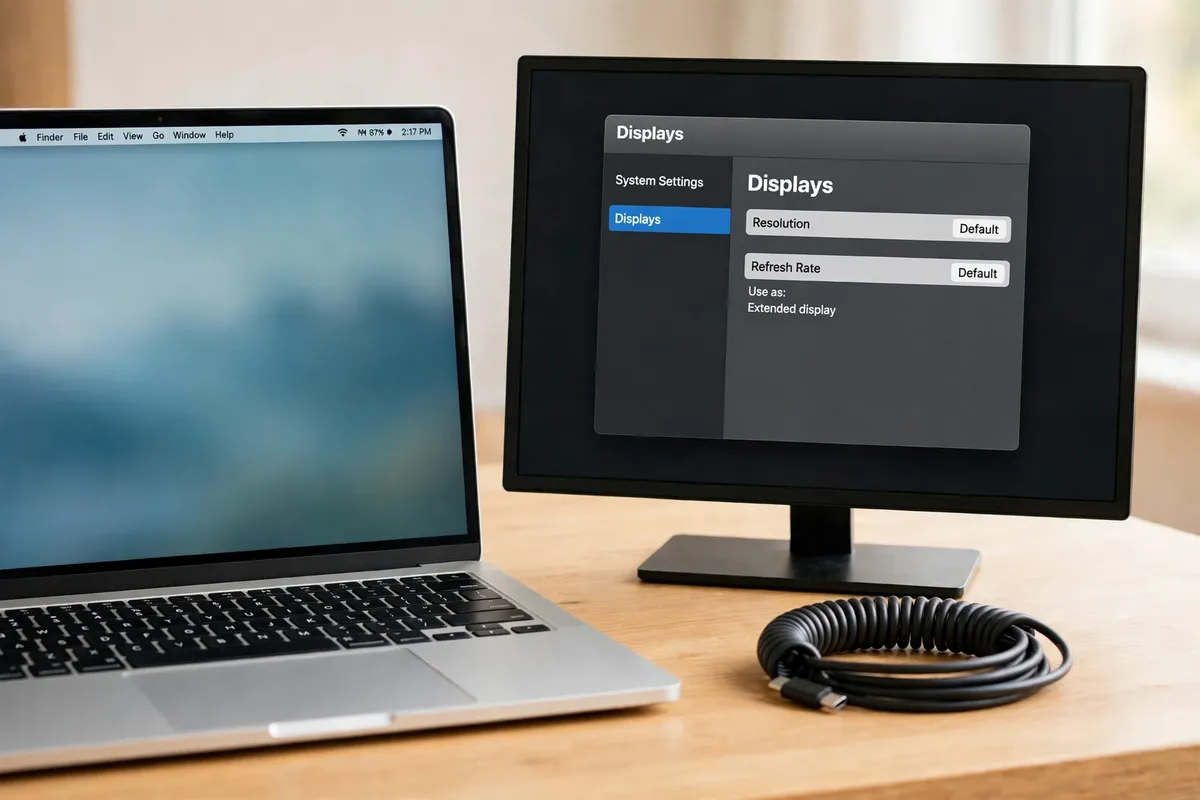
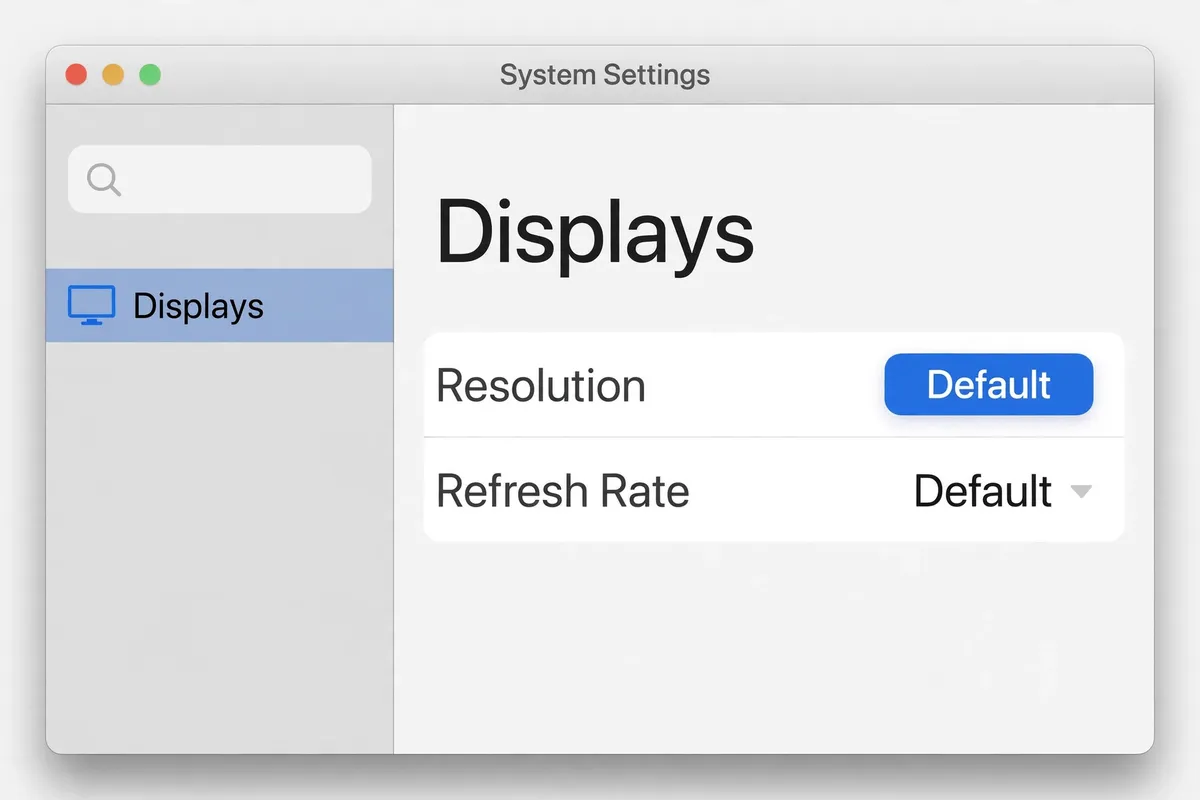
- Check the display resolution. Open System Settings, then Displays, and choose the recommended or default resolution. A non-native resolution can look blurry or stretched, especially on an external monitor.
- Check the refresh rate. In the same Displays settings, look at the refresh rate option. Set it to the standard rate for your display, and avoid an unusually high rate that the monitor does not support well, which can cause flicker.
- Check the cable and ports on an external display. Unplug the display cable at both ends, check for bent pins or damage, plug it back in firmly, and try a different port or cable if you have one. A loose or damaged cable is a very common cause of flicker.
- Test with only the built-in display. On a laptop, disconnect the external display and use the built-in screen alone. If the flicker stops, the external display, cable, or adapter is the problem; if it continues, the Mac itself needs attention.
- Update macOS and check the app. Install any macOS updates, and update the app if flicker happens only there. Graphics fixes often arrive in updates, and an outdated app can flicker after a system upgrade.
- Reset display settings to a known good state. Remove any custom display profiles or third-party display tools you installed, and return to the default resolution and refresh rate. If the screen is now stable, reintroduce changes one at a time.
What NOT to do
- Do not open the Mac or the monitor to fix flicker. Display repairs involve fragile parts and high-voltage components in some screens.
- Do not keep using a damaged cable or adapter. It can cause intermittent faults that look like a failing screen.
- Do not set a resolution or refresh rate far beyond what your display supports. If the screen goes black, wait for it to revert, or restart in safe mode.
If the screen is steady at the default resolution with a good cable, the problem is solved. If flicker continues on the built-in display at default settings, a repair check is the next step.
Frequently asked questions
What is the quickest fix in this guide?
Restart the Mac and note when the flicker happens.
What should I avoid doing?
Do not open the Mac or the monitor to fix flicker.
What do I check after I finish?
Reset display settings to a known good state.