Fix a Blurry Mac Screen Resolution
Text that looks fuzzy on a Mac, especially on an external display, usually means the Mac is using a resolution the display does not handle well. The display itself is rarely broken. Check the resolution setting first, then the cable and connection.
TL;DR / Quick Fix
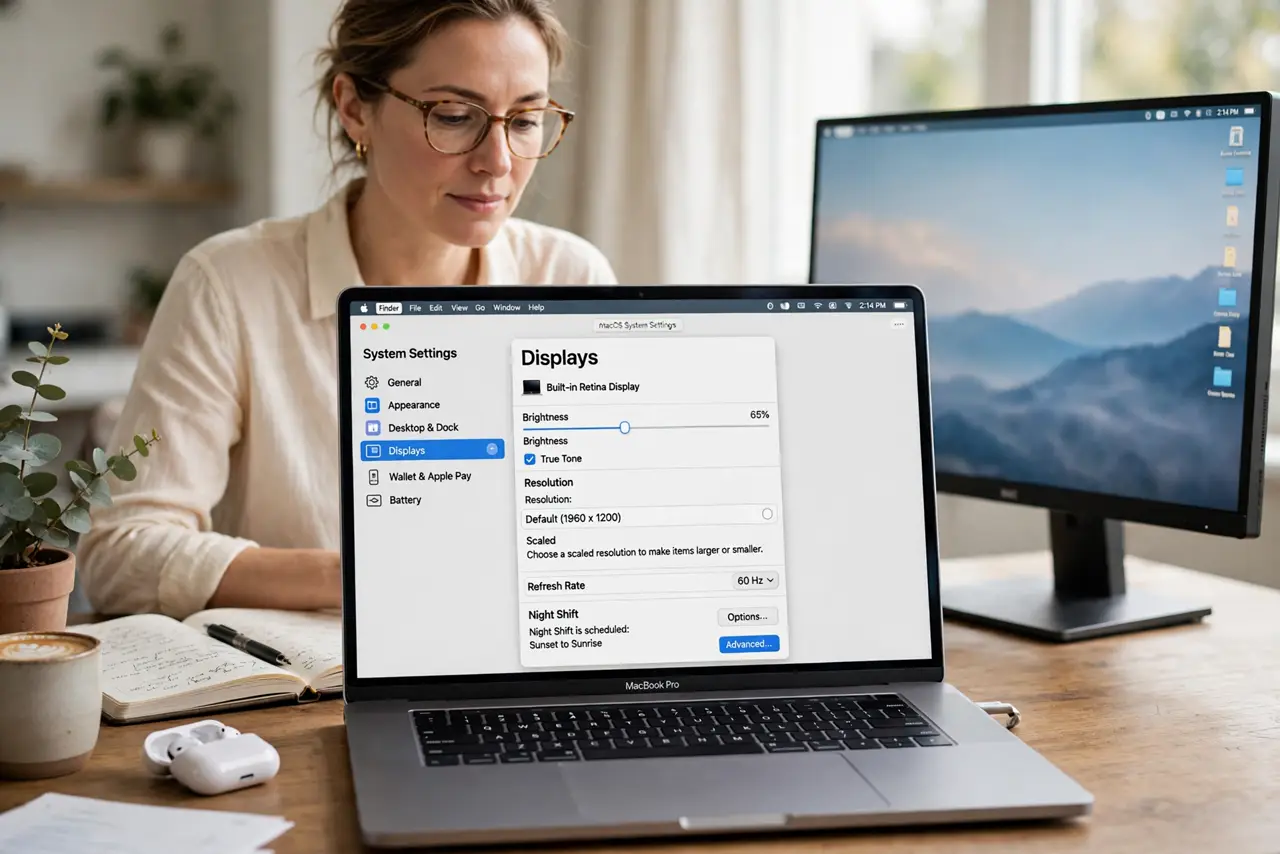
Quick fix: open System Settings, then Displays, and choose the Default resolution for the display. If text is still blurry, try one scaled option at a time, check that the cable is firmly seated, and test the display without any adapter in between.
Follow these steps
- Open Displays in System Settings. Click the Apple menu, then System Settings, then Displays. Select the blurry display at the top if you have more than one connected.
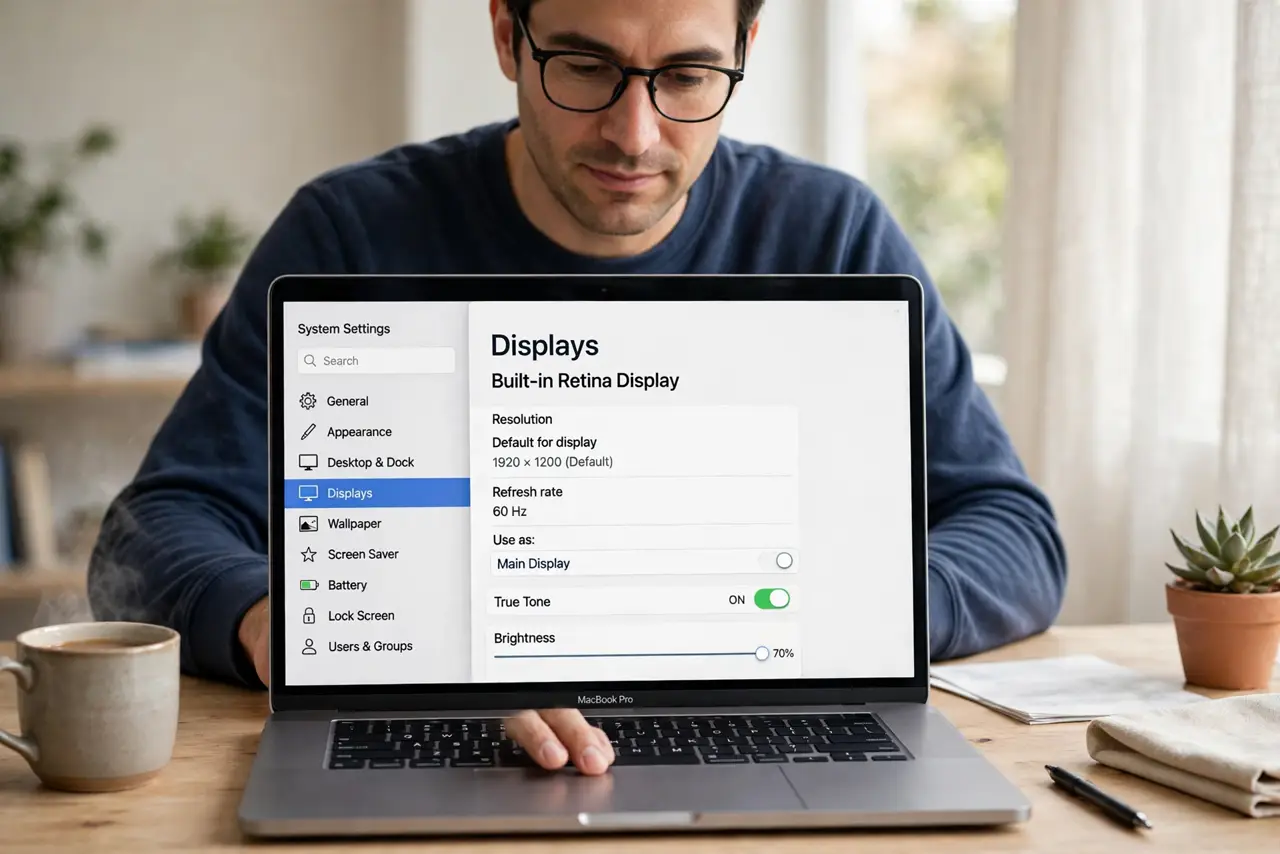
- Choose Default for the display. Select Default for display resolution. This is the sharpest setting for most Apple displays and for many external displays too.
- Try one scaled option at a time. If Default looks too large or too small, try the scaled options one at a time and read the same paragraph of text after each change. Pick the sharpest option that still gives you enough room.
- Check the cable and adapter. Unplug the display cable and plug it back in firmly at both ends. If you use an adapter or dock, test the display with a direct cable if you can.
- Test the display on its own. Disconnect other displays and test the blurry one alone. If it sharpens, the problem may be how the Mac splits the signal between displays.
- Restart the Mac after changing displays. Restart with the display connected and powered on. A fresh start lets the Mac re-read the display's preferred resolution cleanly.
What NOT to do
- Do not pick the highest resolution number by habit. The sharpest setting is the one that matches the display, not the largest number on the list.
- Do not buy a new display first. Test Default resolution, the cable, and a direct connection before concluding the display is faulty.
- Do not use a cheap adapter as the permanent fix. A poor adapter can force a blurry resolution even when the display itself is fine.
- Do not change text size in every app to compensate. Fix the display resolution once, so all apps look sharp together.
Frequently asked questions
Why is only the external display blurry?
External displays report their preferred resolution differently, so the Mac may pick a scaled option that looks fuzzy while the built-in display stays sharp.
Does the cable really affect sharpness?
Yes, especially with adapters. A loose, damaged, or low-quality cable can force the Mac to use a lower or mismatched resolution.
What if Default looks too big?
Try the scaled options one at a time. The sharpest comfortable size is better than a larger workspace that hurts your eyes.