Screen Sharing Asks Permission Every Time
Screen sharing that asks every single time is usually working as a safety feature, not failing. The permission resets when the viewer, the setting, or the approval method changes, so a one-time approval never sticks.
TL;DR / Quick Fix
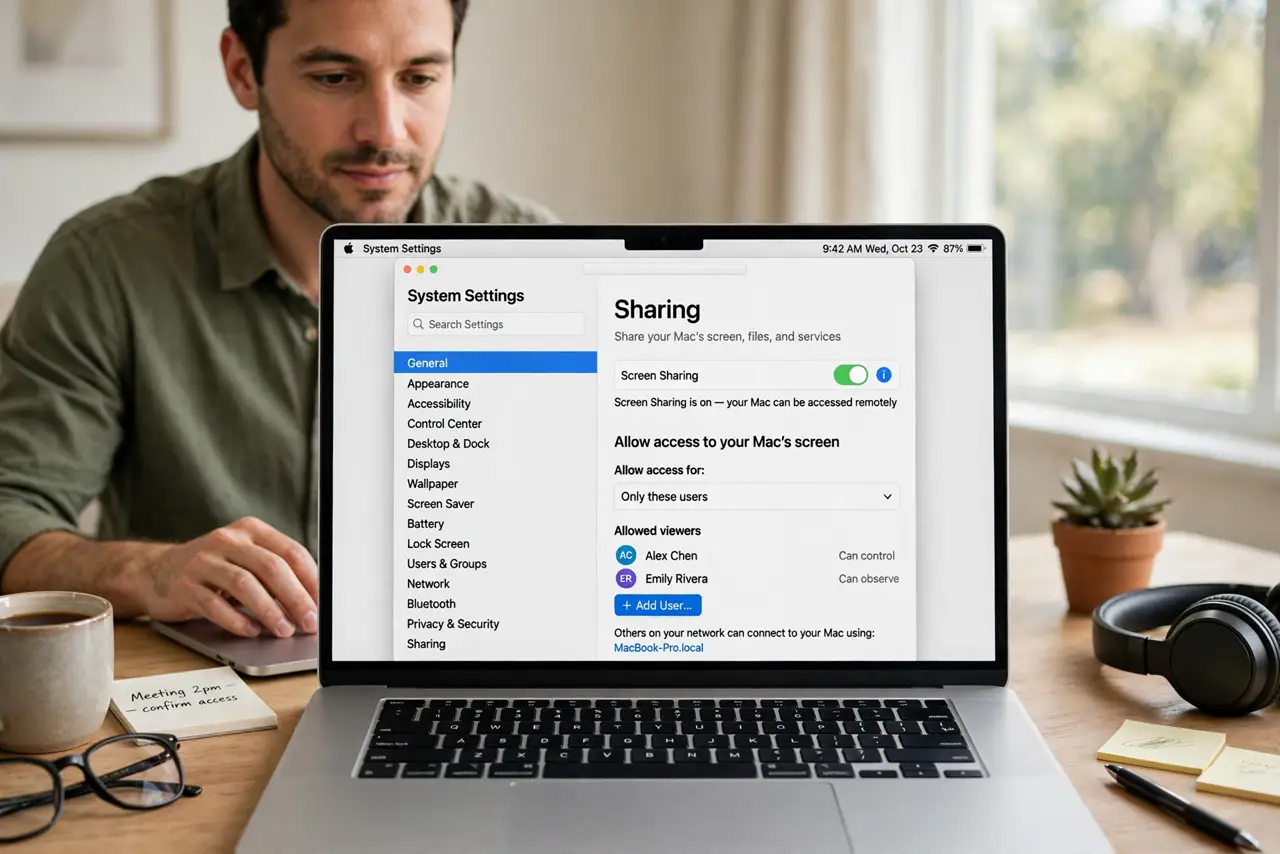
Quick fix: open System Settings, then General, then Sharing, then Screen Sharing, and add the trusted computer or user as an allowed viewer. Then confirm the setting that requires asking permission is not still forcing a prompt for every connection.
Follow these steps
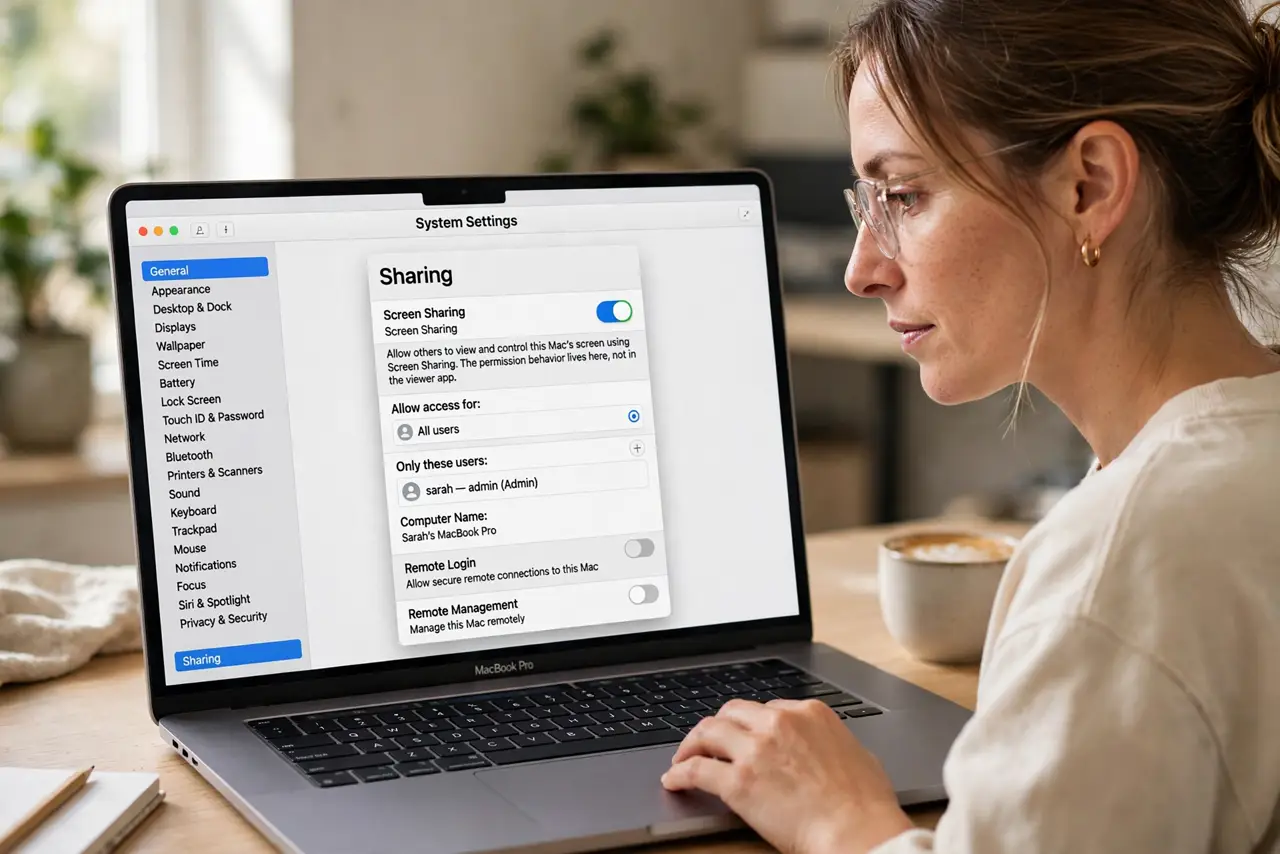
- Open Screen Sharing settings. Open System Settings, then General, then Sharing, and open Screen Sharing options. The permission behavior lives here, not in the viewer app.
- Add allowed viewers. Add the specific computer or user you trust to the allowed list. A named allowed viewer connects without the every-time prompt that strangers always get.
- Check the ask setting. Look for an option that requires asking for permission and confirm how it interacts with allowed viewers. If it forces a prompt for everyone, allowed viewers cannot skip it.
- Use the same viewer account. Connect from the same user account each time. A different account looks like a new viewer to the Mac, and new viewers always get asked.
- Check remote management. If remote management is also on, confirm its settings do not override screen sharing permissions. Overlapping remote tools can re-impose prompts you already cleared.
- Test a fresh connection. Disconnect fully, then connect again from the allowed viewer. A clean reconnect proves the permission sticks, instead of testing a session that was already approved.
What NOT to do
- Do not allow all users to connect without asking. That stops the prompts, but it also opens screen sharing to anyone who can reach the Mac.
- Do not disable screen sharing entirely over repeated prompts. Allowed viewers fix the annoyance while keeping the feature useful.
- Do not approve prompts without checking who is connecting. A prompt is a security checkpoint, and approving blindly defeats it.
- Do not leave screen sharing on when you no longer need it. Turn it off for long idle periods, so an old permission cannot be used unexpectedly.
Frequently asked questions
Why does screen sharing ask every time?
Because the viewer is not on the allowed list, or a setting still requires a prompt for every connection, including trusted viewers.
Is it safe to add an allowed viewer?
For a computer and user you trust, yes. Allowed viewers skip the prompt, while strangers still get asked or blocked.
What if it still asks after adding a viewer?
Check that you connect from the same account, and that no remote management setting overrides the screen sharing permission.