Forgot Your Mac Screen Time Passcode
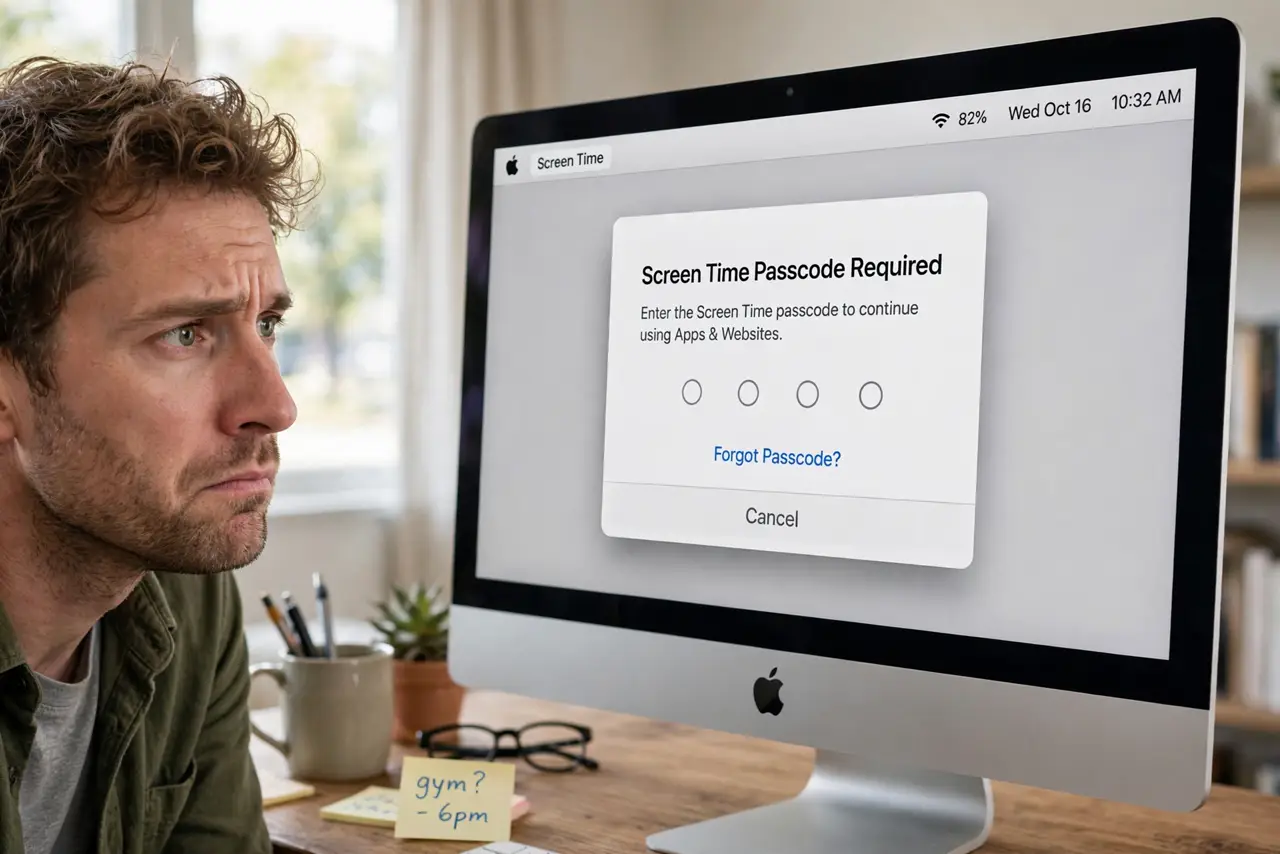
You set a Screen Time passcode months ago and now cannot change any limit because the code is gone. Apple lets you reset it with your Apple ID, as long as the Mac is signed in. This guide walks the official reset path.
TL;DR / Quick Fix
Quick fix: in Screen Time settings, click the lock or the forgot-passcode option and choose to reset with your Apple ID. Enter your Apple ID credentials, set a new memorable passcode you will keep, and write it down somewhere safe this time.
Follow these steps
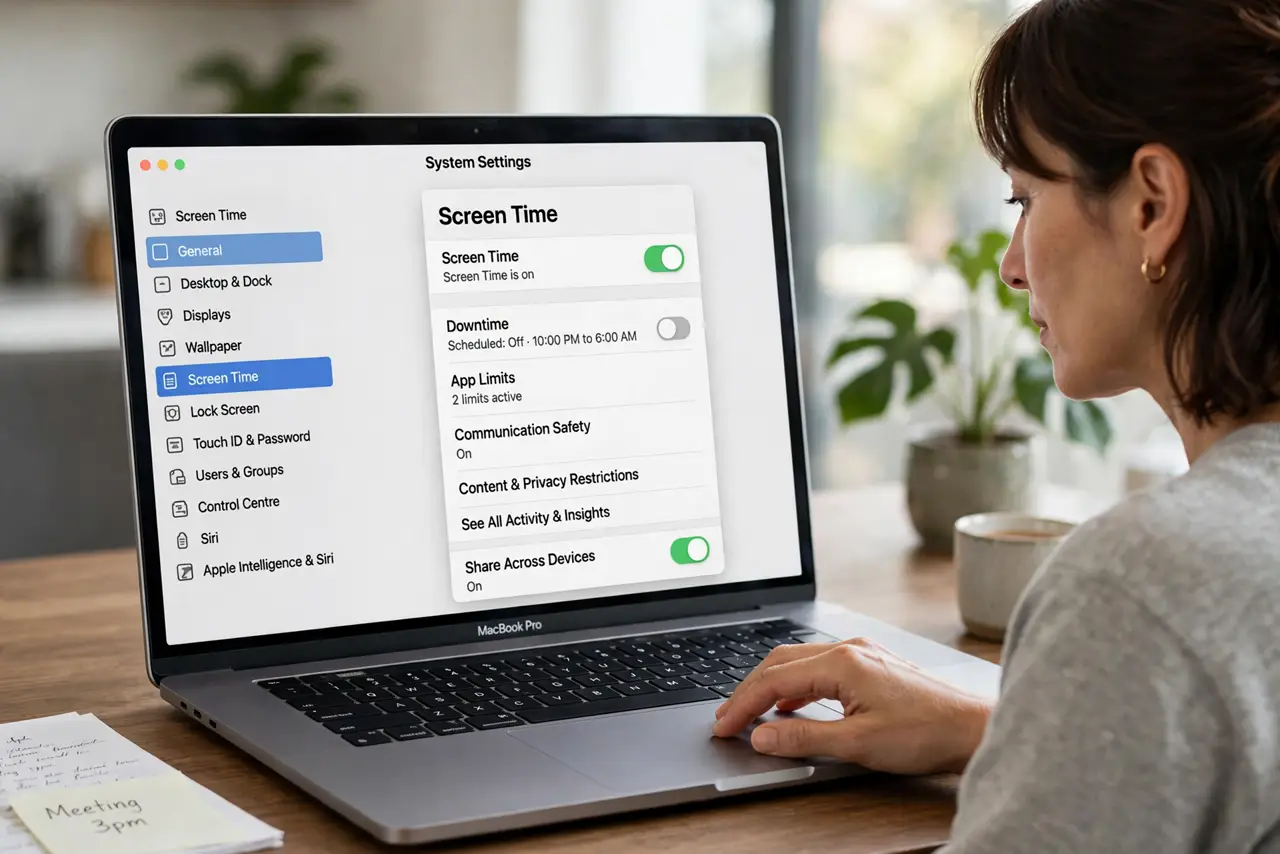
- Open Screen Time settings. Go to System Settings, then Screen Time. The passcode prompt appears when you try to change limits, which confirms the code is active.
- Choose the Apple ID reset. Click the option to reset the passcode with your Apple ID. This official path exists precisely for forgotten codes, so there is no need for risky workarounds.
- Enter your Apple ID credentials. Sign in with the Apple ID used on this Mac. The reset only works when the Mac is signed into the same account that set the passcode.
- Set a new memorable passcode. Choose a code you will remember and store it in a password manager. Repeating the original problem helps nobody.
- Verify the limits still work. Change one limit with the new code to confirm the reset took. A successful change proves the old code is fully replaced.
- Do not try to bypass it in Safe Mode. Safe Mode will not skip the passcode, and sketchy bypass tools risk your data. The Apple ID reset is the only safe route.
What NOT to do
- Do not install passcode removal tools. They often bundle malware and can corrupt Screen Time settings beyond repair.
- Do not erase the Mac to clear the code. A full erase for a forgotten passcode is massive overkill with real data-loss risk.
- Do not guess repeatedly without pause. Too many wrong attempts can lock the settings temporarily, slowing the real fix.
- Do not share the new passcode casually. The code only works as a limit if the person limited does not know it.
Frequently asked questions
Can Apple Support reset it for me?
They will point you to the same Apple ID reset. No support agent can bypass it without your credentials.
What if I forgot the Apple ID too?
Recover the Apple ID first through Apple's account recovery. The Screen Time reset depends on it.
Does the reset delete my Screen Time data?
No. Limits, reports, and history survive; only the passcode itself is replaced.