Copy Screenshots Directly
You take a screenshot to paste into a chat, and now there is a file named Screenshot 2026-10-29 on your desktop — again. macOS can copy screenshots straight to the clipboard with no file at all, if you add one key to the shortcut. This guide sets up clipboard screenshots, pastes them where they belong, and tames the desktop clutter. For annotating captures after, draw shapes in Preview.

TL;DR / Quick Fix
Quick fix: add Control to any screenshot shortcut — Control-Shift-Command-4 copies a selection to the clipboard instead of saving a file. Paste with Command-V wherever you need it. No desktop clutter, no cleanup, the image goes straight where it belongs.
Follow these steps
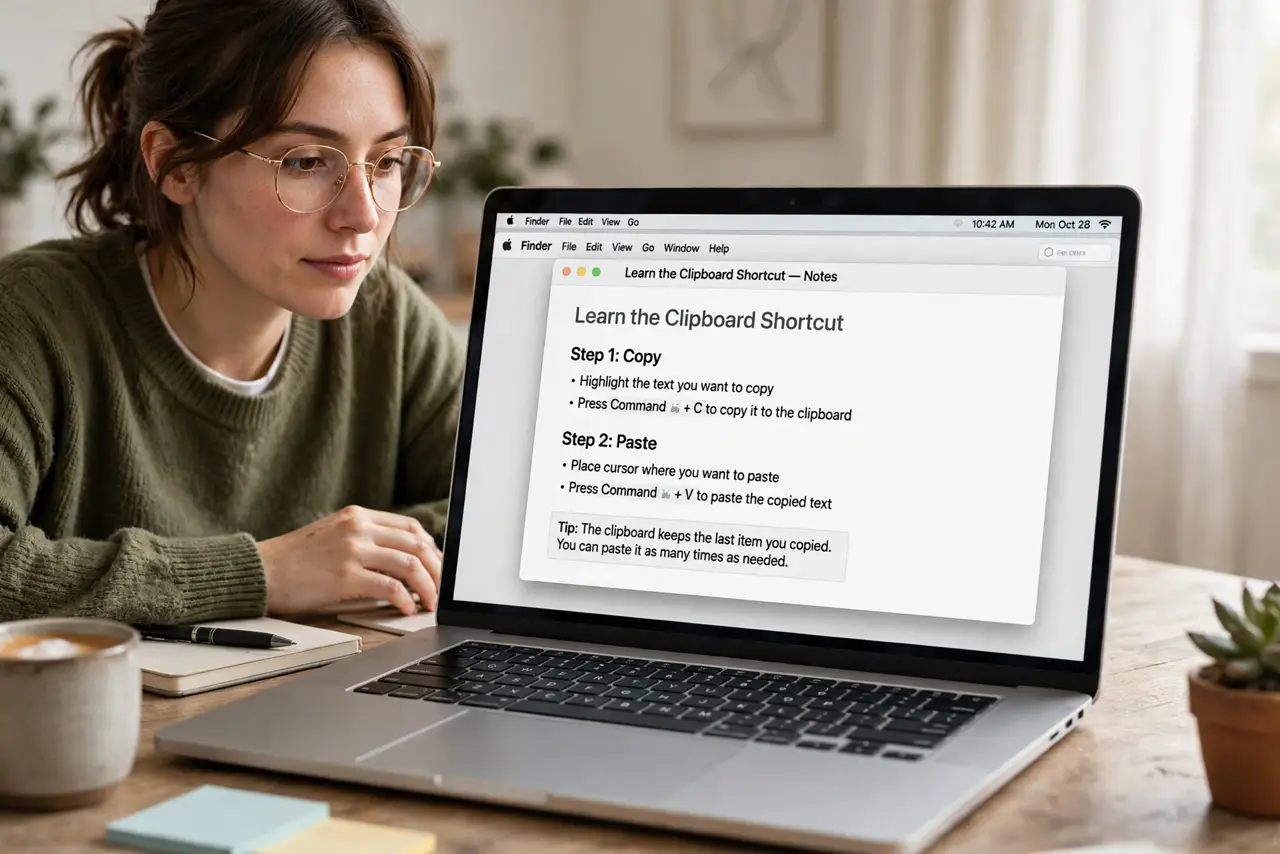
- Learn the clipboard shortcut. Press Control-Shift-Command-4, drag a selection, and release. Nothing saves to the desktop — the image sits on your clipboard, ready to paste.
- Paste it where it belongs. Click in the chat, document, or email and press Command-V. The screenshot lands inline with no intermediate file to manage or delete.
- Copy the whole screen too. Control-Shift-Command-3 copies the entire screen to the clipboard. Same idea, bigger capture — paste immediately before you copy something else.
- Change the default if you prefer. Open the Screenshot app (Shift-Command-5), click Options, and set the save location — or just remember that Control means clipboard, every time.
- Clean up the old clutter. Your desktop probably holds dozens of old screenshots. Sort by kind, select them as a group, and trash them — future captures via clipboard will not add more.
- Know the clipboard holds one item. Copying text after the screenshot replaces the image. Paste the screenshot first, then go back to copying text.
What NOT to do
- Do not screenshot to files when pasting into chats. The clipboard shortcut exists precisely for this — files are for keeping, clipboard is for sending.
- Do not forget which shortcut you used. No file on the desktop after Control-Shift-Command-4 is correct behavior, not a failure.
- Do not paste sensitive screenshots into the wrong chat. Clipboard pastes are instant — double-check the destination first.
- Do not let the Screenshot app's floating thumbnail slow you down. It is just a preview; the clipboard already has your image.
Frequently asked questions
Where did my screenshot go?
To the clipboard — paste it with Command-V. If you wanted a file, use the shortcut without Control next time.
Can I annotate before pasting?
Click the floating thumbnail to mark it up, then copy from there. Or paste first and annotate in Preview after.
Does this work for screen recordings?
No — recordings always save as files. Clipboard shortcuts cover still screenshots only.