Use the Screenshot Thumbnail
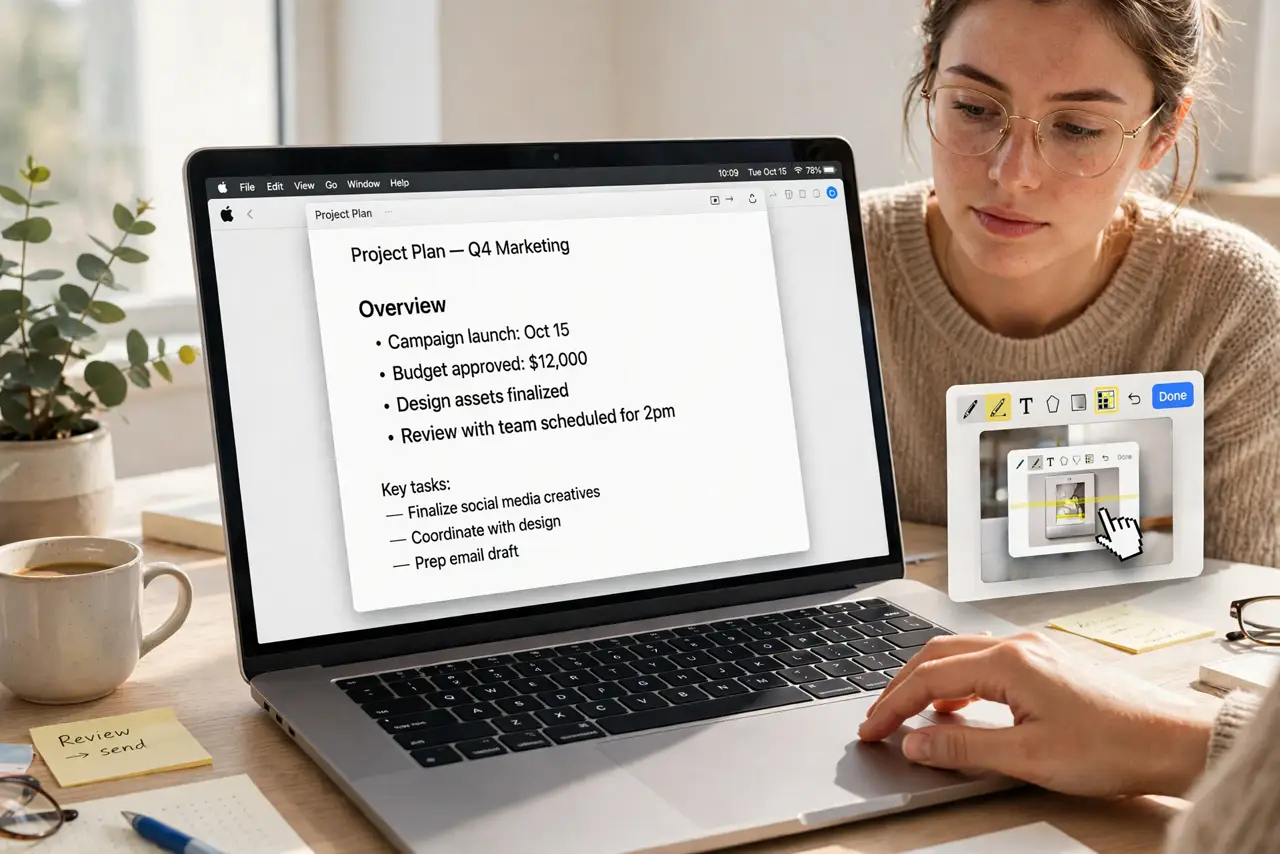
You take a screenshot on your Mac and it vanishes to the desktop, so you open it in Preview just to draw one arrow. But the little thumbnail that slides into the corner is a shortcut: click it before it disappears and you are instantly in markup — arrows, text, cropping — without opening anything. Most people watch it fade away and never click.
TL;DR / Quick Fix
Quick fix: after taking a screenshot, click the thumbnail in the corner before it slides away. Markup opens instantly — draw arrows, add text, crop, then Done to save. If you miss it, the screenshot is still on your desktop; the thumbnail is just the fast lane.
Follow these steps
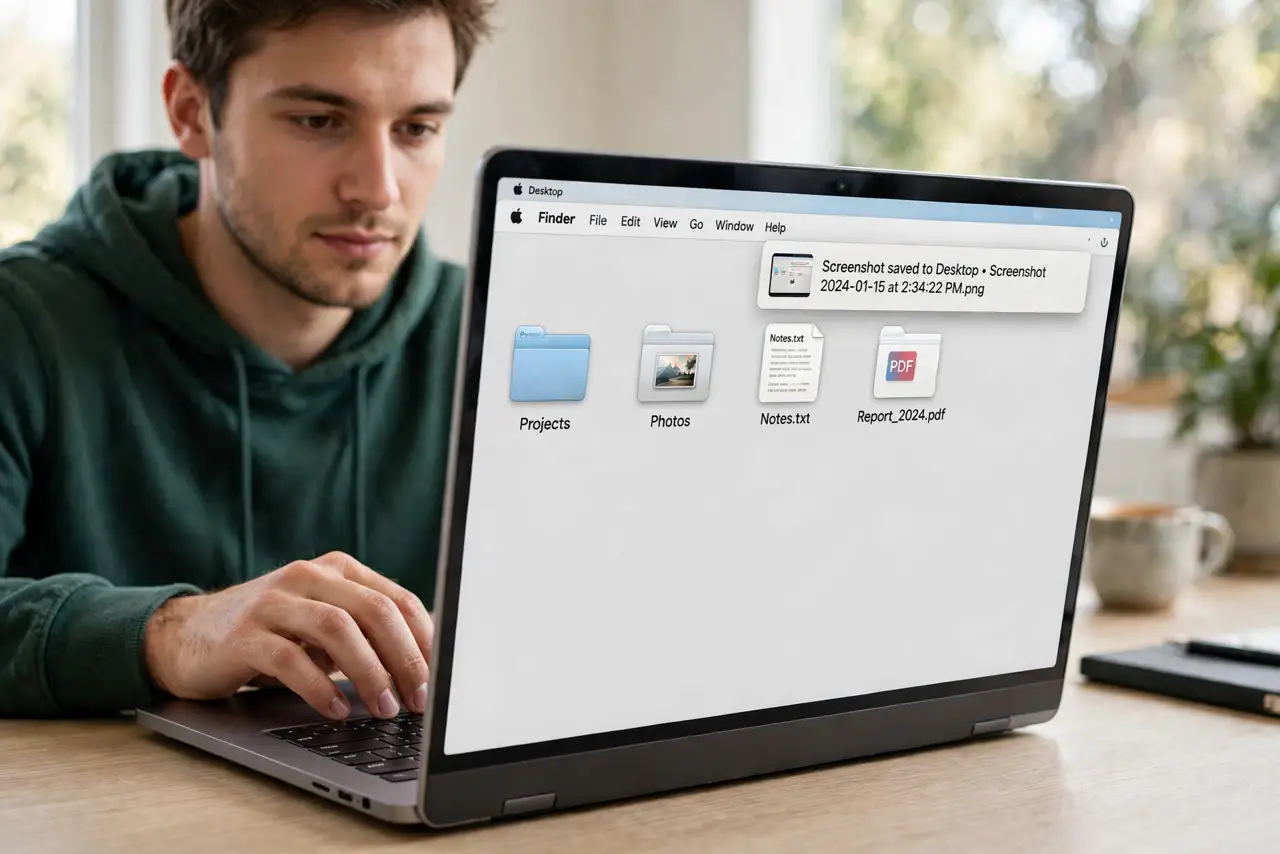
- Take the screenshot normally. Press Shift+Command+3 for the full screen, or Shift+Command+4 to drag a region. The thumbnail slides into the bottom-right corner for a few seconds — that is your window.
- Click the thumbnail fast. Click it before it disappears. A markup window opens immediately with the screenshot loaded — no Finder trip, no Preview launch, no hunting for the file.
- Mark it up. Use the toolbar: arrows and shapes for pointing, text for labels, the crop tool for trimming. Everything here is non-destructive until you save — experiment freely.
- Click Done to save. Done writes your markup into the screenshot file on the desktop. The thumbnail was showing you a live editing session; Done commits it.
- Share straight from markup. The share button in the markup window sends the annotated screenshot without saving first. Perfect for quick 'look at this' messages — annotate and send in one flow.
- Adjust the thumbnail timing. Open the Screenshot app with Shift+Command+5, click Options, and change how long the thumbnail lingers. Give yourself more seconds if you keep missing it.
What NOT to do
- Do not open Preview just to draw an arrow. The thumbnail's markup does it in two clicks — the long way wastes minutes daily.
- Do not let the thumbnail expire then complain. It is a timer, not a rejection — retake the shot or open the file; nothing is lost.
- Do not annotate the original and only copy. Markup edits the screenshot file on Done — duplicate first if you need a clean version too.
- Do not forget Done. Closing the window without Done discards your markup — the file saves only when you confirm.
Frequently asked questions
Can I turn the thumbnail off?
Yes — in the Screenshot app options, uncheck Show Floating Thumbnail. Screenshots then save silently to the desktop with no popup.
Where do thumbnails save?
The same place as screenshots: desktop by default. Change the save location in the Screenshot app's Options menu.
Does the thumbnail work for screen recordings?
Yes — the recording's thumbnail opens a trim window instead of markup, letting you cut the ends before saving.