Change Where Mac Screenshots Are Saved
Screenshots that always land on the desktop can bury your workspace in image files. macOS lets you choose any folder as the save location, and the change takes seconds. You do not need to move screenshots by hand after every capture.
TL;DR / Quick Fix
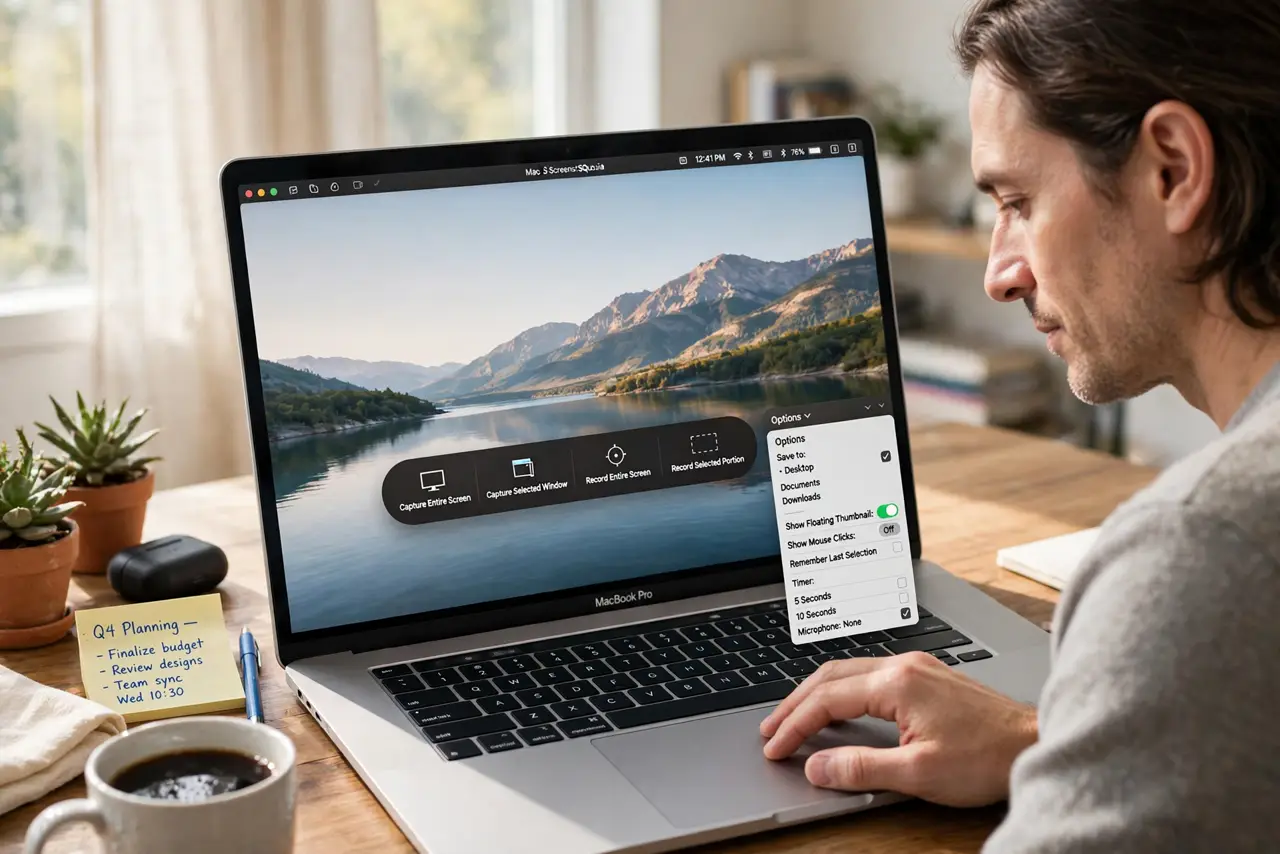
Quick fix: press Shift, Command, and 5 to open the Screenshot toolbar, click Options, and choose a new Save to folder. Then take one test screenshot and check that it appears in the new folder, not on the desktop, and confirm the change survives a restart.
Follow these steps
- Open the Screenshot toolbar. Press Shift, Command, and 5 together. The Screenshot toolbar appears at the bottom of the screen with capture and Options controls.
- Open Options and Save to. Click Options in the toolbar, then look at the Save to section. This lists the folders macOS can use for new screenshots.
- Choose your preferred folder. Select an existing folder, or choose Other Location to pick or create a folder. Pick a folder you will remember, like Pictures or a dedicated Screenshots folder.
- Take a test screenshot. Capture a small area of the screen and check the new folder. A test screenshot confirms the change before you capture anything important.
- Move old desktop screenshots. If the desktop is already crowded, move old screenshots into the new folder in Finder. New screenshots will now go there automatically.
- Check the setting after updates. After a major macOS update, open the Screenshot toolbar once and confirm Save to still points to your folder. Updates can occasionally reset it.
What NOT to do
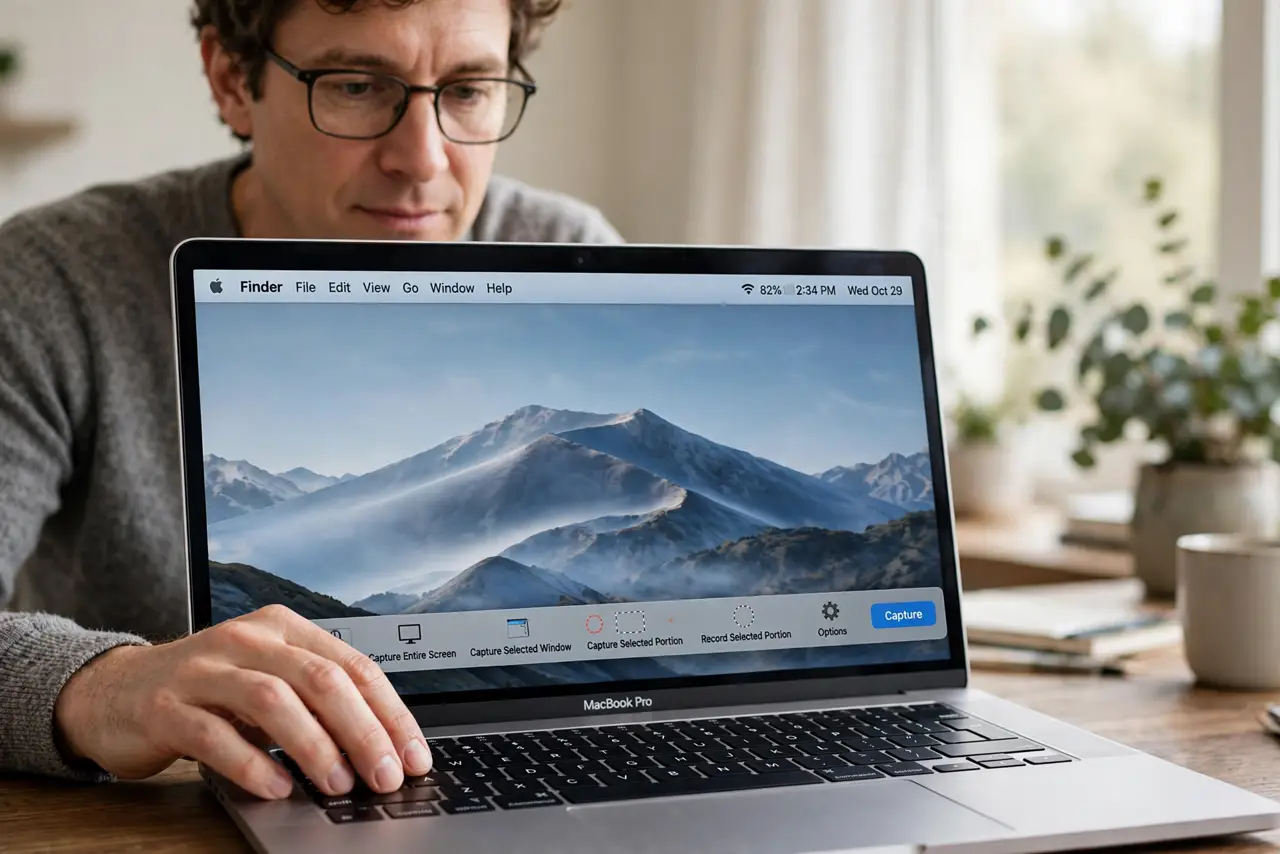
- Do not delete desktop screenshots to fix the location. Moving them to the new folder keeps them safe while new captures go to the right place.
- Do not use a terminal command for this. The Screenshot Options menu changes the save location safely without deeper commands.
- Do not pick a folder inside a synced folder you do not control. A shared or temporary folder can move or delete your screenshots unexpectedly.
- Do not change the save location in every app. The system Screenshot toolbar controls system screenshots, so set it there once.
Frequently asked questions
Where do screenshots go by default?
To the desktop, unless you change Save to in the Screenshot Options menu. That default is why desktops fill up with images.
Can I use a folder on an external drive?
Yes, if the drive is connected when you capture. If it is disconnected, screenshots may fall back to the desktop instead.
Will old screenshots move automatically?
No. Changing Save to affects only new screenshots, so move old ones by hand if you want them together.