Fix a Mac Second Display Stuck on Mirroring
When a second display only shows a copy of your Mac screen instead of extra space, mirroring is on. Mirroring is useful for presentations, but it wastes a second display the rest of the time. Turning it off gives you a proper extended desktop.
TL;DR / Quick Fix
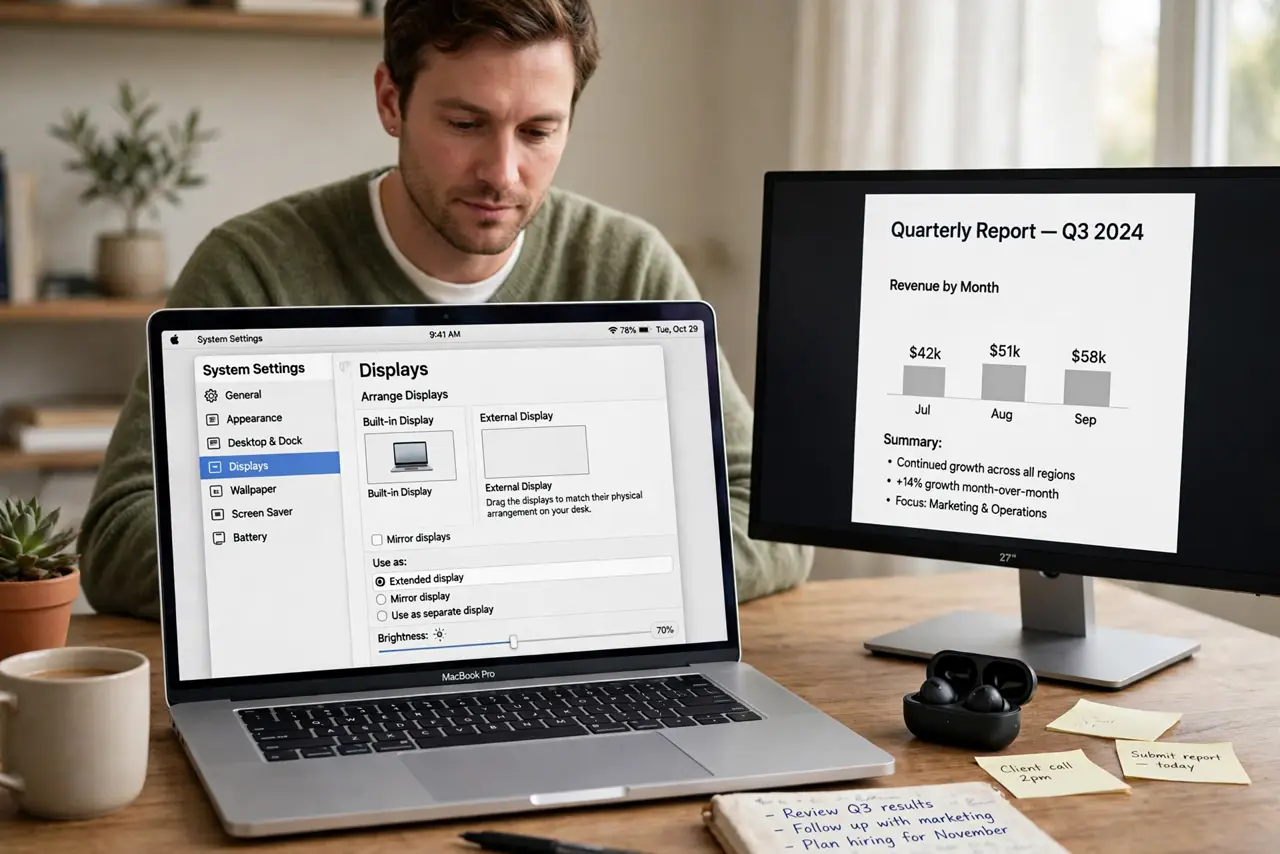
Quick fix: open System Settings, then Displays, select the second display, and turn off Mirror Displays. Then drag the display boxes to match how the screens sit on your desk, and move the mouse across the join to confirm it crosses over.
Follow these steps
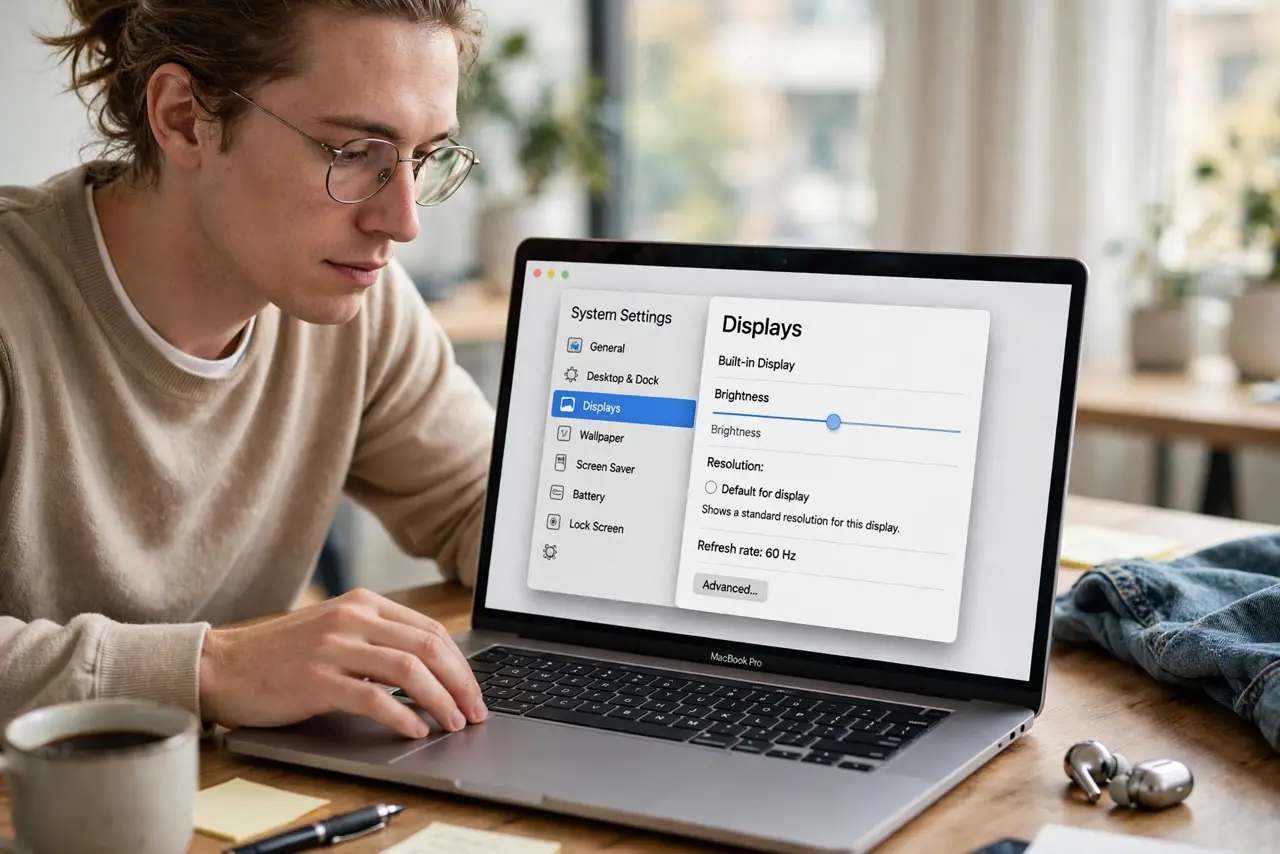
- Open Displays settings. Click the Apple menu, then System Settings, then Displays. Make sure both displays are connected and powered on before changing anything.
- Select the second display. Click the second display at the top of the Displays page. Settings shown here apply to that display, not to the built-in screen.
- Turn off Mirror Displays. Find the Mirror Displays option and turn it off. The second display should stop copying the main screen and become extra desktop space.
- Arrange the displays to match your desk. Drag the display boxes so their positions match the real screens, left and right. The mouse crosses between screens at the edge where the boxes touch.
- Set the main display. Drag the small white menu bar in the arrangement view to the display you want as your main screen. Menus and new windows will favor that display.
- Test by moving a window across. Drag a window from one screen to the other. If it crosses smoothly, the extended desktop is working. If it jumps back, re-check the arrangement.
What NOT to do
- Do not buy a new cable for a mirroring setting. Mirroring is a Displays option, and a new cable will not change it.
- Do not mirror and extend at the same time by toggling rapidly. Change the setting once, wait for the screens to settle, then test.
- Do not assume the second display is faulty. A mirrored picture proves the display works; it simply needs to be set to extend instead.
- Do not drag windows before arranging the displays. If the boxes are in the wrong order, windows will cross in a confusing direction.
Frequently asked questions
What is the difference between mirroring and extending?
Mirroring copies the same picture to both screens. Extending gives each screen its own space, so you can drag windows between them.
Why did mirroring turn on by itself?
It can turn on after connecting a TV or projector, or after a display change. Check Displays settings whenever a new screen behaves unexpectedly.
Can I mirror only for presentations?
Yes. Turn mirroring on for a presentation, then turn it off again afterwards to get your extended desktop back.