Use iPad as a Display
Your MacBook screen is cramped and your iPad sits idle — Sidecar marries them into a two-display setup with zero cables. Use the iPad as a second monitor, or as a drawing tablet with Apple Pencil. This guide connects them in under a minute.
TL;DR / Quick Fix
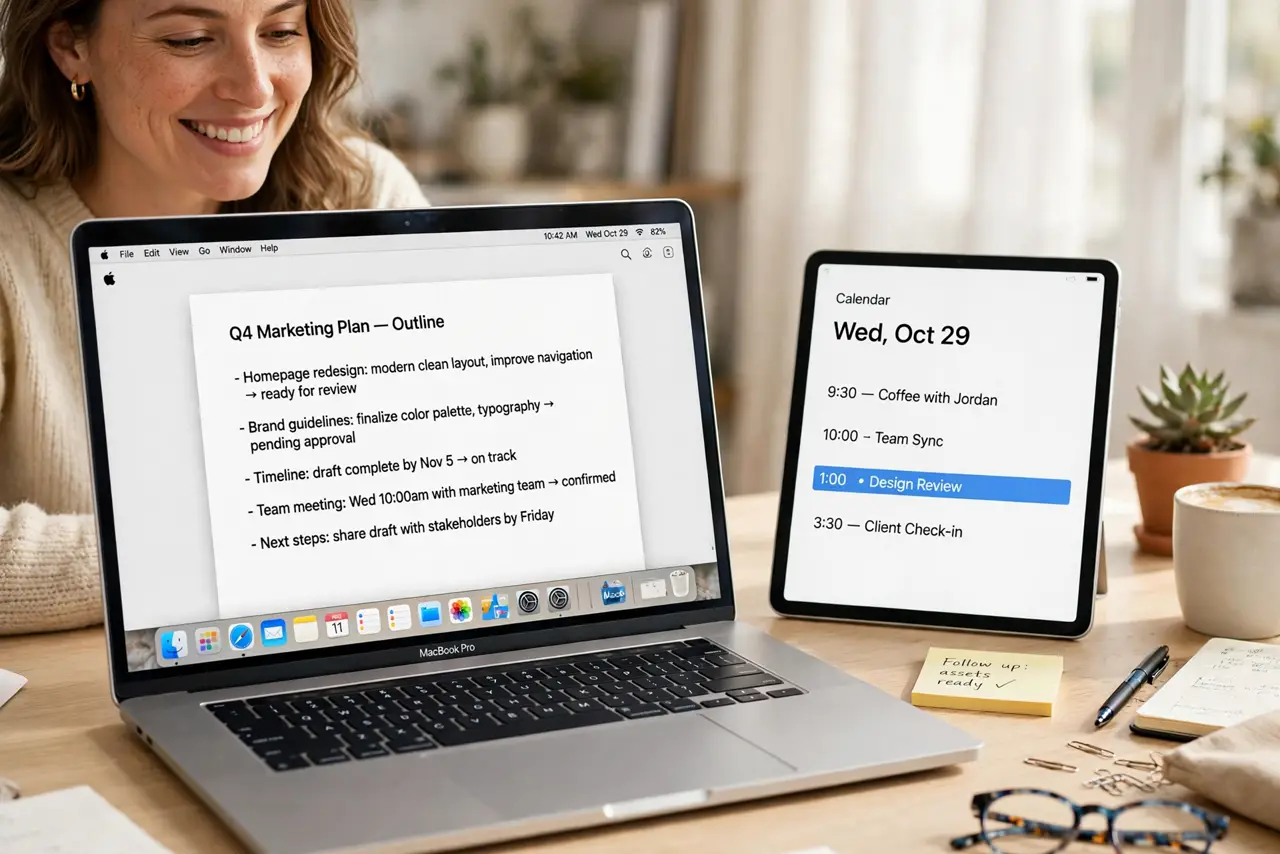
Quick fix: Sidecar turns your iPad into a Mac display — click the Control Center display icon on Mac (or AirPlay menu) and choose your iPad. Use it as a second screen or a drawing tablet with Apple Pencil. Both devices need the same Apple ID, Wi-Fi, and Bluetooth on.
Follow these steps
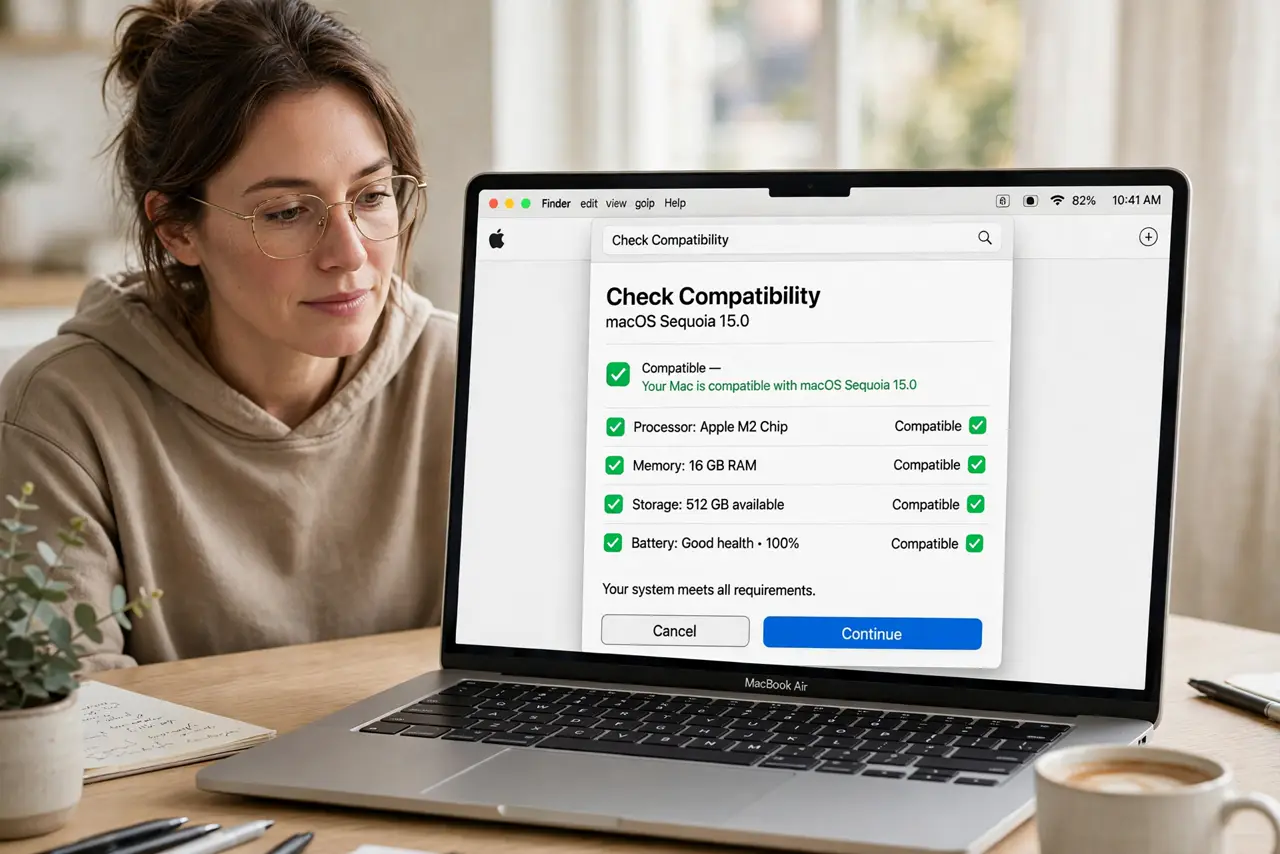
- Check compatibility. Recent Macs and iPads on current OS versions — both signed into the same Apple ID. Older hardware lacks Sidecar; check Apple's list if unsure.
- Connect via Control Center. On Mac, open Control Center, click Screen Mirroring/Display, and choose your iPad. Wired (USB) is most stable; wireless works well close by.
- Choose extend or mirror. Extend for a true second display; mirror to show others what you see. Extend is the productivity choice.
- Arrange the displays. System Settings, Displays — drag the iPad rectangle to match its physical position. Mouse flows naturally when the map matches reality.
- Draw with Apple Pencil. In supported apps, the iPad becomes a drawing tablet — sketch in Photoshop, annotate PDFs. Pressure sensitivity carries over.
- Mind the battery. Wireless Sidecar drinks iPad battery. Plug the iPad in for long sessions — and for clipboard continuity between the two, Universal Clipboard completes the setup.
What NOT to do
- Do not expect zero latency wirelessly. Fine for documents and drawing; video playback can stutter — USB cable fixes most lag.
- Do not forget both devices need Wi-Fi and Bluetooth. Same Apple ID plus both radios — the familiar trio.
- Do not use Sidecar as your only second monitor plan. It is brilliant on the go; a real monitor wins at the desk.
- Do not ignore the Touch Bar option. Sidecar can show Touch Bar controls on the iPad — handy for Macs that have one.
Frequently asked questions
Why is my iPad not listed?
Compatibility, different Apple IDs, or radios off. Check all three — and restart both devices as the classic fix.
Can I use Sidecar over USB?
Yes — connect with a cable for the most stable, lowest-latency experience.
Does it work with a Mac mini?
Yes — any supported Mac. The iPad is the display; the Mac just needs to support Sidecar.