Sign Out of Apple ID Everywhere
Sold a phone? Lost an iPad? Or just realized your Apple ID is signed in on devices you forgot existed? Every signed-in device can read your messages, see your photos, and buy with your card. A systematic sign-out — starting with the password — locks them all out cleanly.
TL;DR / Quick Fix
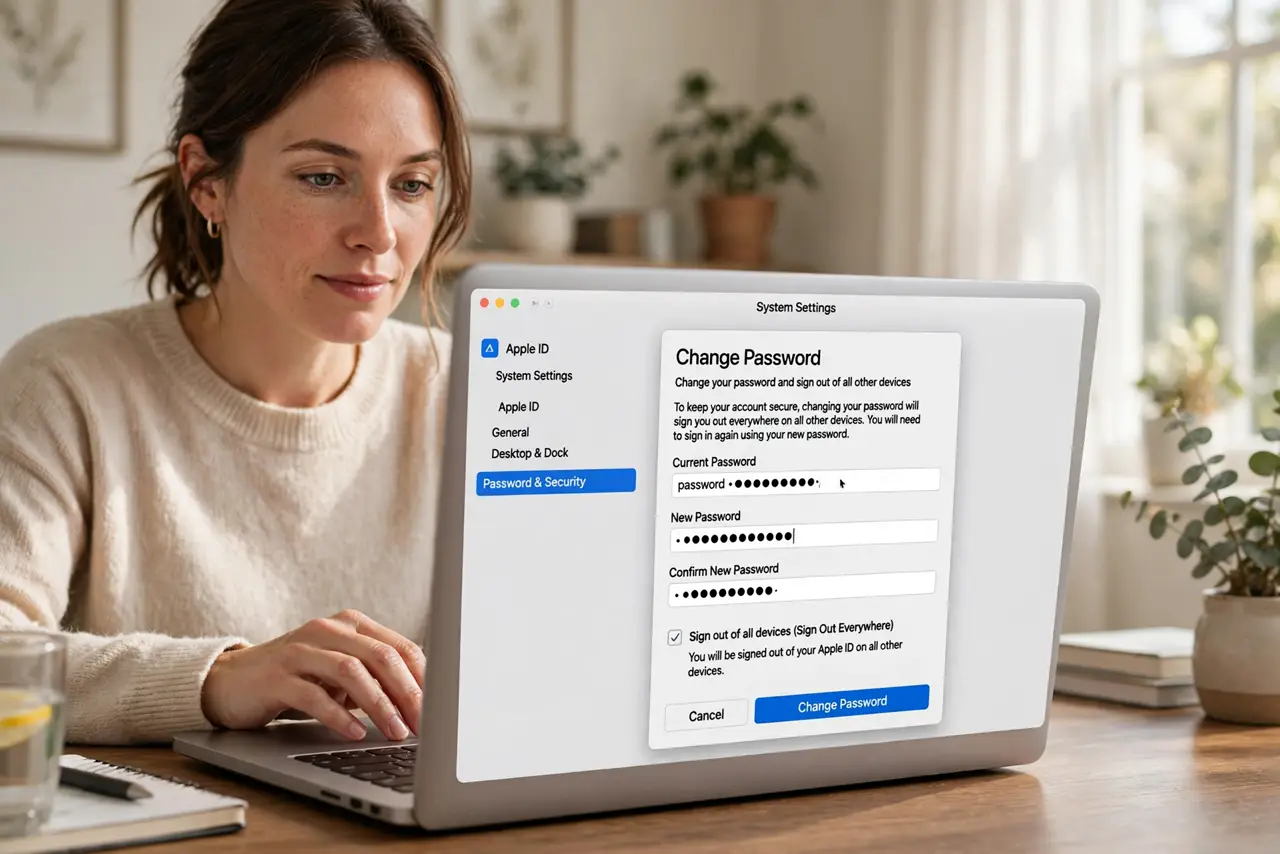
Quick fix: change your Apple ID password first — that signs most devices out automatically and protects the account. Then check the device list in Settings under your Apple ID and remove anything you do not recognize. Do a clean sign-out on devices you still own before selling them.
Follow these steps
- Change the password first. A password change forces most sessions to re-authenticate — the fastest way to cut off devices you cannot reach physically.
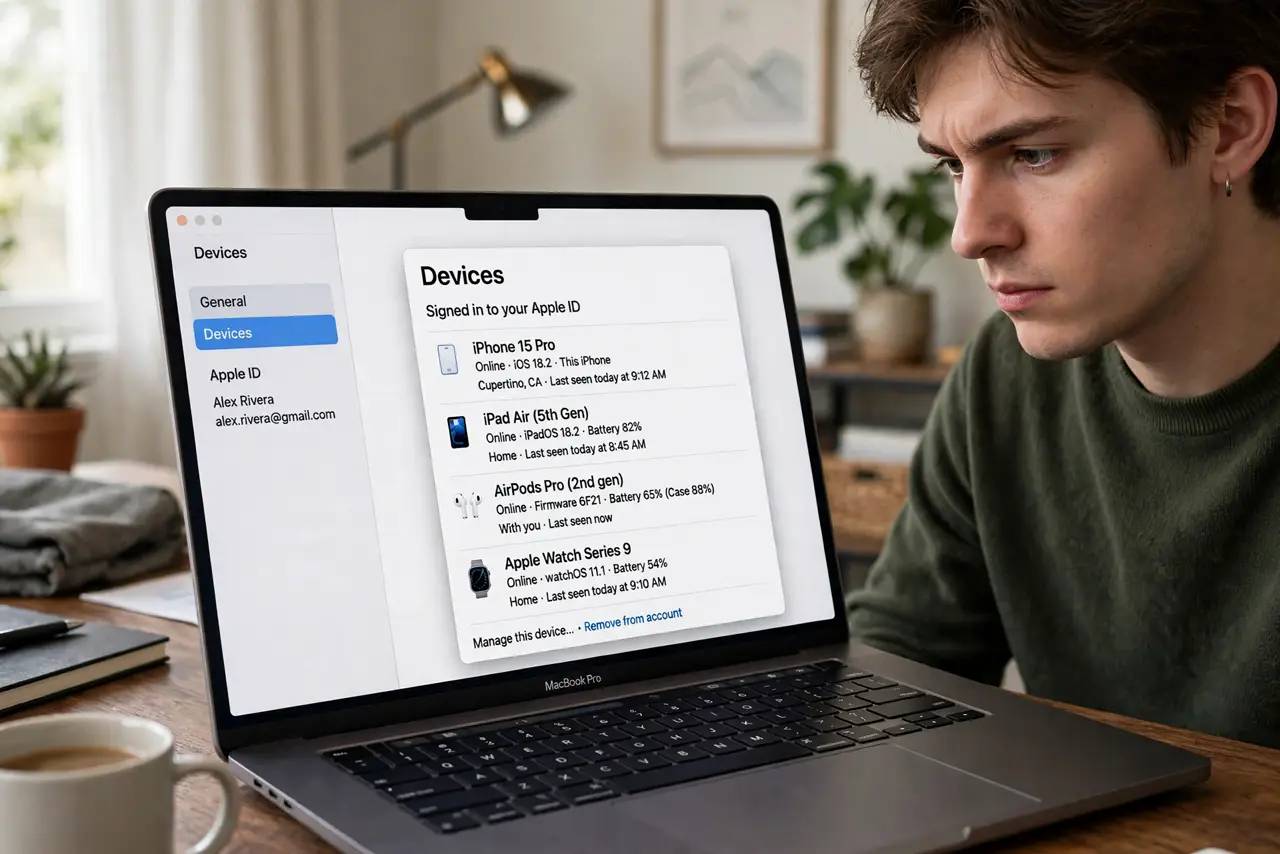
- Review the device list. In System Settings, click your Apple ID and scroll to the device list. Every trusted iPhone, iPad, Mac, and Watch appears here.
- Remove what you do not recognize. Select unknown devices and remove them from the account. When in doubt, remove — you can re-add your own devices anytime.
- Audit trusted devices separately. The trusted-device list controls verification codes. A stranger's device there is worse than a mere sign-in — check both lists.
- Sign out cleanly on devices you own. On devices you still have, sign out properly rather than just removing them remotely — clean sign-outs avoid activation-lock surprises later.
- Turn on two-factor if it is off. Password-only Apple IDs are fragile. Two-factor authentication makes a stolen password useless without a trusted device.
What NOT to do
- Do not just change the password and stop. Some sessions linger — the device list review is what finishes the job.
- Do not remove your only trusted device while traveling. You need at least one to receive verification codes — plan the order.
- Do not forget the Apple Watch. Watches pair through iPhones, but they appear in the device list and deserve a check.
- Do not sell a device still signed in. Sign out fully first — otherwise Activation Lock will trap the next owner, and you, in a support nightmare.
Frequently asked questions
Does changing my password sign out all devices?
Most of them — apps and services re-prompt for the new password. A few sessions can linger, which is why the manual device review matters.
Someone I don't know is on my device list — what now?
Remove it immediately, change your password, and check for unfamiliar purchases. Then review how they got in — usually a shared or guessed password.
Will signing out delete my data?
Signing out of iCloud offers to keep a local copy. Choose carefully on devices you are keeping — 'keep a copy' preserves your local data.