Let Siri Ask ChatGPT
Siri is great at timers and terrible at 'explain this complicated thing.' Since Apple Intelligence, your Mac can bridge that gap: Siri can hand the hard questions to ChatGPT, giving you real answers without opening a browser or an app. It is optional, permission-gated, and surprisingly handy. This guide shows how to turn it on and when to use it.

TL;DR / Quick Fix
Quick fix: on a Mac with Apple Intelligence, Siri can hand hard questions to ChatGPT — enable it in System Settings under Apple Intelligence, then just ask Siri as usual. Siri asks permission before sending anything the first time. It is best for open-ended questions Siri alone cannot answer.
Follow these steps
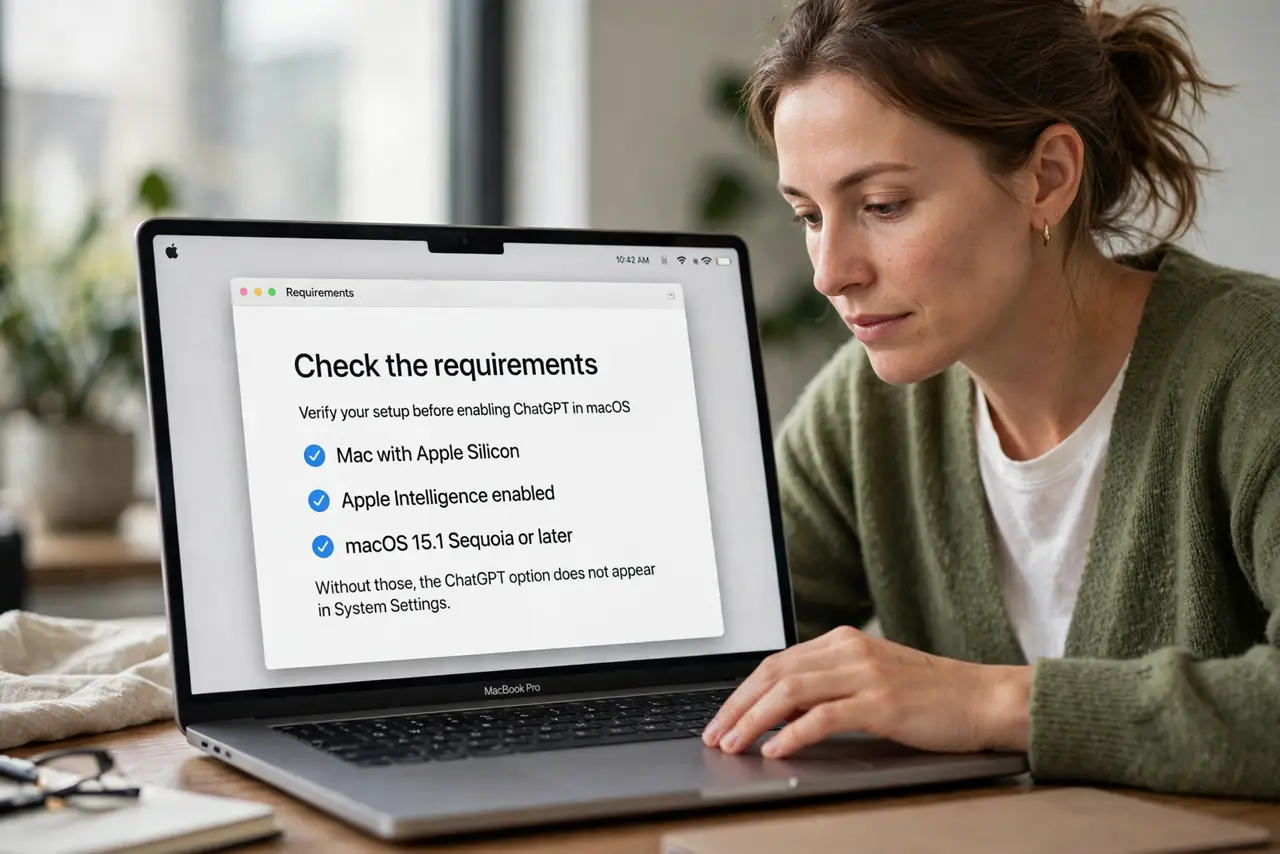
- Check the requirements. You need a Mac with Apple Silicon, Apple Intelligence enabled, and a recent macOS version. Without those, the ChatGPT option does not appear — the Siri basics still apply, just without the AI boost.
- Enable the ChatGPT extension. Open System Settings, go to Apple Intelligence & Siri, and find the ChatGPT section. Turn it on and choose whether Siri asks permission each time or sends automatically — permission-each-time is the safer default.
- Just ask Siri as usual. There is no special mode to enter. Ask your question normally; when Siri recognizes it cannot answer well alone, it offers to ask ChatGPT. Say yes and the fuller answer appears in the Siri window.
- Use it for the right questions. Open-ended explanations, brainstorming, writing help, and 'how do I...' questions are its sweet spot — exactly the questions where classic Siri says 'here is what I found on the web.'
- Know what gets shared. When you approve, your question goes to ChatGPT under OpenAI's policies. Do not send account numbers, private documents, or anything you would not paste into the ChatGPT website.
- Type instead of talking when needed. In a quiet office or library, use Type to Siri and the same ChatGPT handoff works from text. The feature does not care how the question arrived.
What NOT to do
- Do not send sensitive data to ChatGPT via Siri. Permission prompts are easy to tap through — pause before approving anything private.
- Do not treat answers as verified facts. ChatGPT can be confidently wrong; cross-check anything important rather than quoting it directly.
- Do not expect it to control your Mac. It answers questions and generates text — it does not change settings, move files, or operate apps for you.
- Do not leave auto-send on without thinking. Permission-each-time keeps you aware of what leaves your Mac; automatic sending trades awareness for convenience.
Frequently asked questions
Do I need a ChatGPT account?
No — basic use works without signing in. Signing in with a paid account unlocks higher limits, but casual questions work fine anonymously.
Does Siri send everything to ChatGPT?
No. Siri still handles device commands, timers, and simple questions itself. Only the questions it cannot answer get offered to ChatGPT, and only with your approval.
Can I use it for writing help?
Yes — drafting emails, rephrasing paragraphs, and brainstorming are among its best uses on the Mac, right inside the Siri window.