Slow Keys? What It Does
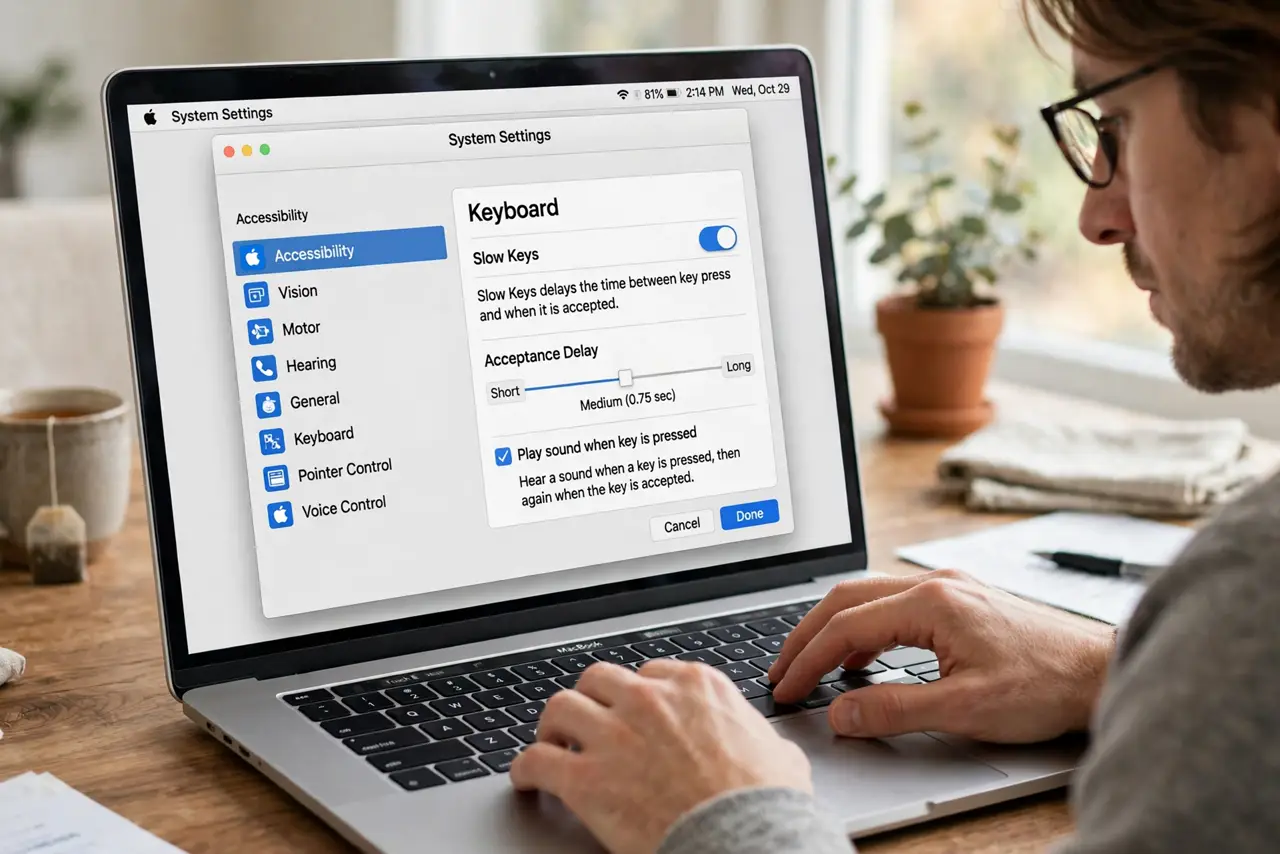
Slow Keys makes the keyboard wait: a key only registers after you hold it down for a set moment. It is designed for tremors or imprecise keystrokes — brushing a key by accident no longer types it. If your Mac suddenly seems to ignore quick taps, Slow Keys probably got turned on by accident.
TL;DR / Quick Fix
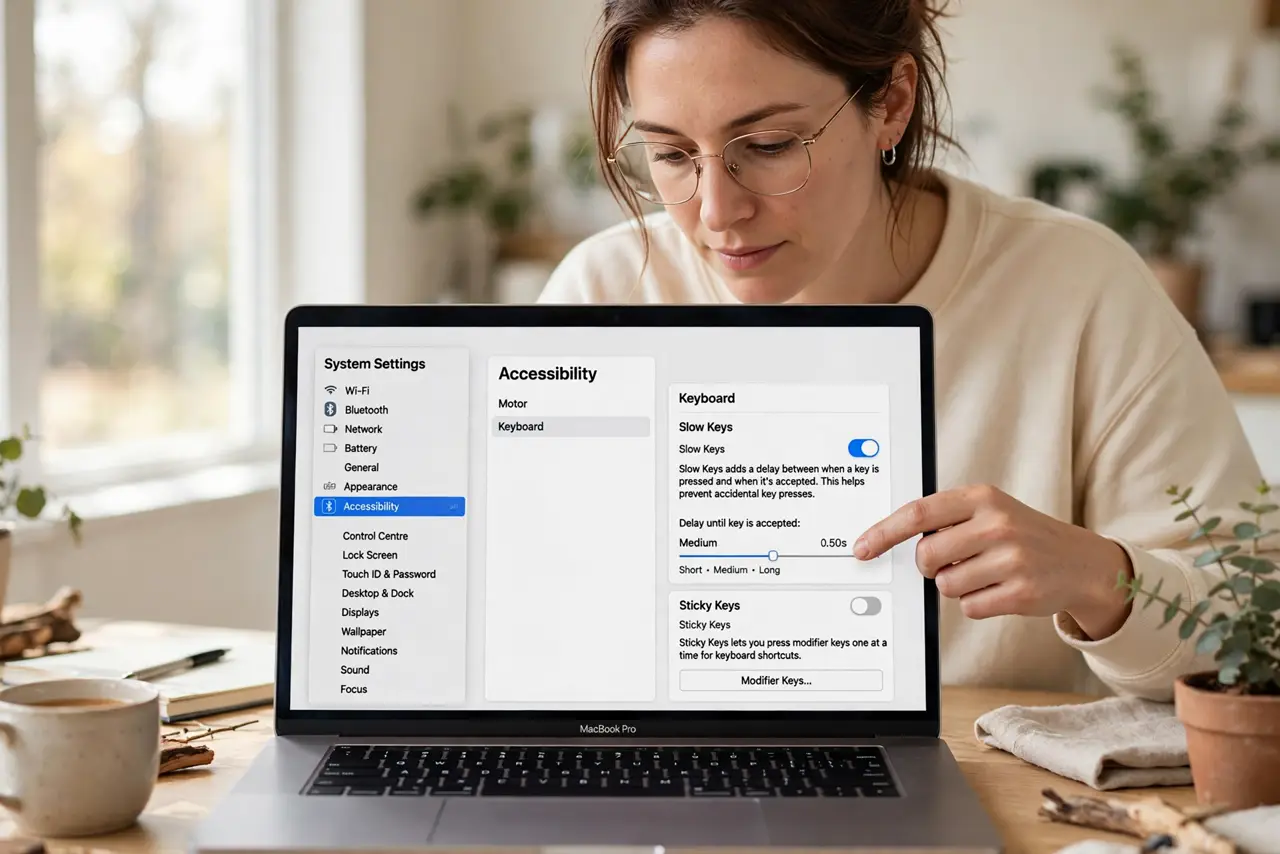
Quick fix: open System Settings > Accessibility > Keyboard and check Slow Keys. Turn it off if the keyboard feels unresponsive to quick taps. If you need it, turn it on and set the acceptance delay — longer ignores more accidental brushes.
Follow these steps
- Find the Slow Keys switch. System Settings > Accessibility > Keyboard > Slow Keys. This is the first place to look when the keyboard ignores light, quick taps.
- Understand what it does. Slow Keys adds an acceptance delay: hold a key for the set time and it types; brush it briefly and nothing happens. It filters accidental keystrokes.
- Turn it off if typing feels broken. If keys only register when held down, Slow Keys is on by accident — switch it off and typing returns to normal instantly.
- Set the delay if you need it. With it on, drag the acceptance delay slider. Longer delays filter more tremor; shorter keeps typing brisk.
- Try it with key click sounds. The optional click sound confirms when a key registers — useful feedback while learning the timing.
- Check it after someone else used the Mac. Slow Keys is a classic 'who changed my keyboard' culprit. One glance at the Accessibility pane settles the mystery.
What NOT to do
- Do not leave it on 'just in case.' An unneeded acceptance delay makes every keystroke feel broken to the next person.
- Do not max the delay on the first try. Start short and lengthen only until accidental keys stop — too long makes intentional typing exhausting.
- Do not confuse it with a dying keyboard. Keys that need a long press are Slow Keys; keys that never register are hardware.
- Do not forget it affects passwords. A login screen with Slow Keys on surprises everyone — hold each key deliberately when typing passwords.
Frequently asked questions
Why does my keyboard ignore quick taps all of a sudden?
Slow Keys got enabled — check System Settings > Accessibility > Keyboard. It is the most common cause of this exact symptom.
Is Slow Keys the same as key repeat delay?
No. Slow Keys delays the first registration of a press; key repeat controls what happens when you hold a key down.
Can I use it with Sticky Keys?
Yes — they stack fine. Sticky Keys handles modifier chords; Slow Keys filters accidental presses.