Mission Control Spaces Reorder Themselves
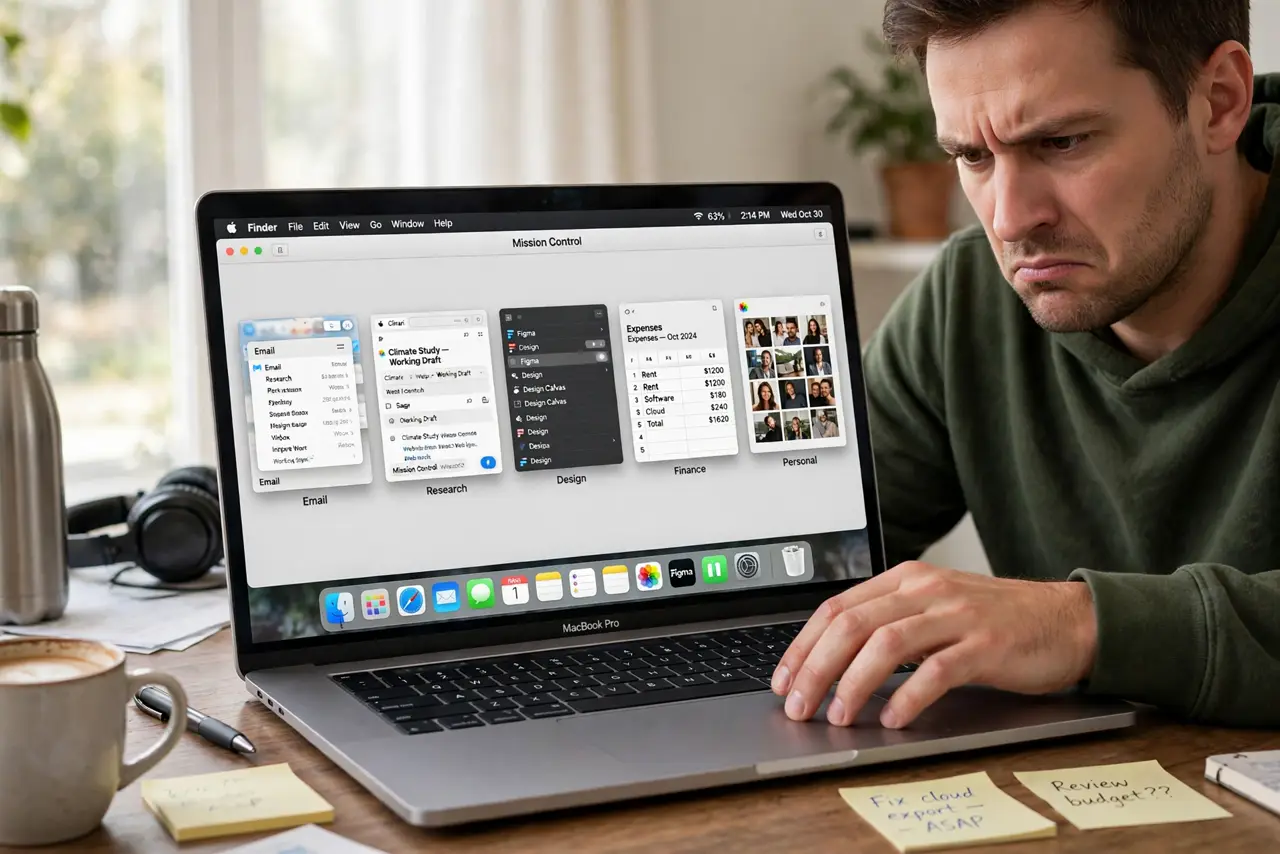
Your Mission Control Spaces keep shuffling order — the desktop that was on the left is suddenly on the right, and your muscle memory for swiping breaks. macOS has a setting that rearranges Spaces by recent use, and it is on by default. This guide pins your Spaces in place.
TL;DR / Quick Fix
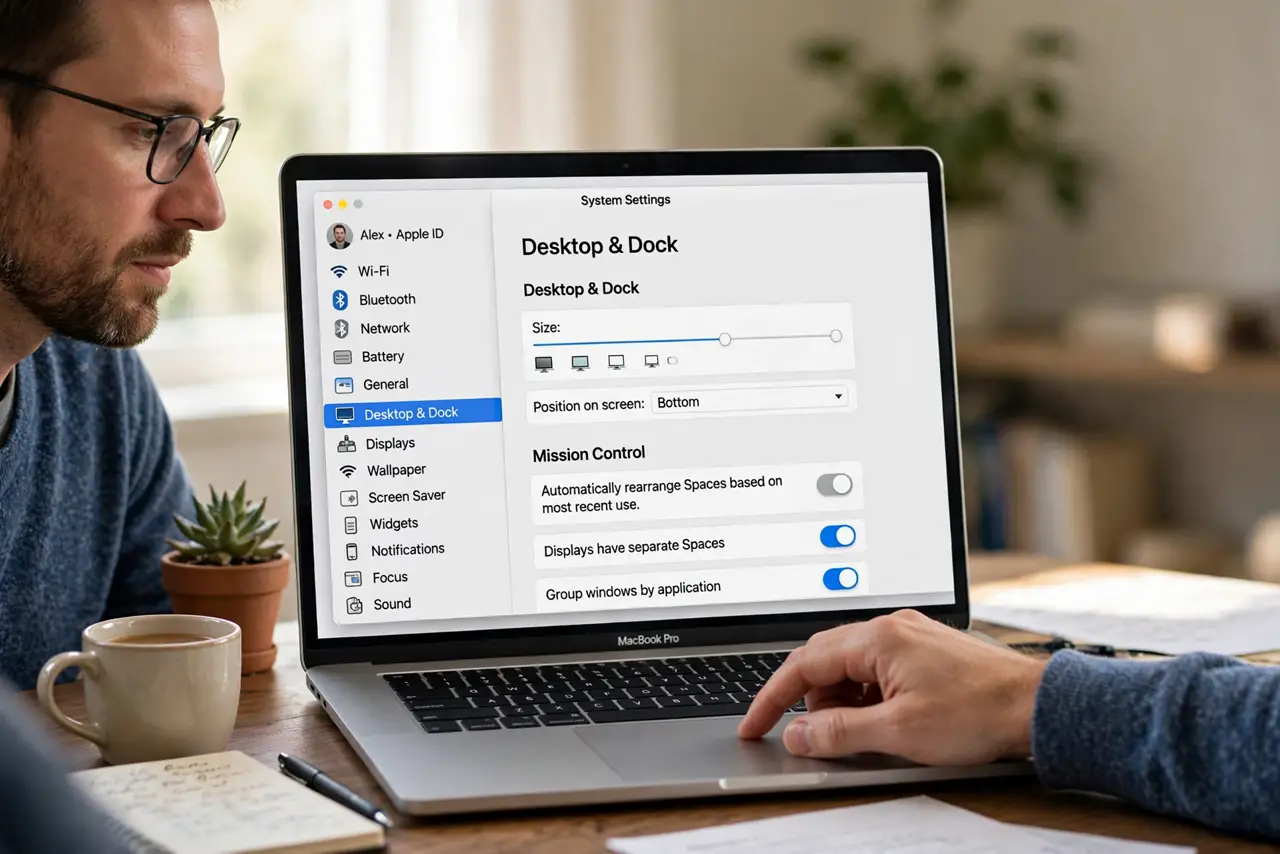
Quick fix: in System Settings > Desktop & Dock > Mission Control, turn off 'Automatically rearrange Spaces based on most recent use.' Then arrange your Spaces once in Mission Control — with the toggle off, that order stays permanent forever.
Follow these steps
- Turn off automatic rearranging. Go to System Settings > Desktop & Dock, scroll to Mission Control, and disable 'Automatically rearrange Spaces based on most recent use.' This one toggle is the entire fix for most people.
- Arrange Spaces in your preferred order. Open Mission Control and drag the Space thumbnails into your ideal order. With rearranging off, this order is now permanent.
- Assign apps to specific Spaces. Right-click an app in the Dock > Options > Assign To, and pin it to a Space or to All Desktops. Assigned apps stop dragging their Spaces around.
- Check for full-screen app Spaces. Full-screen apps create temporary Spaces that appear and vanish. If your order shifts during full-screen work, that is normal — only regular desktops stay pinned.
- Restart the Dock. Open Terminal and run killall Dock. The Dock manages Spaces, and a restart applies the new setting cleanly if Spaces still shuffle.
- Test across a restart. Restart the Mac and check the Space order. A setting that survives a restart is truly applied; if shuffling returns, recheck the toggle.
What NOT to do
- Do not delete extra desktops in frustration. The shuffling is the rearrange setting, not the number of Spaces — deleting desktops just loses your layout.
- Do not use a third-party Spaces manager for this. The built-in toggle fixes it; extra tools add their own ordering bugs.
- Do not confuse full-screen Spaces with the bug. Full-screen app Spaces always come and go; only your regular desktops should stay put.
- Do not ignore the setting after updates. Major macOS updates occasionally re-enable 'rearrange Spaces' — check it after upgrading.
Frequently asked questions
Why do my Mac Spaces keep changing order?
The 'Automatically rearrange Spaces based on most recent use' setting is on. Turn it off in Desktop & Dock settings.
Can I lock Spaces in a fixed order?
Yes. Disable the automatic rearranging, arrange them once in Mission Control, and they stay put.
Why does a Space disappear sometimes?
Full-screen apps create temporary Spaces that vanish when you exit full screen. That is by design, not the reorder bug.