Fix Mac Spotlight Finding Nothing
Spotlight that finds nothing, even for files you know are there, usually means its index is stuck or a location is excluded from search. The files themselves are normally fine. Check the index before assuming files are lost.
TL;DR / Quick Fix
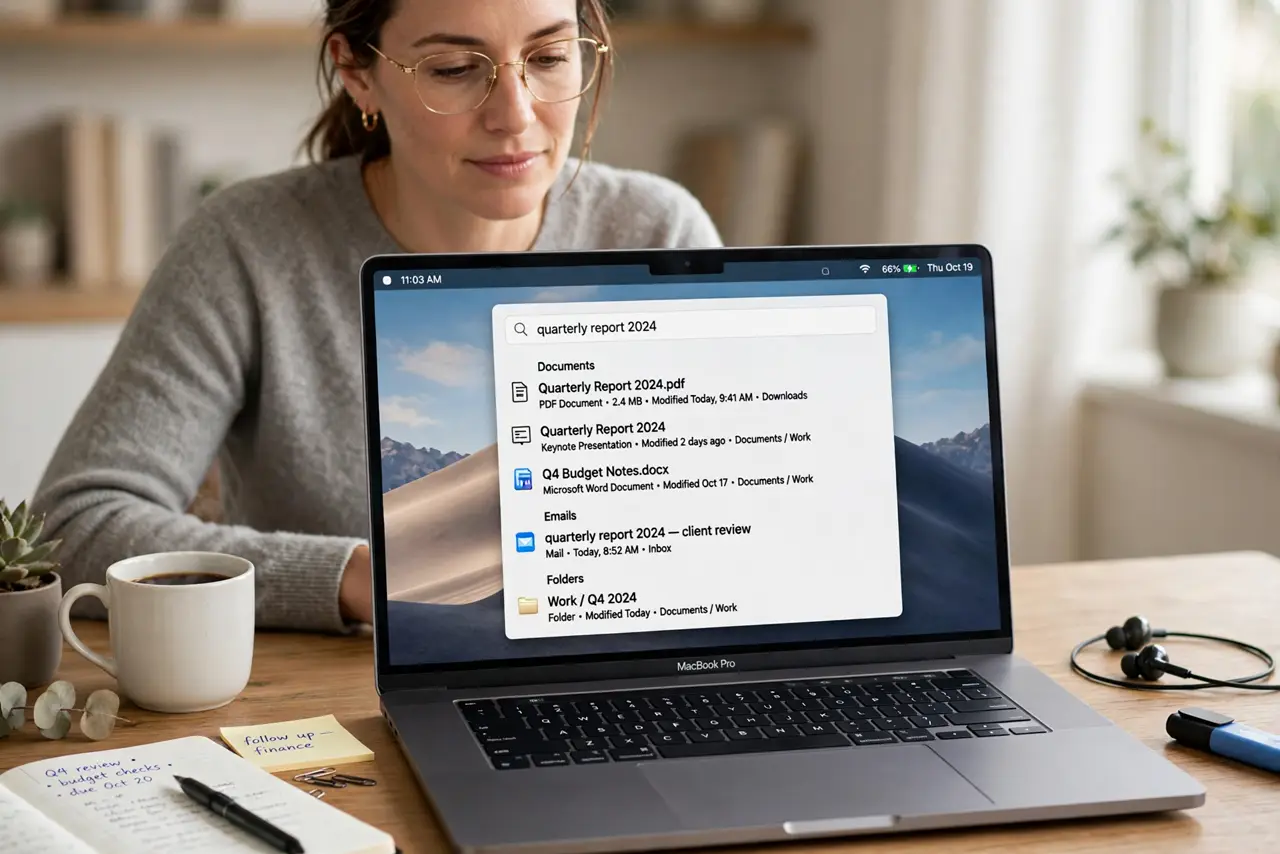
Quick fix: open System Settings, then Spotlight, and check which categories are enabled. Then confirm your drive is not listed under Privacy exclusions, restart the Mac, and search for a file name you know exists to test whether results return.
Follow these steps
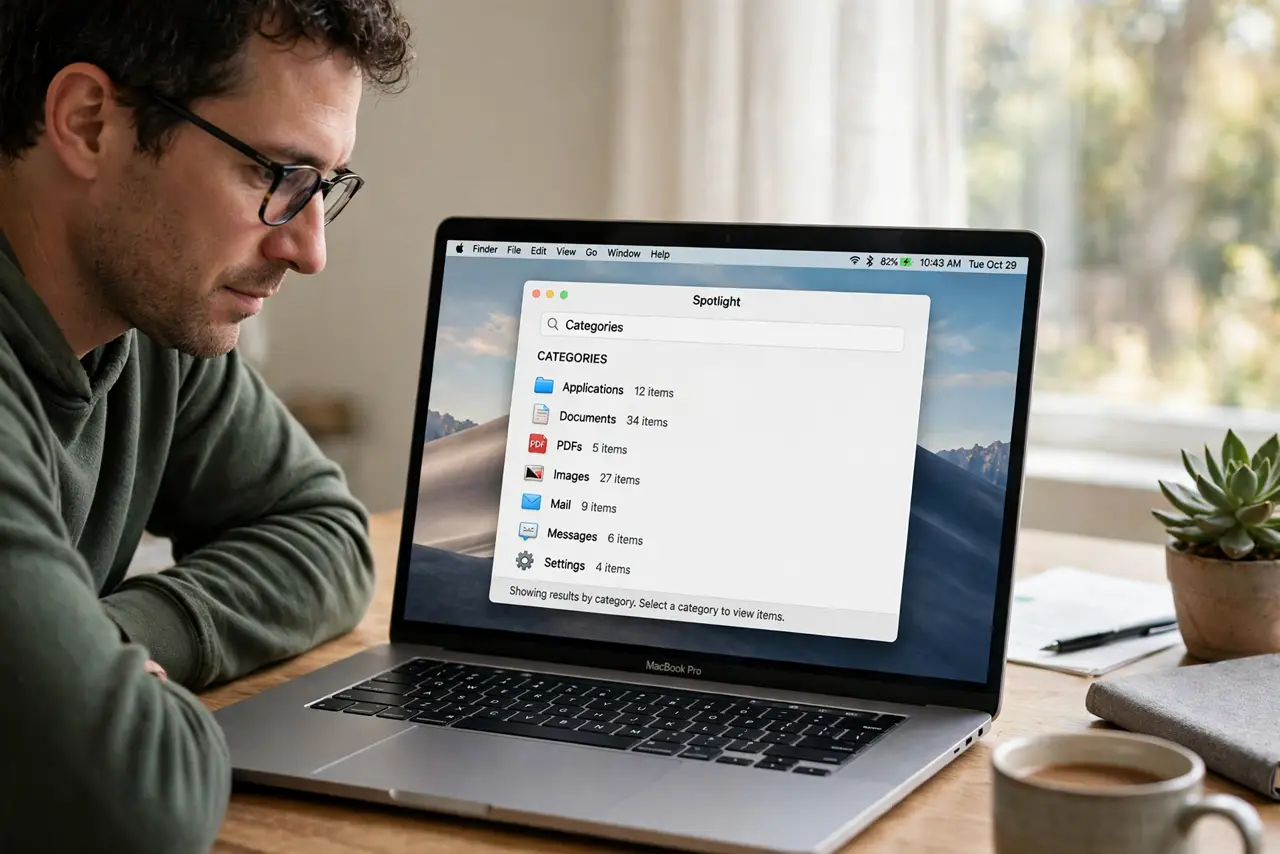
- Check Spotlight categories. Open System Settings, then Spotlight, and confirm the categories you need, like Applications and Documents, are turned on. A turned-off category will never appear in results.
- Check Privacy exclusions. On the same Spotlight page, open Privacy and confirm your main drive or the folder you search is not listed there. Remove any exclusion you did not intend.
- Search for a file you know exists. Type the exact name of a file you know is on the Mac. If even that file does not appear, the index is the problem, not your search terms.
- Restart the Mac. Restart once and search again after the desktop settles. A restart can clear a stuck search process that repeated searches will not fix.
- Rebuild the index as a last step. In Spotlight Privacy settings, add your main drive to the exclusion list, then remove it again. macOS will rebuild the index, which can take a while, so leave the Mac on and plugged in.
- Test Spotlight after the rebuild. Wait until indexing finishes, then search for the same known file again. If it appears, the rebuild fixed the problem and normal searches should work too.
What NOT to do
- Do not delete files because Spotlight cannot find them. Check Finder directly first, since the files are usually still there with a broken index.
- Do not rebuild the index repeatedly. One rebuild takes time, and starting it again only delays the finished index further.
- Do not turn off every Spotlight category to speed it up. You need the categories on to find apps, documents, and files in results.
- Do not install a third-party search tool as a first fix. Rebuilding the built-in index usually restores Spotlight without extra software.
Frequently asked questions
Why does Spotlight find nothing at all?
Its index is usually stuck, outdated, or excluding the drive or folder you are searching, even though the files are still there.
How long does an index rebuild take?
It depends on how many files you have. It can take from minutes to hours, so keep the Mac on and plugged in until it finishes.
Will rebuilding delete my files?
No. Rebuilding only recreates the search index. Your files stay exactly where they are.