Stage Manager Groups the Wrong Windows? Fix It
When Stage Manager groups the wrong windows together, switching to one app pulls up windows you did not want, and your workspace feels shuffled. Stage Manager groups by app and recent use, so the fix is to ungroup the pile, set the grouping behavior you prefer, and rebuild groups deliberately.

TL;DR / Quick Fix
Quick fix: click the grouped pile to expand it, move the window you want out of the group, and keep only the windows that belong together. Then open System Settings, then Desktop and Dock, then Stage Manager, and adjust the grouping options to match your workflow.
Follow these steps
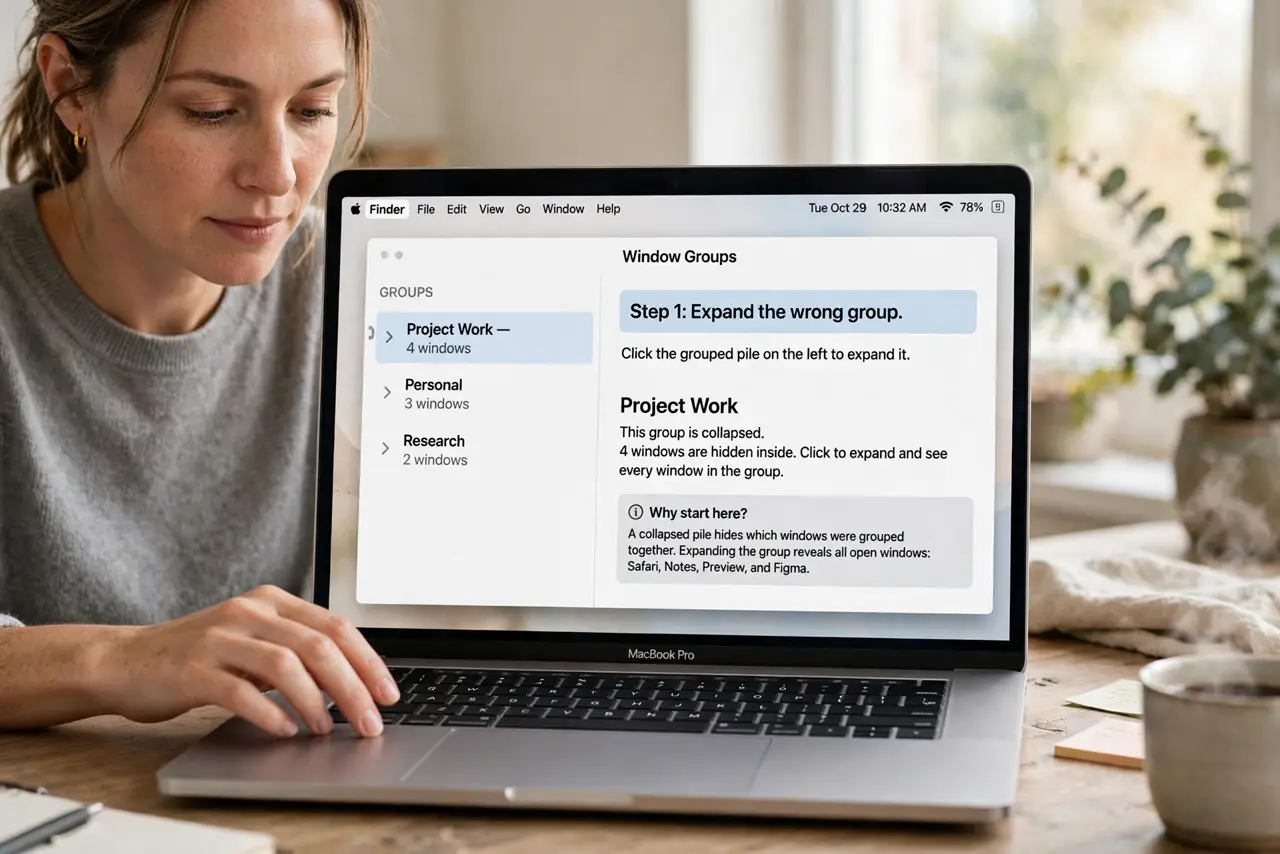
- Expand the wrong group. Click the grouped pile on the left to expand it. Seeing every window in the group is the first step, because a collapsed pile hides which windows were grouped together.
- Drag the stray window out. Drag the window that does not belong out of the group and onto the main desktop. Stage Manager keeps the remaining windows grouped, and the stray window becomes its own group.
- Switch groups deliberately. Click each group in turn and note which windows it holds. Deliberate switching teaches you the current grouping, so you can fix the next wrong pile faster.
- Adjust Stage Manager settings. Open System Settings, then Desktop and Dock, scroll to Stage Manager, and review its options. Change how windows group and whether recent apps stay visible, to match how you work.
- Turn Stage Manager off and on for a reset. Turn Stage Manager off, wait a few seconds, then turn it back on. A fresh start clears odd groupings that built up over a long session.
- Rebuild groups one app at a time. Open one app, arrange its windows, then open the next app. Building groups slowly keeps unrelated windows from being swept into the same pile.
What NOT to do
- Do not close every window to fix a bad group. Closing windows loses work, while dragging one stray window out fixes the group in seconds.
- Do not turn Stage Manager off permanently after one bad grouping. Grouping behavior can be adjusted, and a single reset often fixes piles that built up over time.
- Do not move windows rapidly between groups hoping they sort themselves. Rapid moves create new groupings faster than you can track, so move one window at a time.
- Do not assume Stage Manager groups by project. It groups by app and recent use, so windows from different projects in the same app will naturally share a group.
Frequently asked questions
How does Stage Manager decide groups?
Mainly by app and recent use. Windows from the same app tend to group together, even if they belong to different projects.
Why did a window join the wrong group?
Because it was opened while that group was active, or it was dragged there by accident. Dragging it out is the direct fix.
Can I stop Stage Manager from grouping at all?
You can turn Stage Manager off, or adjust its settings to show windows individually. Choose the setup that matches how you switch between tasks.