Mac Stage Manager Hides Windows? Bring Them Back
You turn on Stage Manager, and suddenly windows vanish to the side, leaving only one in view. That is Stage Manager doing its job, but it feels like windows disappeared. Learn where they went, and you can bring any back instantly.
TL;DR / Quick Fix
Quick fix: move the pointer to the left edge to reveal hidden windows, then click the window you need. Turn Stage Manager off in Control Center if you prefer all windows visible at once. Then test the fix for a full day before changing anything else.
Follow these steps
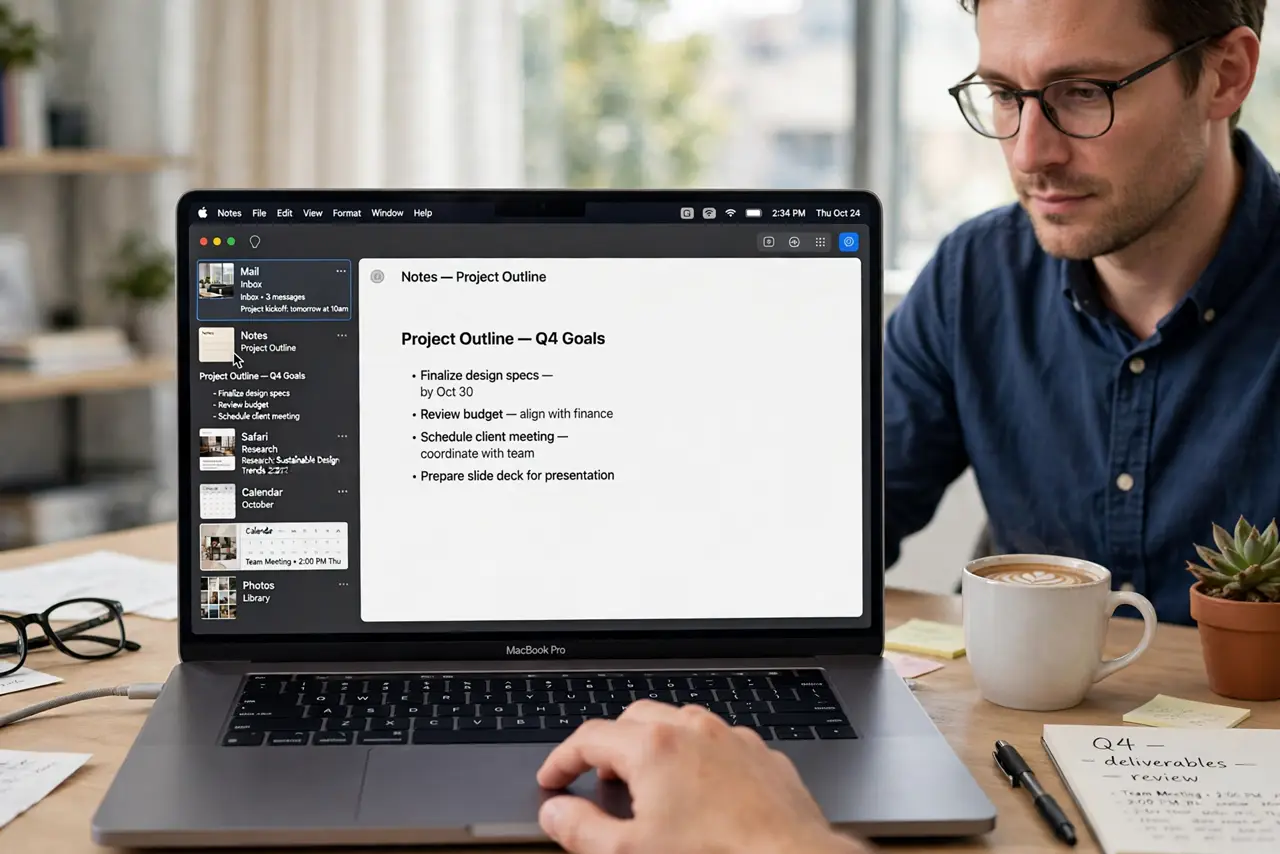
- Reveal the hidden windows. Move the pointer to the left edge of the screen, where Stage Manager stacks recent windows. The hidden windows appear as thumbnails on the side.
- Click the window you need. Click a thumbnail on the left to bring that window forward. The previous window moves back to the side stack automatically.
- Use the app switcher too. Press Command and Tab to switch apps, even with Stage Manager on. This finds a window faster than hunting through thumbnails.
- Group windows you use together. Drag a thumbnail onto the current window to group them. Grouped windows come forward together, which suits tasks with two windows.
- Turn Stage Manager off if you dislike it. Open Control Center, find Stage Manager, and turn it off. Your windows return to the normal overlapping view at once.
- Turn it back on deliberately. If you turn it on again later, do it for a focused task, not for everything. Stage Manager suits single-task focus, not constant switching.
What NOT to do
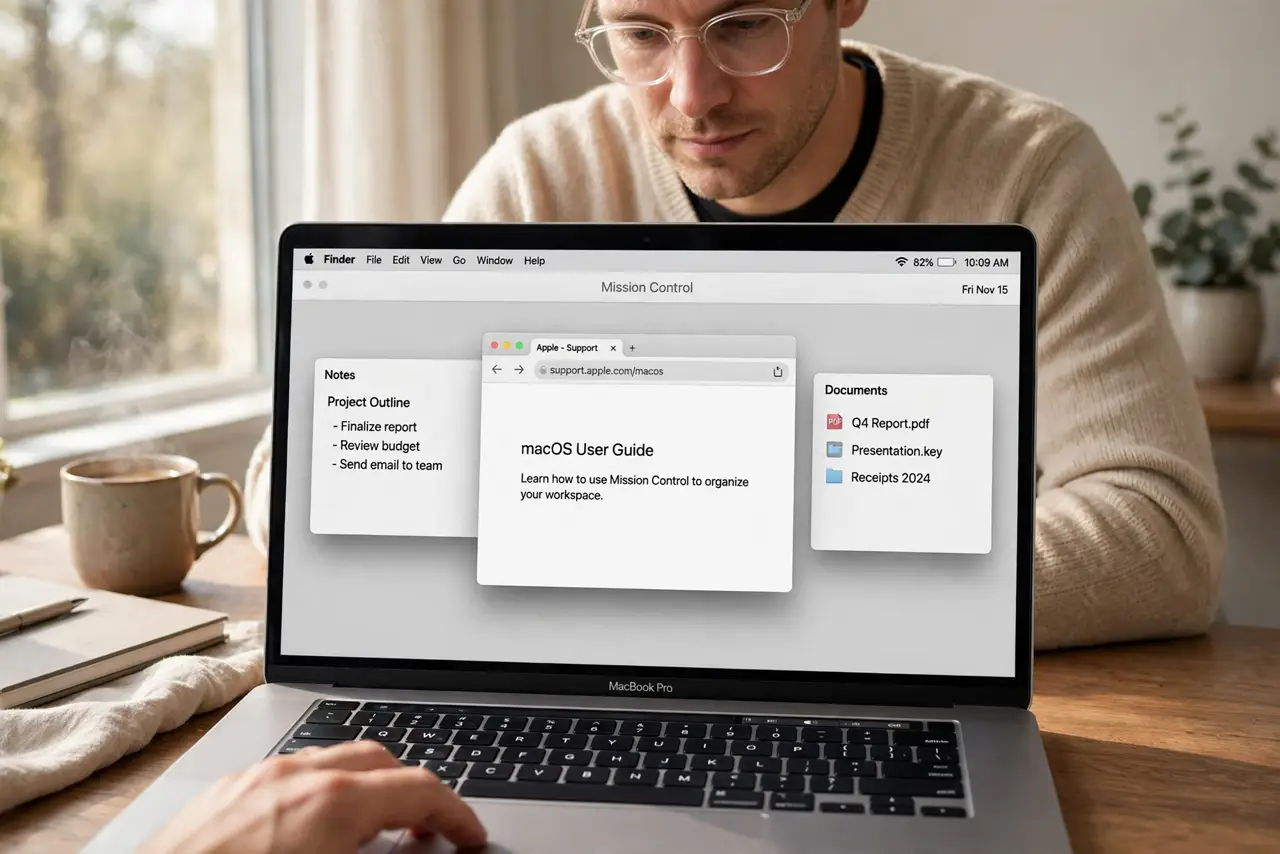
- Do not assume hidden windows are closed. Stage Manager hides windows to the side; it does not close them.
- Do not quit apps to recover a hidden window. Quitting loses unsaved work, while clicking the thumbnail brings it back safely.
- Do not leave Stage Manager on if it confuses you. Turning it off is a valid choice, not a failure to learn it.
- Do not drag windows off the side stack at random. Grouping the wrong windows together makes switching harder, not easier.
Frequently asked questions
Where did my windows go?
Stage Manager moved them to the thumbnail stack on the left edge. Move the pointer there to reveal them.
Does Stage Manager close windows?
No. It hides them from the main view while keeping them open and ready to bring forward.
Can I use Stage Manager for one task only?
Yes. Turn it on for focused work, group the windows you need, and turn it off when you return to multitasking.