Change Startup Security
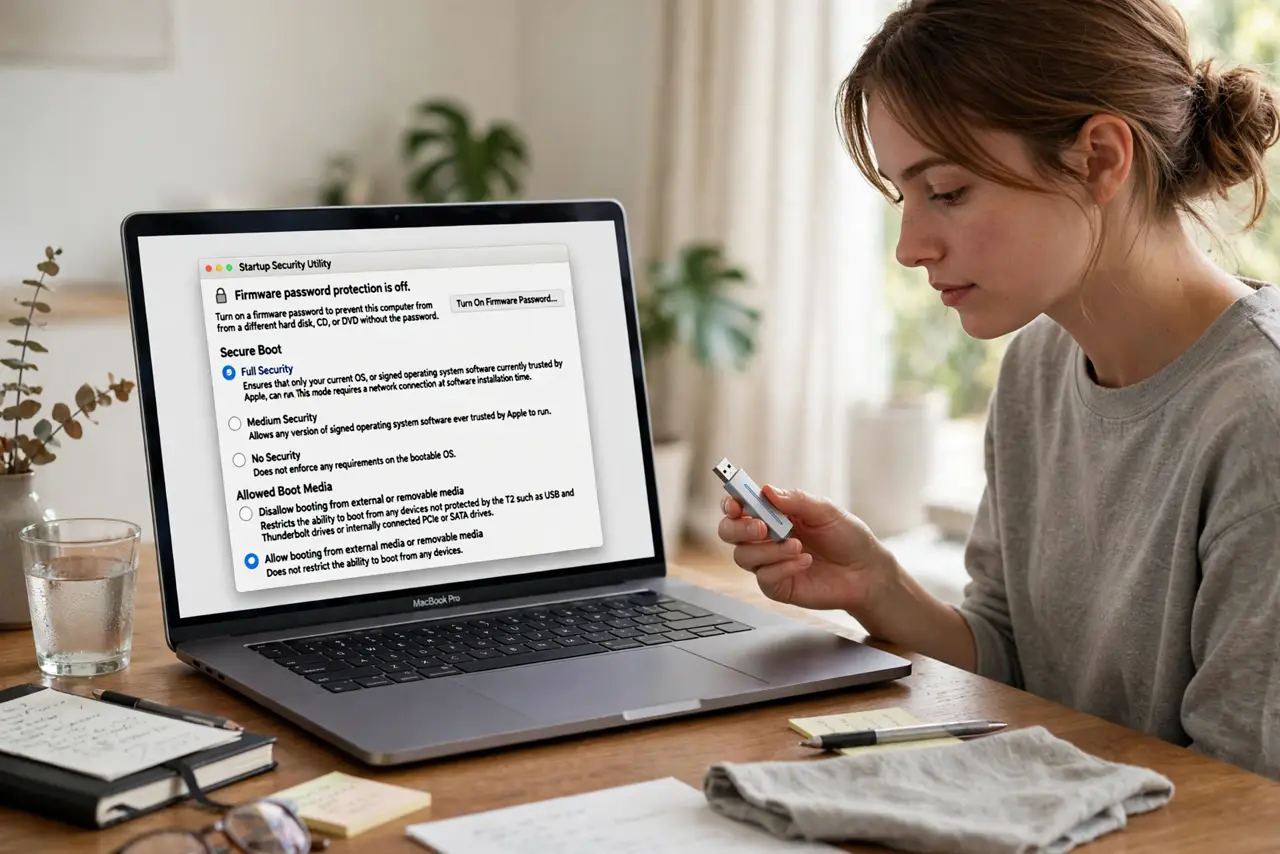
You made a bootable USB installer, hold the right keys, and the Mac simply refuses to boot from it — no error, just stubbornness. On modern Macs the Startup Security Utility stands guard: by default it blocks booting from external media entirely. Changing that one setting, temporarily, is the whole fix. This guide shows the safe path in and — just as important — the way back. If the Mac will not start at all, Recovery Mode is your first stop instead.
TL;DR / Quick Fix
Quick fix: if your Mac refuses to boot from a USB drive, the Startup Security Utility is probably blocking external boot — restart into Recovery Mode, open the utility, and allow booting from external media. Leave Secure Boot on Full Security otherwise. Change it back after you finish.
Follow these steps
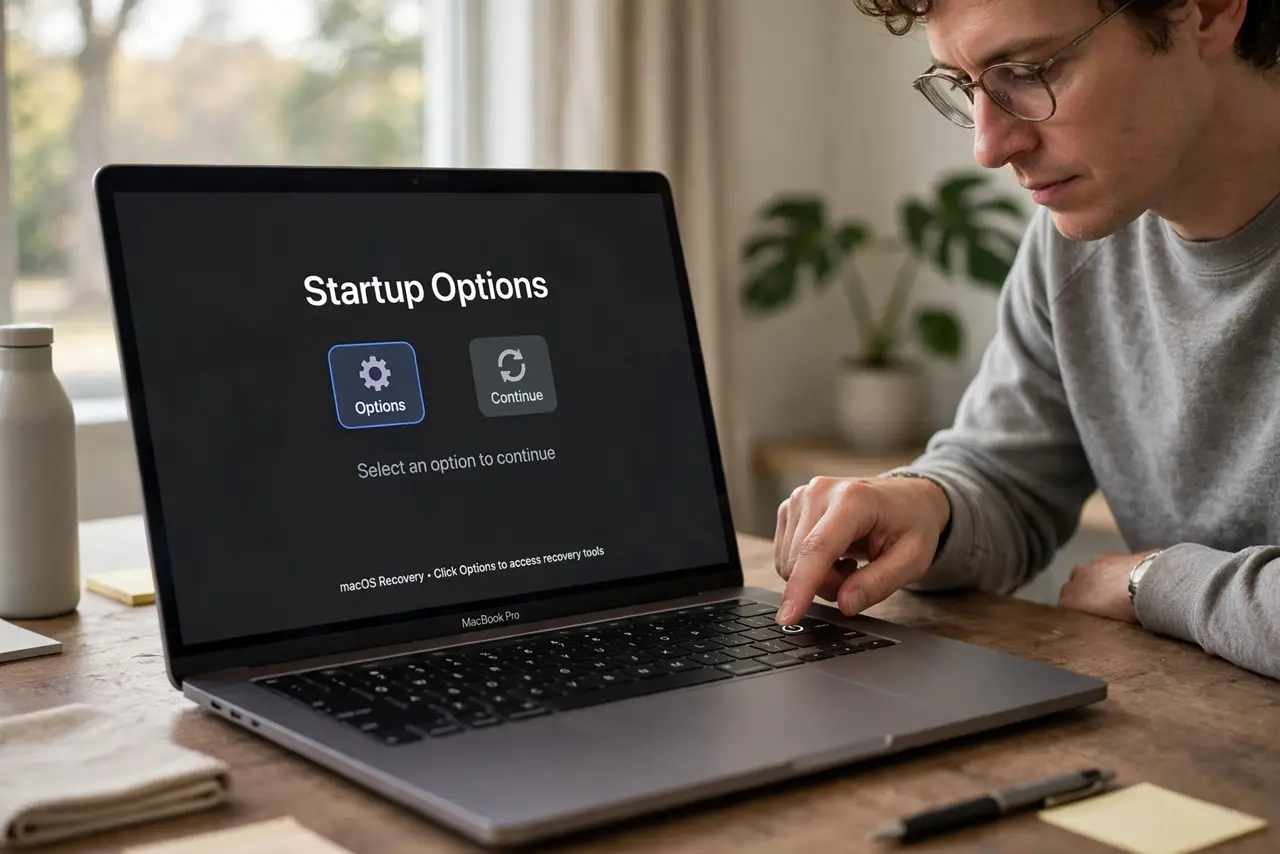
- Restart into Recovery Mode. On Apple silicon: shut down, then press and hold the power button until startup options appear, and choose Options. On Intel: restart holding Command+R. You need Recovery to reach the security settings — they are locked from a normal boot.
- Open Startup Security Utility. In Recovery's menu bar, choose Utilities, then Startup Security Utility. Enter an administrator password when asked — this gate exists so malware cannot quietly lower your defenses.
- Allow booting from external media. Under external boot, select 'Allow booting from external or removable media'. Leave Secure Boot on Full Security — you are opening one door, not dismantling the alarm system.
- Boot from your USB drive. Restart, and on Apple silicon hold the power button (Intel: hold Option) to see startup disks. Select your USB drive and continue — the Mac should now boot from it.
- Do your task, then go back. Install, repair, or test whatever you needed the USB for. When finished, return to the Startup Security Utility and set external boot back to disallowed.
- Verify the setting stuck. Reopen the utility once more and confirm it shows the restrictive setting again. A forgotten open door is how a 'temporary' change becomes permanent.
What NOT to do
- Do not lower Secure Boot below Full Security. External boot permission is enough — weakening Secure Boot itself invites real tampering.
- Do not leave external boot allowed afterward. It is a deliberate hole in your Mac's defenses — close it when the job is done.
- Do not boot from USB drives you do not trust. With external boot allowed, any bootable drive can start your Mac — that includes a stranger's.
- Do not change these settings from a normal boot. If some tool claims to do it without Recovery Mode, be suspicious — the Recovery requirement is the protection.
Frequently asked questions
Will this erase my Mac?
No — changing the boot policy touches no data. It only changes which drives the Mac is allowed to start from.
Why does Apple block this by default?
A Mac that boots anything is a Mac anyone with a USB stick can take over. The default protects against physical-access attacks, which are very real for laptops.
Does this affect FileVault?
No — FileVault encryption stays on regardless. External boot permission and disk encryption are independent layers.