Switch Control? The Basics
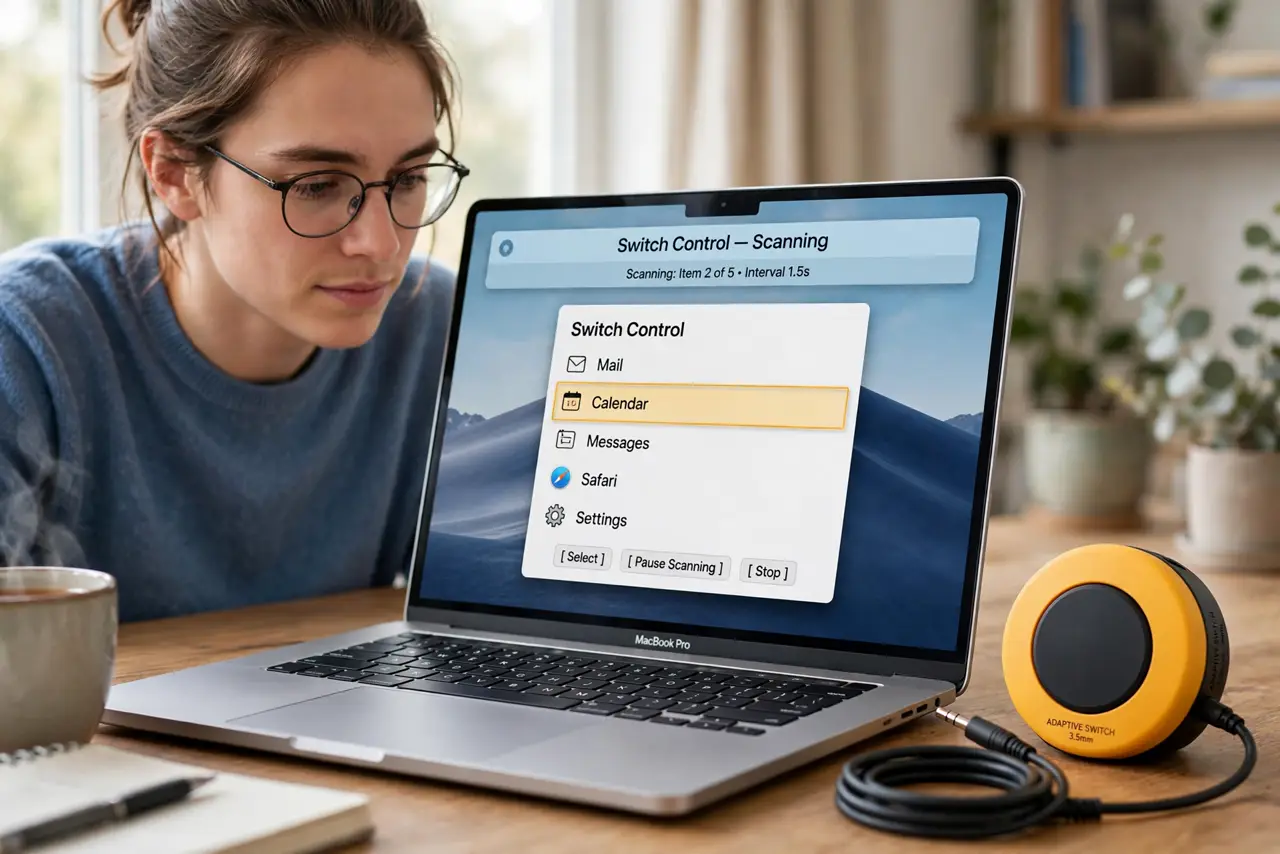
Switch Control lets someone operate a whole Mac with one or two switches — a button, a sip-and-puff, even a head movement — instead of a keyboard and mouse. The Mac scans through items on screen and the user clicks the switch to choose. It is powerful assistive tech, and the basics fit on one page.
TL;DR / Quick Fix
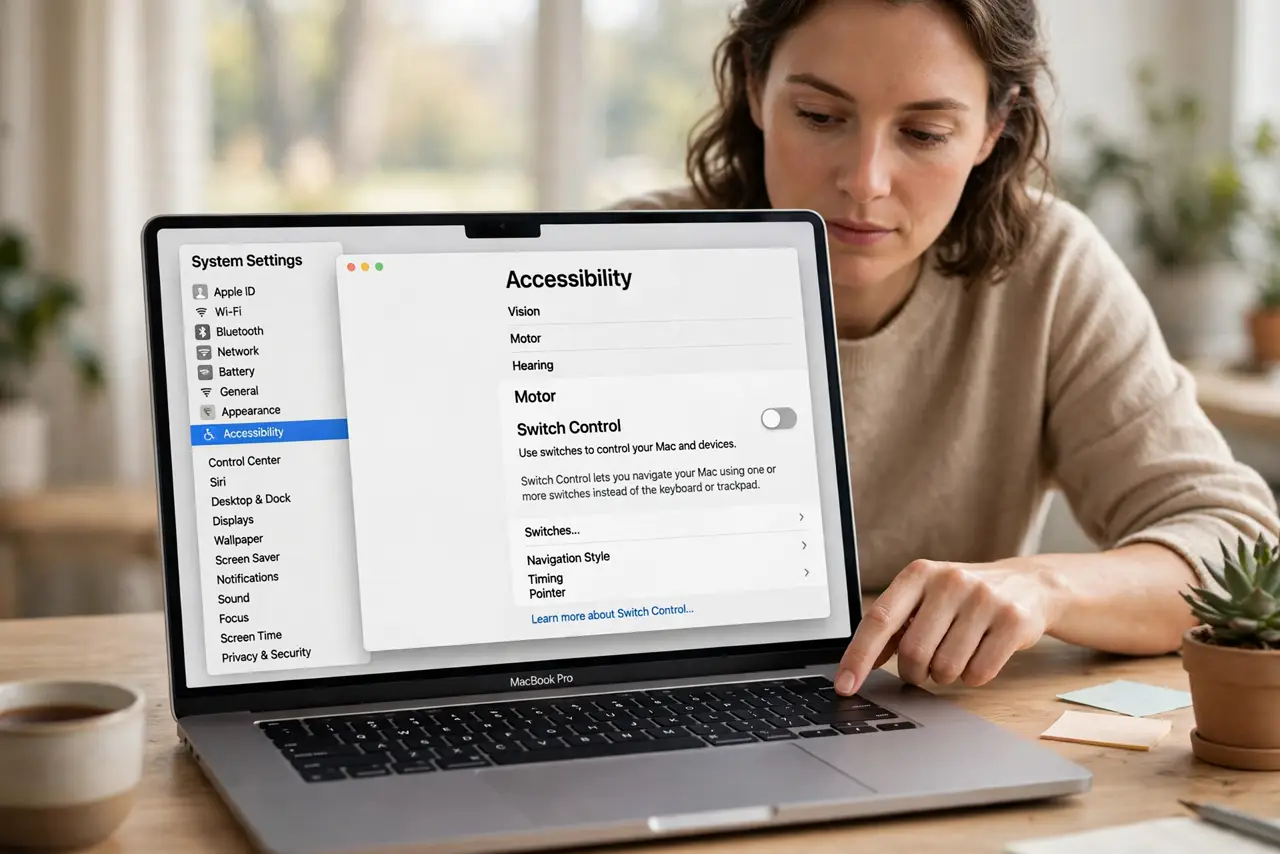
Quick fix: open System Settings > Accessibility > Motor and turn on Switch Control. Start with one switch for scanning and selecting — the panel walks you through assigning it. Scanning speed and the switch action are the two settings that matter most at first.
Follow these steps
- Find the Switch Control pane. System Settings > Accessibility > Motor > Switch Control. Turn it on — the scanning interface appears over your screen.
- Assign your switch. Click Options or Switches to assign a physical switch, key, or camera-based head switch. One switch can both scan and select; two switches split the jobs.
- Learn the scan cycle. The Mac highlights groups, then items inside the group, stepping automatically. Press the switch when the highlight lands on what you want.
- Set a comfortable scanning speed. Too fast and you miss targets; too slow and everything drags. Start slow and speed up as the rhythm clicks.
- Try head tracking as a switch. On supported Macs, the camera can act as a switch — a head nod or eyebrow raise becomes the click. It is in the same Switches panel.
- Pair it with [[Dwell|mac-dwell-control-click]] for pointing. Switch Control handles selection; Dwell Control can handle the pointer. Together they cover nearly everything without a mouse.
What NOT to do
- Do not start with two switches. One switch doing scan-and-select is simpler to learn — add the second only when the rhythm demands it.
- Do not set the scan speed to maximum on day one. Speed comes with practice; early misses are more frustrating than slowness.
- Do not forget a way to turn it off. Keep a keyboard shortcut or a helper nearby in case the scanning traps you somewhere unexpected.
- Do not skip the panel customization. The default panel layout rarely fits anyone — shrink it to the actions actually used.
Frequently asked questions
Who is Switch Control for?
Anyone who cannot use a keyboard or mouse reliably — motor impairments, injuries, or situations where only one switch is operable.
Can I use the keyboard as a switch?
Yes — any key can be assigned as a switch, which makes it easy to trial the feature before buying hardware.
Does it work with all apps?
With nearly all — it drives the standard Mac interface. A few custom-drawn app interfaces scan less neatly, but the panel usually offers a workaround.