Expand Text Shortcuts
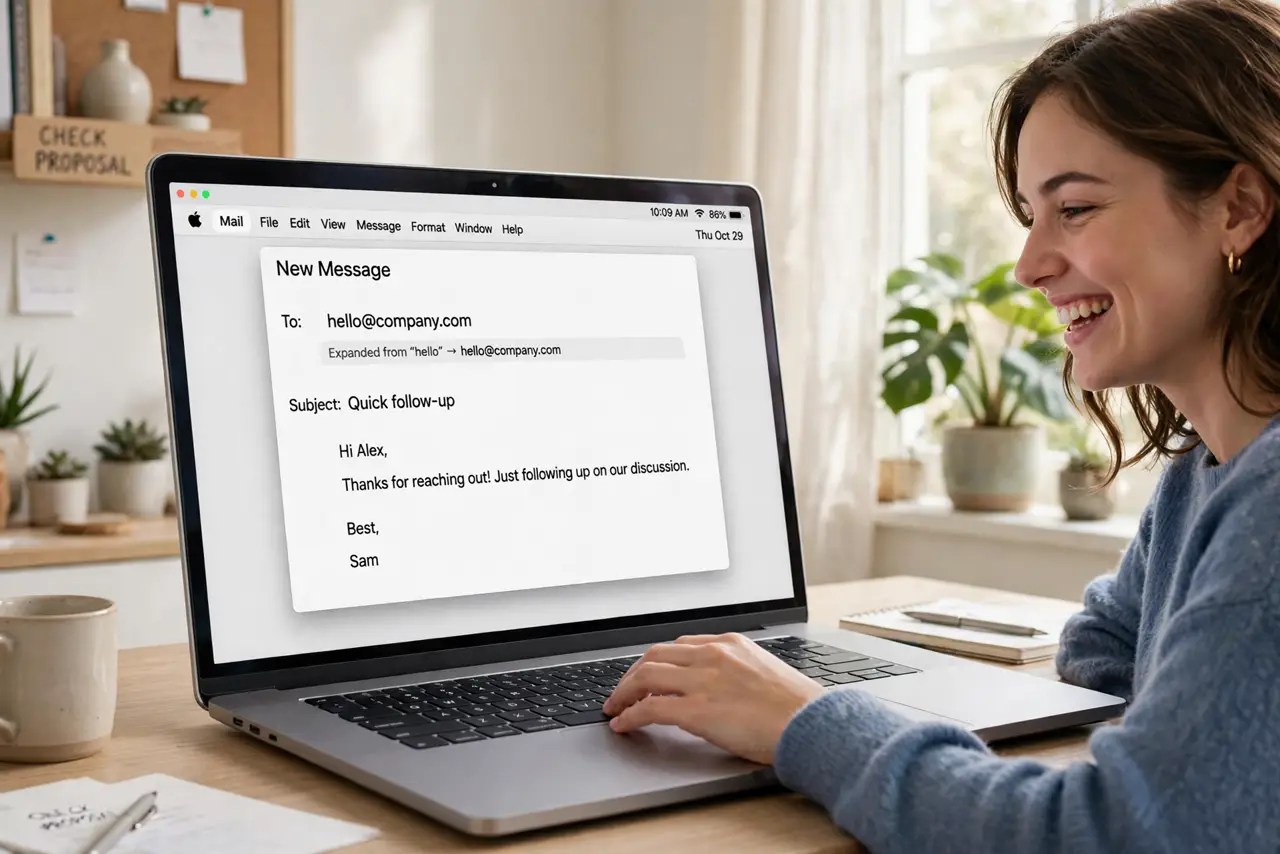
You type your email address, your home address, the same support reply — dozens of times a week, letter by letter. macOS text replacement turns a short trigger like 'eml' into the full text the moment you hit space. Set up a dozen triggers once, and the retyping stops forever across every app.
TL;DR / Quick Fix
Quick fix: open System Settings, then Keyboard, then Text Replacements, and add triggers — 'eml' for your email, 'addr' for your address. Type the trigger and press space anywhere; it expands instantly. Keep triggers short but unique so normal words never trigger them.
Follow these steps
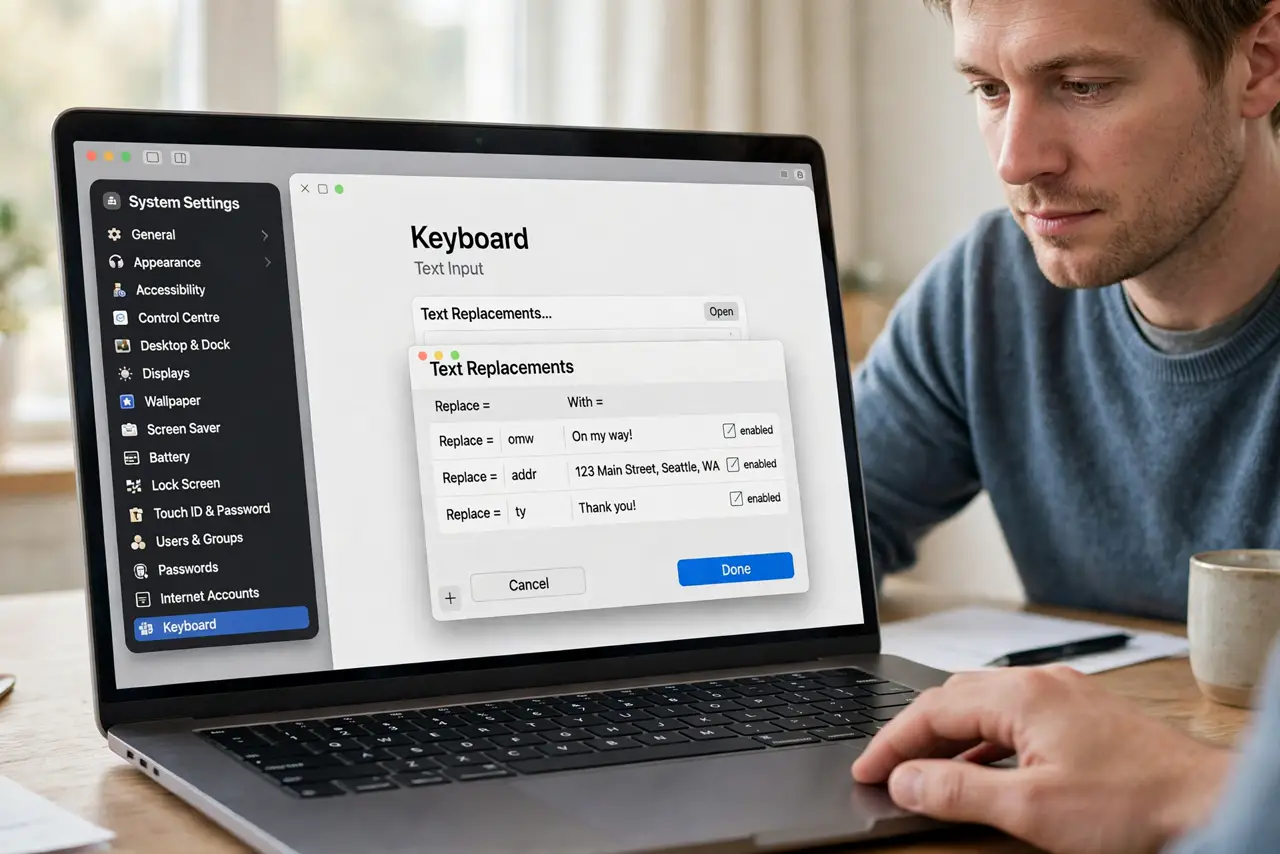
- Open Text Replacements. Go to System Settings, then Keyboard, then Text Replacements. This is the master list — every trigger you create lives here and works system-wide.
- Add your first trigger. Click the plus button, type a short trigger like eml in the Replace field, and your full email in the With field. Short, memorable, and impossible to type accidentally.
- Build your starter set. Add your address, phone number, and your three most-repeated phrases — support replies, meeting links, sign-offs. Ten good triggers cover most people's repetitive typing.
- Test in any app. Open Notes or any text field, type a trigger, and press space. The expansion fires everywhere — browsers, email, documents — because it lives at the system level.
- Choose collision-proof triggers. Use triggers you would never type normally — double letters, semicolons, or odd combos like ;em. A trigger that fires mid-word is worse than no trigger.
- Sync keeps them everywhere. With iCloud Drive on, your replacements sync to your other Apple devices. Set them up once on the Mac; your iPhone inherits them.
What NOT to do
- Do not use real words as triggers. A trigger like 'address' fires every time you type the word — use abbreviations instead.
- Do not create fifty triggers on day one. Start with ten you actually type daily; the rest reveal themselves over weeks.
- Do not use text replacement for passwords. Triggers expand visibly and sync to cloud — passwords stay in the password manager.
- Do not forget the space. The expansion fires when you press space or punctuation after the trigger — mid-word typing never triggers it.
Frequently asked questions
Why didn't my trigger expand?
You may have typed it mid-word, or the app overrides text replacement. Press space after the trigger, and check the app is not one of the rare exceptions.
Can I use this on iPhone too?
Yes — Settings, then General, then Keyboard, then Text Replacement. With iCloud sync, Mac triggers appear on the iPhone automatically.
How do I delete a trigger?
Back in Text Replacements, select it and click the minus button. Deletions sync too — gone everywhere at once.