Plain Text in TextEdit
TextEdit opens every new document as rich text, so pasted web content arrives with wild fonts, colors, and sizes that fight your document. If you mostly write notes, code snippets, or plain drafts, that formatting is pure friction. The fix is a one-time preference change: make plain text the default for new documents, and learn the two shortcuts that strip formatting on demand. This guide shows both, plus when to keep rich text. For organizing lots of little notes, the Stickies app is a handy companion.
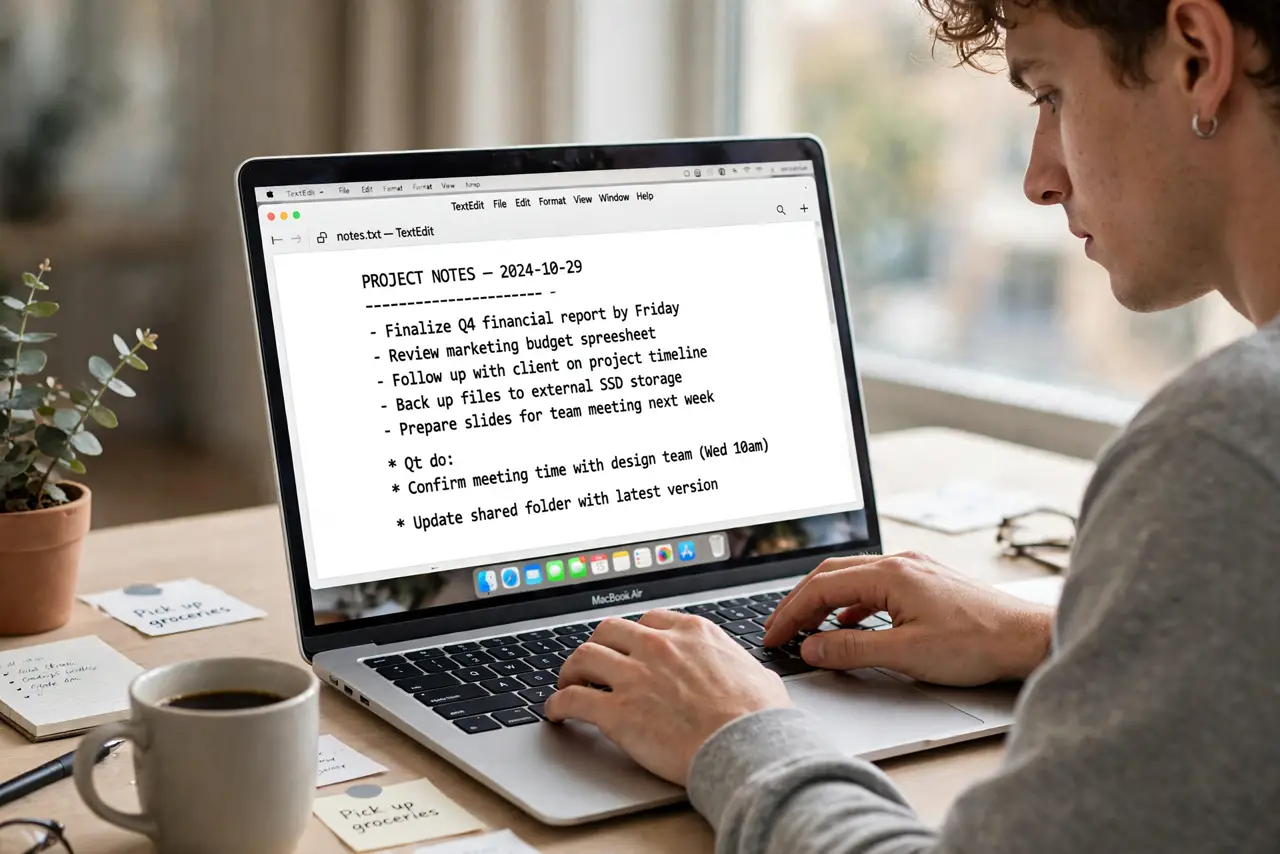
TL;DR / Quick Fix
Quick fix: in TextEdit settings, set new documents to open as plain text instead of rich text. Use the Format menu or its shortcut to convert any open document. Paste with the plain-text shortcut to strip web formatting. The change is instant and affects only new documents.
Follow these steps
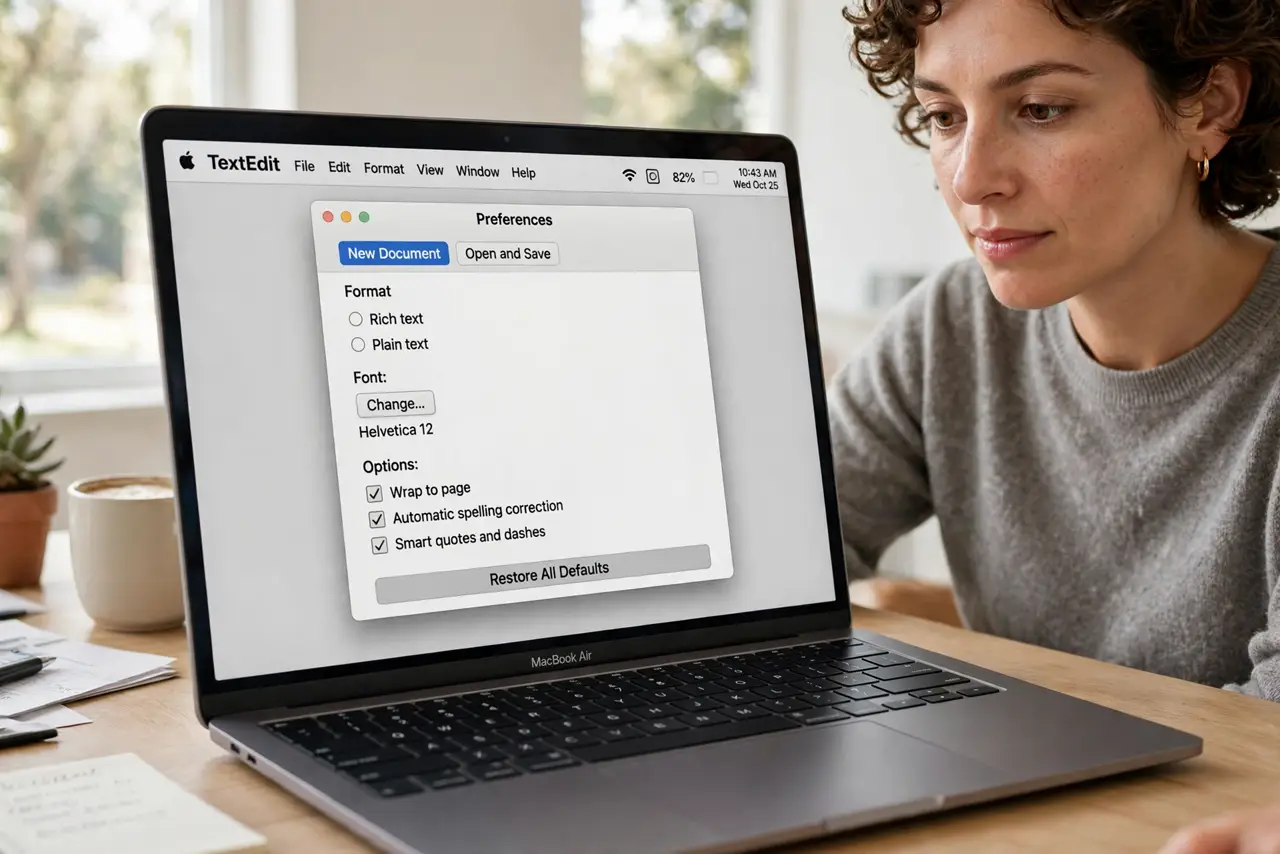
- Open TextEdit preferences. With TextEdit open, press Command-comma or choose TextEdit, then Settings from the menu bar. The New Document tab holds the default format choice.
- Set new documents to plain text. Under Format, select Plain text. From now on every new document opens clean — no fonts, no colors, no surprise formatting from pasted content.
- Convert an open document if needed. For a document already open, use Format, then Make Plain Text (Shift-Command-T). TextEdit warns that formatting will be lost — that is the point here.
- Paste without formatting. When pasting from the web, use Option-Shift-Command-V instead of Command-V. This pastes matching the destination style and skips the font chaos entirely.
- Know where to find the plain-text tools. In plain text mode the ruler and font panel disappear, but Find, word wrap, and spellcheck still work. Wrap to window under Format keeps long lines readable.
- Keep rich text for the exceptions. If a document needs bold, lists, or images, switch that one back with Format, then Make Rich Text. The default stays plain; exceptions take two clicks.
What NOT to do
- Do not save plain text as .rtf expecting the formatting gone forever. The .txt extension is what keeps it truly plain across apps.
- Do not paste web content with Command-V and then fight the fonts. Paste plain from the start — cleanup after the fact wastes more time.
- Do not expect images or tables in plain text mode. If you need them, that document wants rich text; convert it back.
- Do not change the system-wide default paste behavior to fix one app. The per-app TextEdit setting and paste shortcut are the contained fix.
Frequently asked questions
Will plain text mode delete my existing documents?
No. The preference only changes how new documents open. Existing .rtf files keep their formatting until you convert them.
Why does pasted text look wrong in plain text?
It should not — plain text has no fonts to go wrong. If you see odd characters, the source used special encoding; try pasting into a fresh document.
Can I still use TextEdit for code?
Yes, many people do for quick snippets. Plain text mode with a monospace font is a fine scratch pad, though a real editor suits bigger projects.