Drag With Three Fingers
Dragging with one finger — click, hold, slide without lifting — is the trackpad's most awkward gesture. Three-finger drag fixes it: rest three fingers on the trackpad and move; no click, no hold, no cramp. It lives in Accessibility rather than Trackpad settings, which is why most people never find it.

TL;DR / Quick Fix
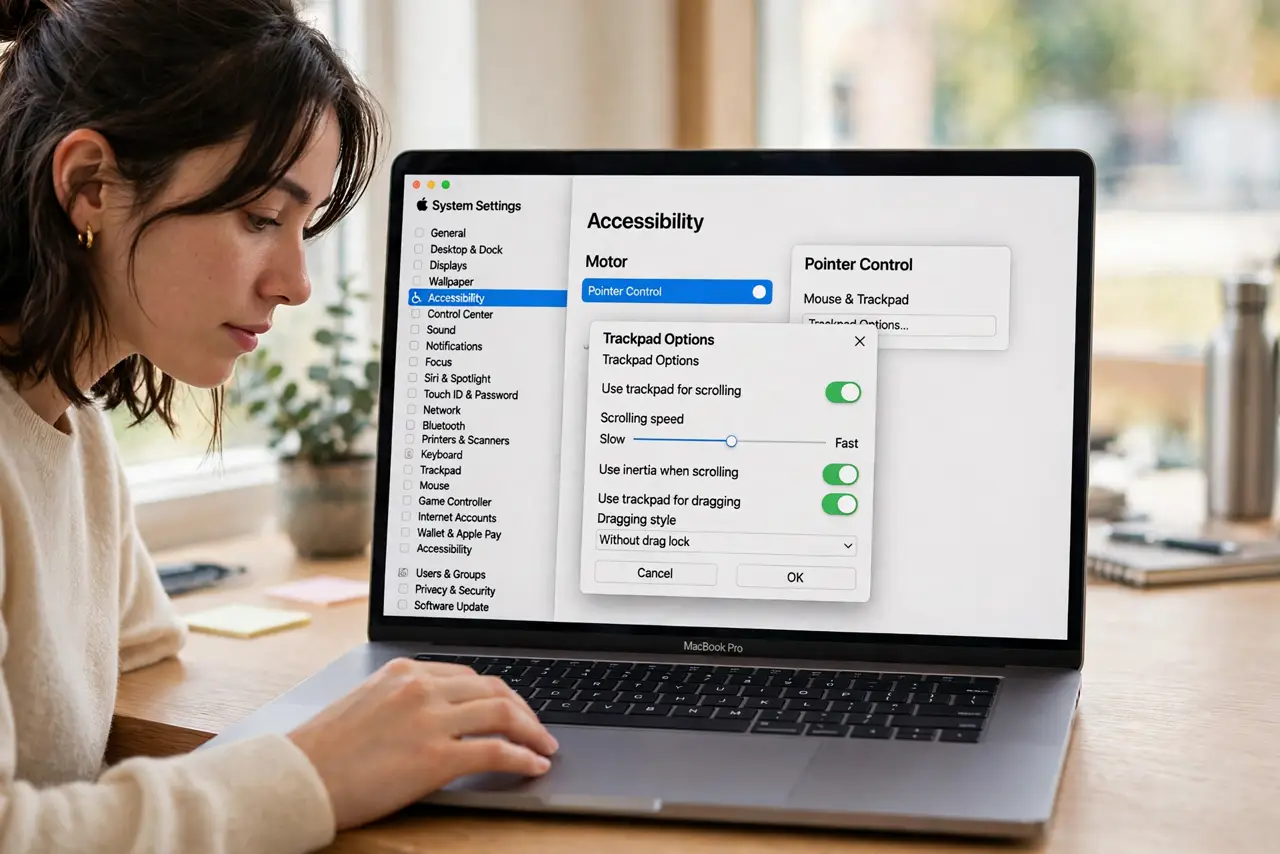
Quick fix: open System Settings > Accessibility > Pointer Control > Trackpad Options and turn on Enable dragging with the dragging style set to three-finger drag. Rest three fingers on the trackpad and move — windows and text follow with no click needed.
Follow these steps
- Open Trackpad Options. System Settings > Accessibility > Pointer Control > Trackpad Options. Yes, it hides in Accessibility — Apple never moved it to the main Trackpad pane.
- Enable dragging, three-finger style. Turn on Enable dragging and set the dragging style to three-finger drag. The other style — drag lock — is a different beast.
- Try it on a window. Rest three fingers lightly on the trackpad and slide. The window under the cursor follows — no click, no pressure.
- Use it for text selection too. Place the cursor at the start of the text, then three-finger drag across it. Selecting paragraphs stops being a finger workout.
- Keep the tap light. The trackpad reads finger count, not force. Pressing hard confuses it — rest the fingers, do not grind them.
- Pair it with [[silent clicking|mac-trackpad-silent-click]] for quiet nights. Three-finger drag plus silent click makes the Mac nearly noiseless — ideal for late sessions next to a sleeper.
What NOT to do
- Do not press hard. Force does not help — the trackpad counts fingers, and grinding makes it miscount.
- Do not confuse it with the three-finger swipe. Swipe switches spaces and apps; drag moves things — the gesture starts from rest, not from motion.
- Do not enable drag lock by accident. Drag lock holds the drag after you lift — useful for some, maddening if you expected the normal release.
- Do not give up after one try. The light three-finger rest feels strange for a day, then becomes the way you always drag.
Frequently asked questions
Why does three-finger drag sometimes not grab?
The cursor must start on the draggable thing — a window's title bar or the text itself. Starting on empty space grabs nothing.
Can I still right-click with three fingers dragging?
The drag uses three fingers; right-click is a two-finger click. They coexist — lift to two fingers and click.
Does it work on an external trackpad?
Yes — the Magic Trackpad supports it with the same setting. The toggle applies to all connected trackpads.