Tile Windows with the Keyboard
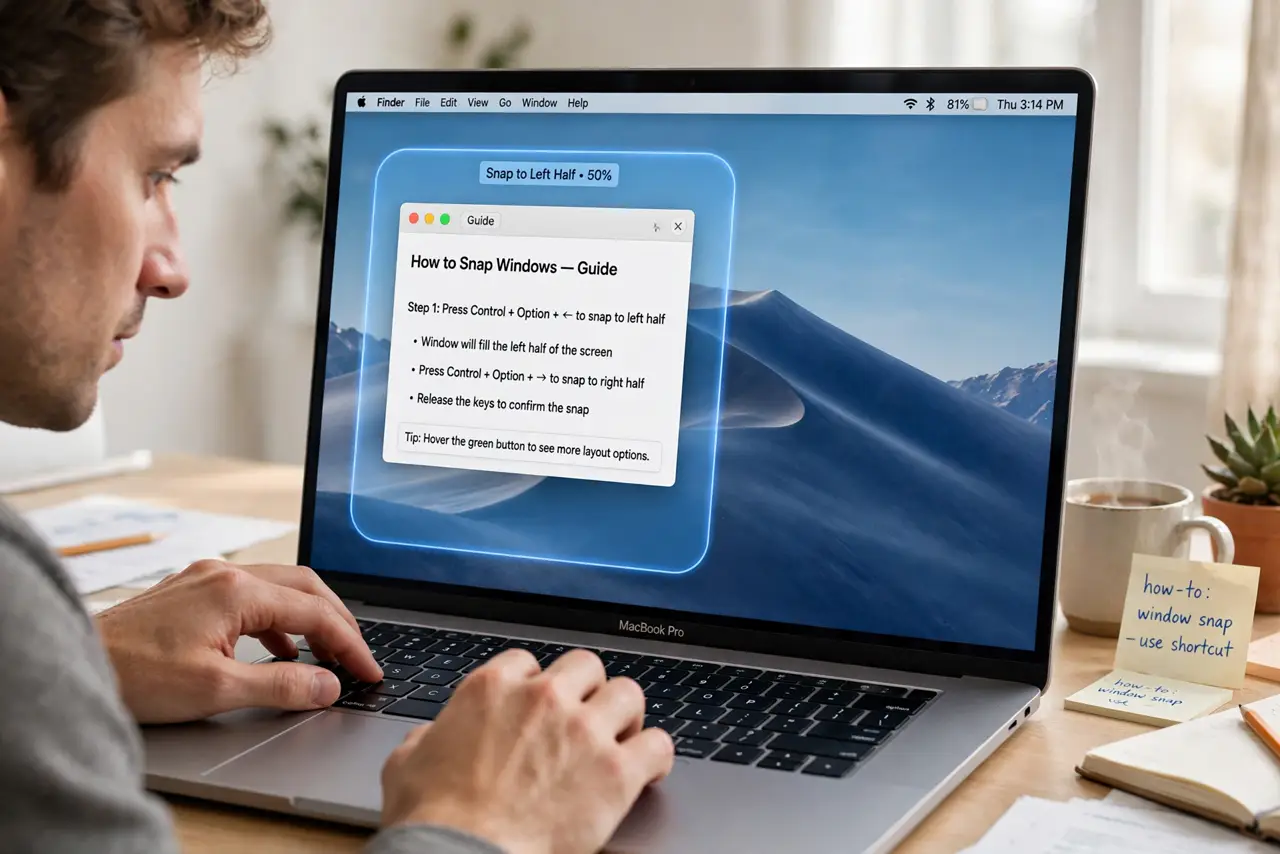
Dragging windows to the screen edge works, but your hands leave the keyboard every time. macOS Sequoia added keyboard shortcuts that tile the active window instantly — left half, right half, quarters, fill — without touching the mouse. This guide lists the shortcuts and how to remember them.
TL;DR / Quick Fix
Quick fix: hold the Function (Fn) key plus Control and tap an arrow key — left or right arrow tiles the window to that half. Fn + Control + up arrow fills the screen, and adding Option with arrows tiles into quarters. Two days of practice makes it automatic.
Follow these steps
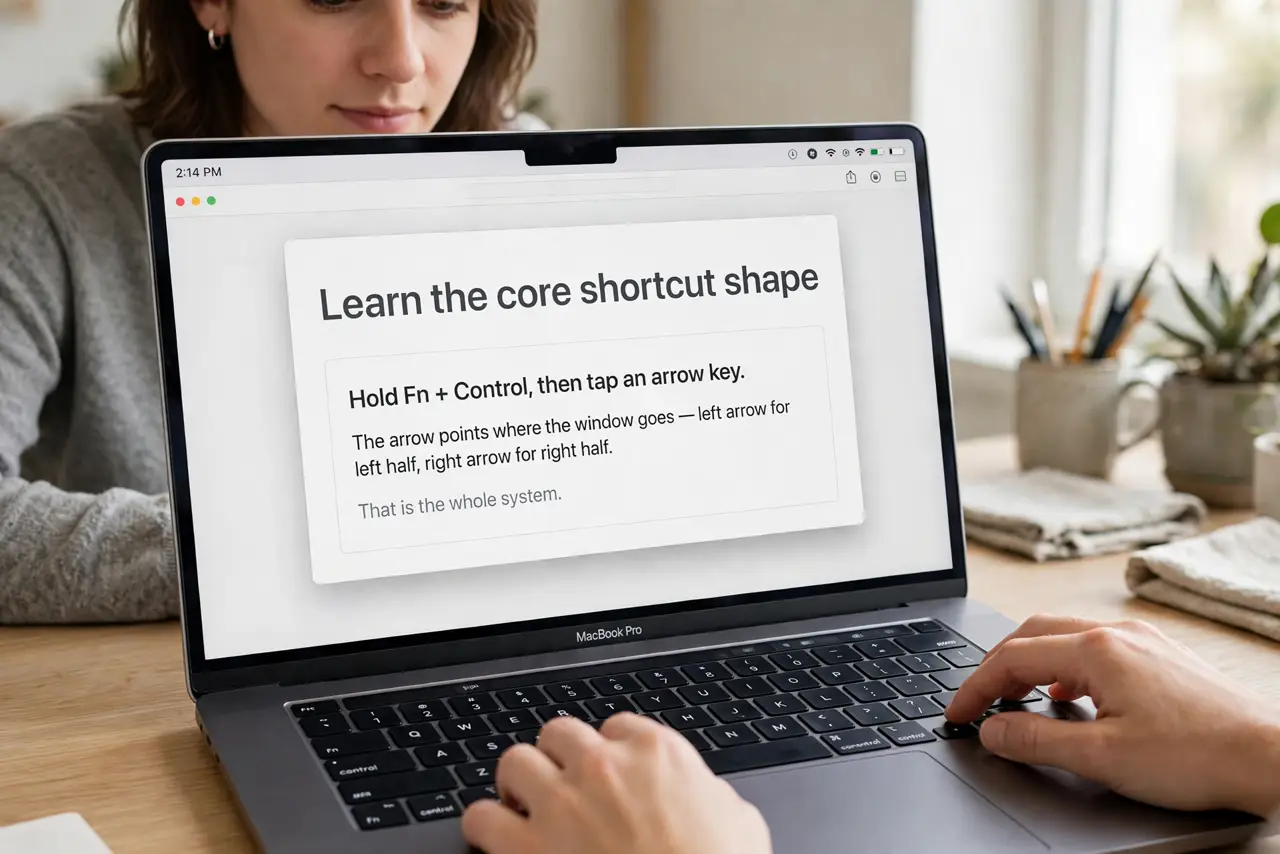
- Learn the core shortcut shape. Hold Fn + Control, then tap an arrow key. The arrow points where the window goes — left arrow for left half, right arrow for right half. That is the whole system.
- Tile to halves with left and right arrows. Fn + Control + Left Arrow tiles the active window to the left half; Fn + Control + Right Arrow tiles it to the right. Repeat with a second window for a perfect split.
- Fill the screen with the up arrow. Fn + Control + Up Arrow expands the active window to fill the display (not full-screen mode — the menu bar stays). Down arrow restores the previous size.
- Add Option for quarter tiles. Hold Fn + Control + Option and tap an arrow to tile into a corner quarter. Combine quarters to fit up to four windows on screen.
- Check the shortcuts are enabled. If nothing happens, open System Settings, then Keyboard, then Keyboard Shortcuts, and confirm the window-management shortcuts are turned on.
- Practice the two you use most. Most people only need left-half and right-half. Drill those two for a couple of days before adding quarters — muscle memory beats a cheat sheet.
What NOT to do
- Do not memorize all the shortcuts at once. Learn halves first; quarters can wait until halves are automatic.
- Do not confuse Fn + Control with Control alone. The Function key is part of the shortcut — without it, different things happen.
- Do not give up after one day. Keyboard tiling feels awkward for 48 hours, then becomes faster than any dragging.
- Do not forget mouse tiling still works. Shortcuts and edge-dragging are the same feature — use whichever fits the moment.
Frequently asked questions
Do these shortcuts work on older macOS?
The Fn + Control + arrow tiling shortcuts arrived with Sequoia's tiling. Older versions need a third-party app for the same trick.
Can I change the shortcut keys?
Yes — System Settings, Keyboard, Keyboard Shortcuts lets you reassign them if the defaults clash with something you use.
Why does the shortcut do nothing?
Either the window shortcuts are disabled in Keyboard settings, or the frontmost app does not support tiling. Check settings first.