Use Touch ID on Websites
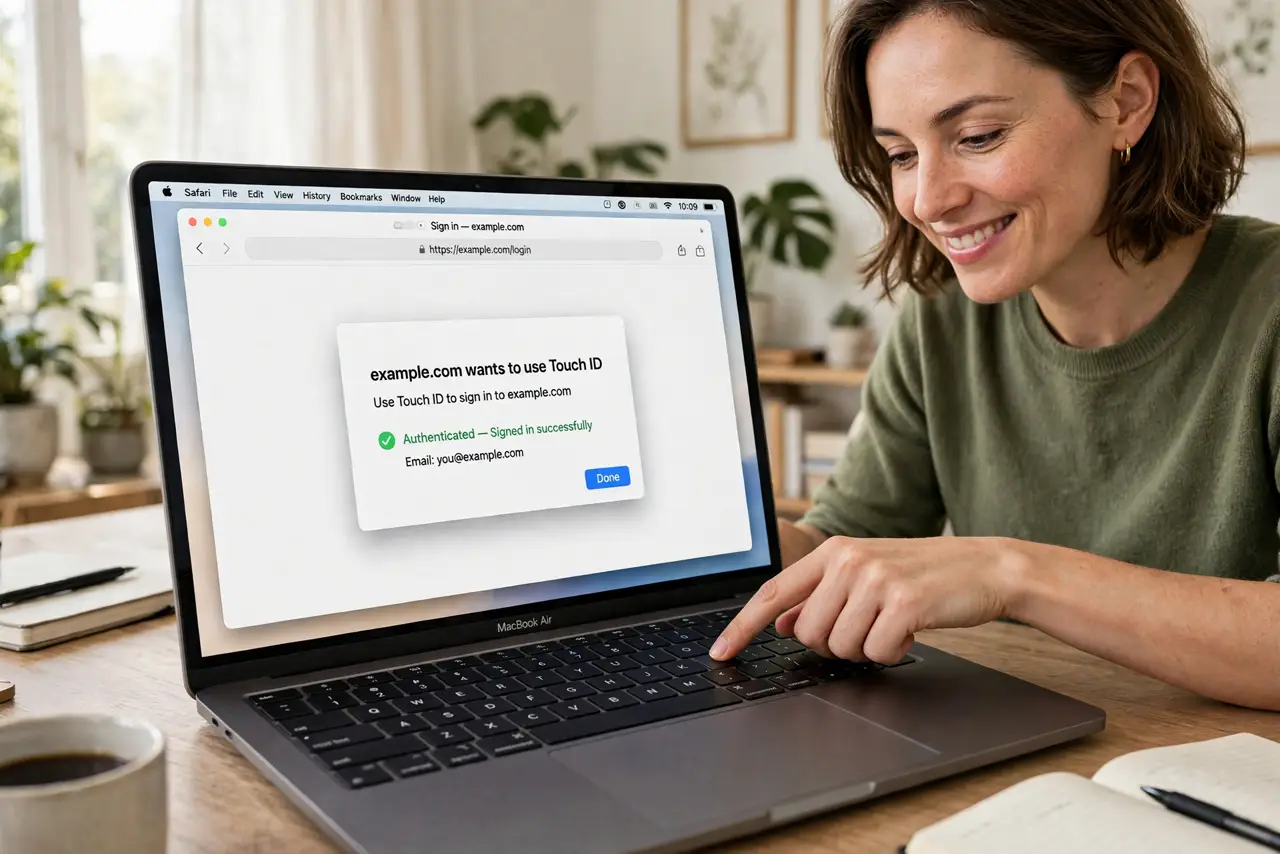
Typing passwords into websites feels increasingly ancient when your finger can do it in a second. Touch ID works in Safari for logging into websites — either approving a saved password or signing in with a passkey. Set it up once and most logins become a single touch.
TL;DR / Quick Fix
Quick fix: in Safari settings, Passwords, enable AutoFill with Touch ID approval. When logging in, Safari offers your saved password — approve with your finger instead of typing. For sites offering passkeys, Touch ID signs you in with no password at all.
Follow these steps
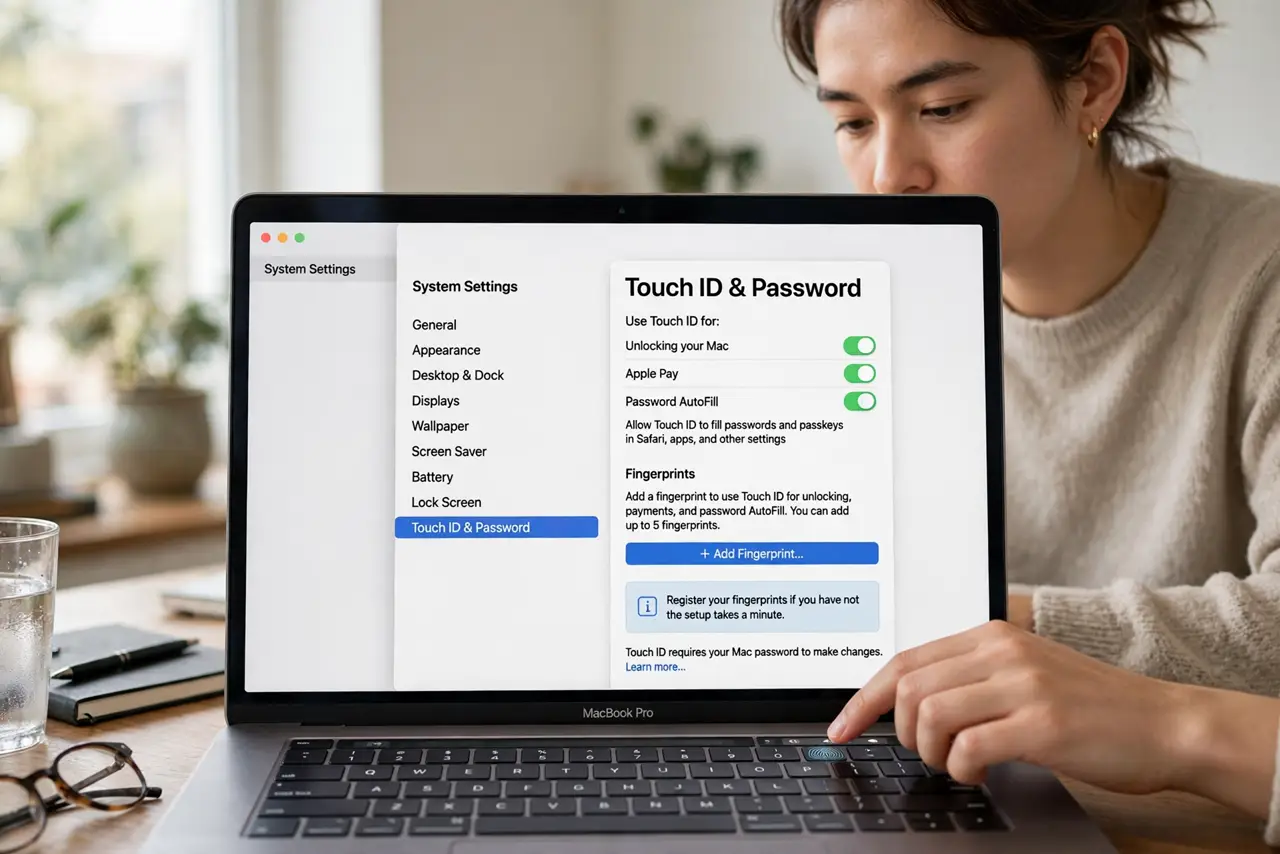
- Enable Touch ID for passwords. Go to System Settings, Touch ID and Password, and make sure password AutoFill is enabled. Register your fingerprints if you have not — the setup takes a minute.
- Turn on AutoFill in Safari. In Safari settings, AutoFill, check User names and passwords. Safari now offers saved logins on websites instead of making you type them.
- Approve with a touch. When Safari suggests a login, place your finger on the sensor. One touch fills and submits — faster than typing and immune to keyloggers watching keystrokes.
- Use it with passkeys. Sites offering passkeys use Touch ID as the approval — the strongest login available, completed with a finger touch. Accept passkey offers when sites present them.
- Know when it asks for the password instead. After a restart, or if Touch ID fails repeatedly, macOS asks for your full Mac password. This is a security feature, not a bug — the password remains the master key.
- Fix Touch ID when it misbehaves. If the sensor stops responding on websites, the Touch ID troubleshooting steps cover cleaning, re-registering, and software fixes.
What NOT to do
- Do not disable your Mac password because Touch ID is convenient. The password is the fallback for restarts and failures — Touch ID is a shortcut, not a replacement.
- Do not use Touch ID on a Mac others can access while you sleep. Biometrics work when you are present — log out fully on shared machines.
- Do not ignore repeated Touch ID failures. The sensor failing everywhere signals hardware or software trouble — troubleshoot rather than just typing passwords forever.
- Do not approve logins you did not initiate. A Touch ID prompt you were not expecting deserves suspicion — look at what is asking before touching.
Frequently asked questions
Why does Safari sometimes not offer Touch ID?
The site may block AutoFill, or you are in a Private window with separate settings. Also check that the login is actually saved in the Passwords app.
Is Touch ID on websites secure?
Very — your fingerprint never leaves the Mac's secure chip, and sites receive only a cryptographic approval. Safer than typed passwords in every way.
Can I use Touch ID in Chrome too?
Chrome on Mac supports Touch ID for its own password manager and some passkey flows, but Safari integration is the smoothest on macOS.