Trim a Screen Recording
Every screen recording starts with fumbling and ends with the mouse hunting for the stop button. Trimming cuts the dead air from both ends — no re-recording, no video editor, no new app. QuickTime Player does it in under a minute, and the Photos app can too.
TL;DR / Quick Fix
Quick fix: open the recording in QuickTime Player, choose Edit > Trim, drag the yellow handles to cut the fumbling from the start and end, then click Trim. Save — QuickTime keeps the original quality. For a phone-synced clip, the Photos app trim works the same way.
Follow these steps
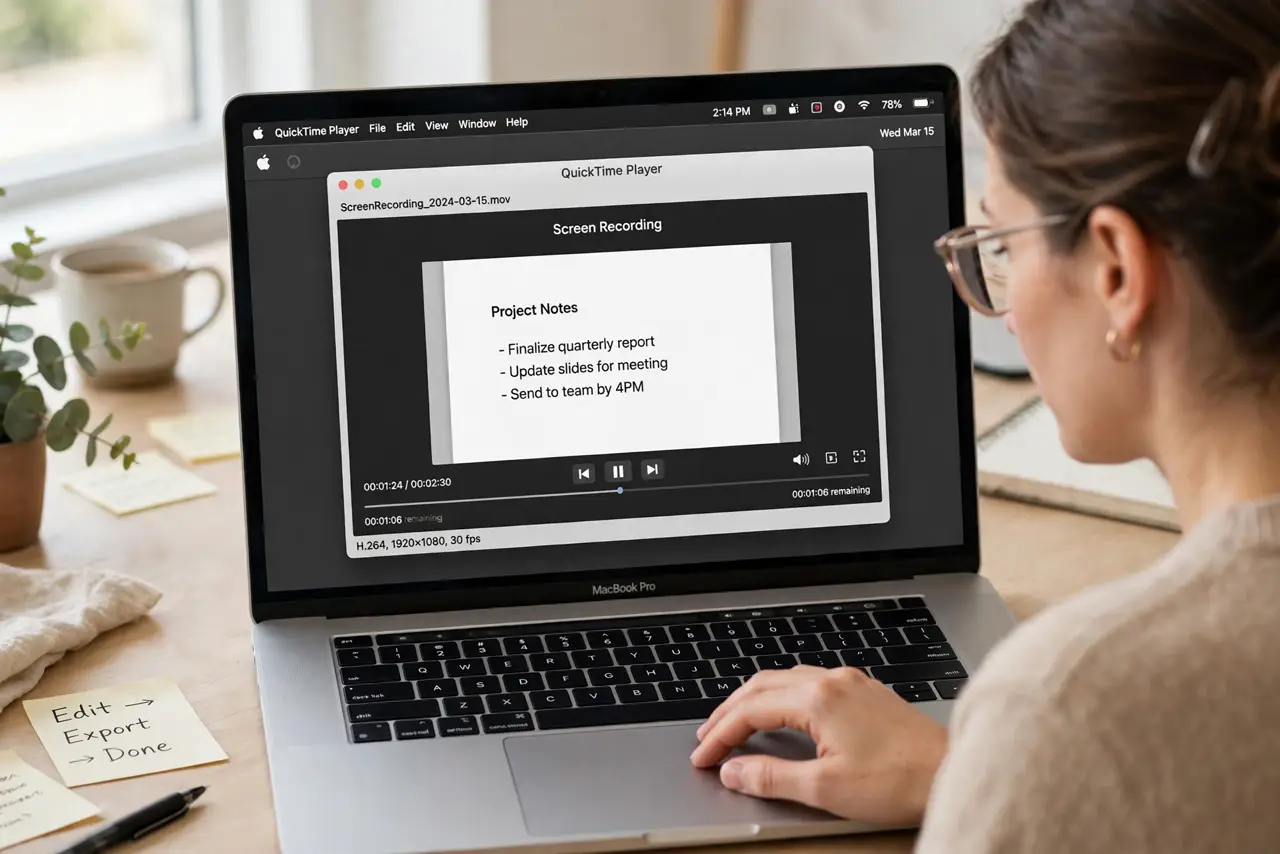
- Open the recording in QuickTime Player. Double-click the .mov file — it opens in QuickTime by default. If another app grabs it, right-click > Open With > QuickTime Player.
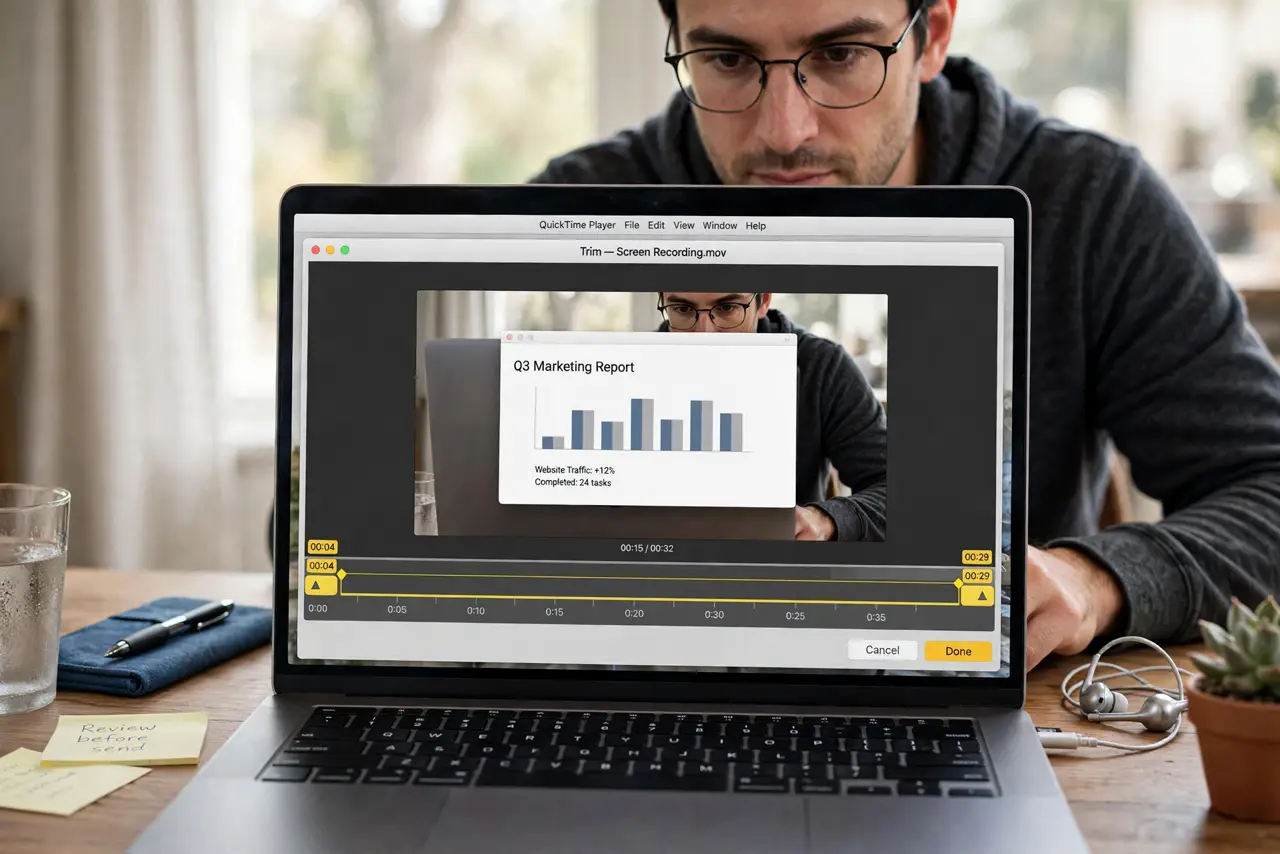
- Choose Edit > Trim. The timeline appears with yellow handles at both ends. Everything outside the handles will be cut.
- Drag the start handle past the fumbling. Slide the left handle to where the real content begins — the preview updates as you drag, so land it precisely.
- Drag the end handle before the stop-hunt. Slide the right handle to just before you reached for the stop button. Most recordings lose five seconds here.
- Click Trim, then save. Click Trim to apply, then Command-S to save. QuickTime trims without re-encoding, so quality stays perfect and it is instant.
- Undo freely if you overcut. Close without saving and the original is untouched. Trimming only commits when you save — experiment without fear.
What NOT to do
- Do not re-record a whole video for a bad ending. Trimming exists precisely so you never have to nail the stop button live.
- Do not trim the middle expecting a splice. QuickTime trim only cuts the ends — removing a middle section needs iMovie or similar.
- Do not save over the only copy blindly. Save first, verify the trimmed version plays, then delete the original if you need the space.
- Do not expect trim to fix bad audio. It cuts time, not noise — a muffled recording stays muffled, just shorter.
Frequently asked questions
Can I trim a recording on the iPhone instead?
Yes — open it in Photos, tap Edit, and drag the timeline handles. Same idea, touch interface.
Why is the Trim option greyed out?
The file may be open in another app or locked. Close other apps, check file permissions, and retry.
Does trimming reduce quality?
No — QuickTime trims the container without re-encoding. The kept portion is bit-for-bit identical.