Trusted Devices? Manage Them
Your Apple ID's trusted devices are the inner circle — the iPhones and Macs that receive your verification codes and can approve sign-ins. An old phone you sold is probably still in that circle. Reviewing the list twice a year is one of the highest-value security habits on Apple platforms.
TL;DR / Quick Fix
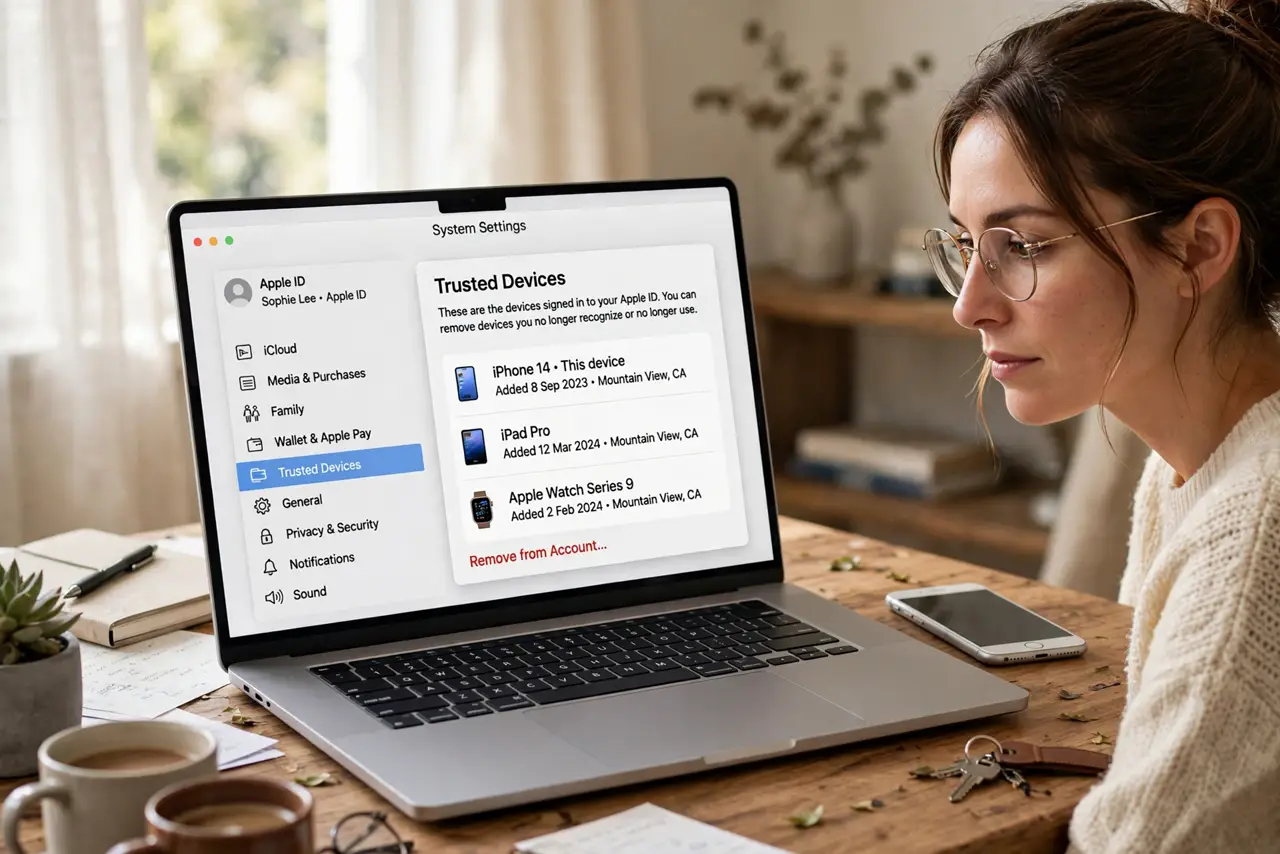
Quick fix: open System Settings, click your Apple ID, and review the device list to see every trusted iPhone, iPad, and Mac. Remove anything you sold or lost. Trusted devices receive verification codes, so a stranger's device on this list is a security problem.
Follow these steps
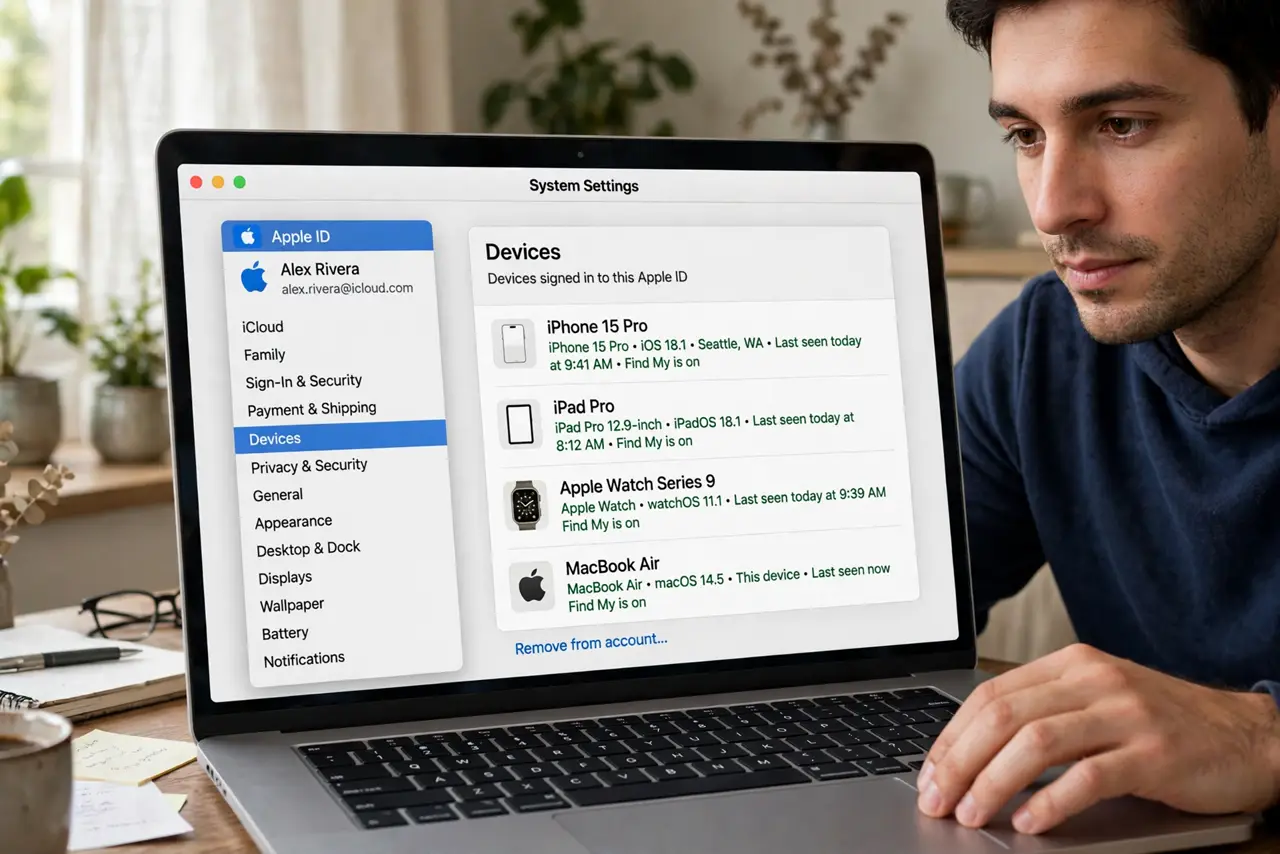
- Open your Apple ID device list. In System Settings, click your Apple ID at the top of the sidebar. The device list shows everything signed in.
- Understand what 'trusted' means. Trusted devices receive two-factor codes and can approve new sign-ins. This is deeper access than a mere app login.
- Remove sold, lost, or broken devices. Select each one you no longer control and remove it. Removed devices lose code-receiving power immediately.
- Keep at least one trusted device. You need a trusted device to receive codes. Never remove your last one while traveling or before adding a replacement.
- Check after every device change. New iPhone? Old one removed? Make the device-list review part of the upgrade ritual — it takes thirty seconds.
- Pair with a full sign-out audit yearly. Trusted devices and signed-in sessions are two lists. Check both once a year for complete coverage.
What NOT to do
- Do not ignore a device you don't recognize. Unknown trusted devices are the reddest of flags — remove first, investigate second.
- Do not remove devices during account recovery. Recovery needs trusted devices to verify you — removing them mid-process makes everything harder.
- Do not confuse trusted devices with Family Sharing members. Family members have their own Apple IDs — they never belong in your trusted list.
- Do not sell a device without removing it. A signed-in old phone stays trusted until you remove it — do it before handing it over.
Frequently asked questions
What's the difference between signed-in and trusted?
Signed-in devices use your iCloud data. Trusted devices additionally receive verification codes and approve sign-ins — a smaller, more powerful circle.
Can I trust a friend's device temporarily?
You can, but don't. Temporary trust has a way of becoming permanent — use another verification method instead.
How many trusted devices can I have?
Apple allows a generous number, but fewer is safer. If the list scrolls, it is time to prune.