The TV App on Mac? Basics
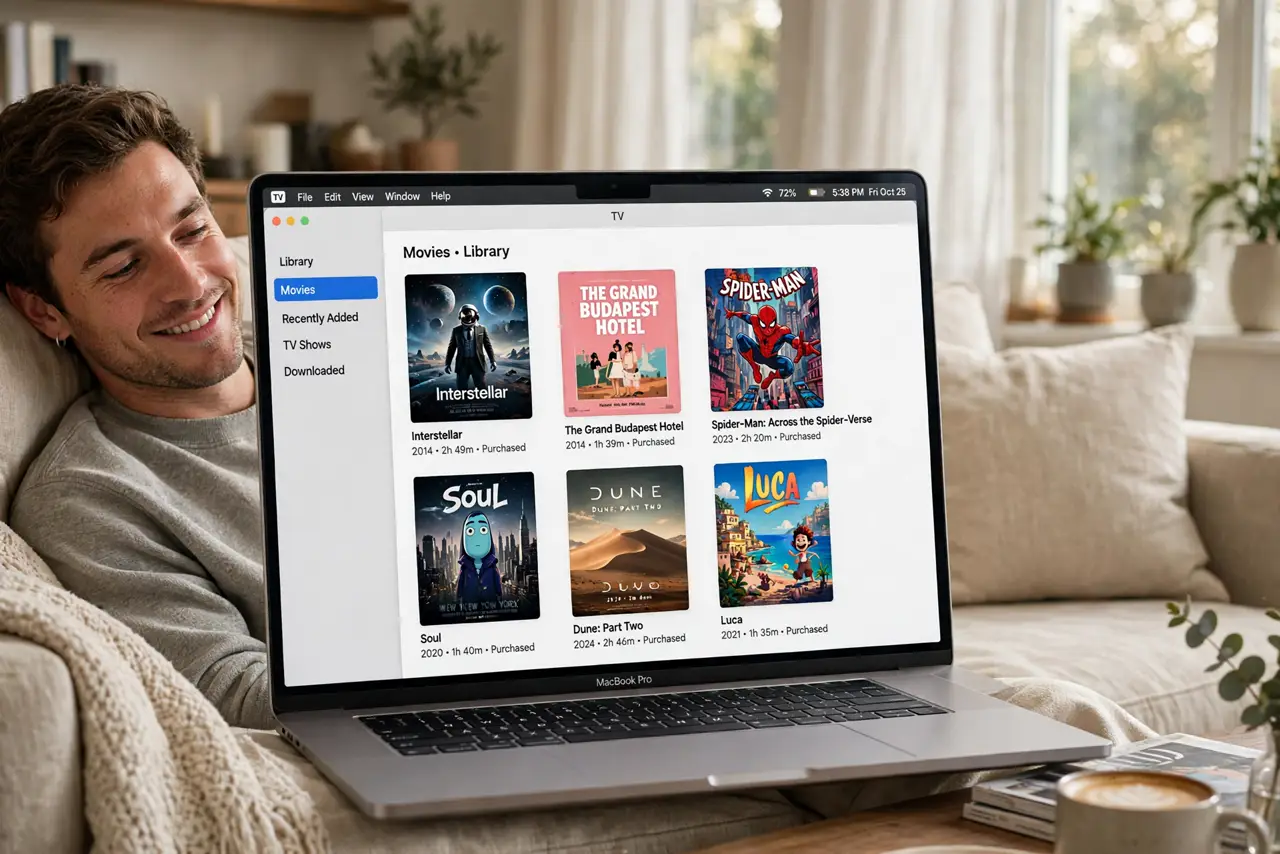
The TV app on Mac is Apple's hub for movies, shows, and channels — your purchases, rentals, and subscriptions in one library. If you bought movies on iTunes years ago, they live here now. The app also handles downloads for offline watching, which matters on flights. Here is the plain tour: library, store, channels, and downloads.
TL;DR / Quick Fix
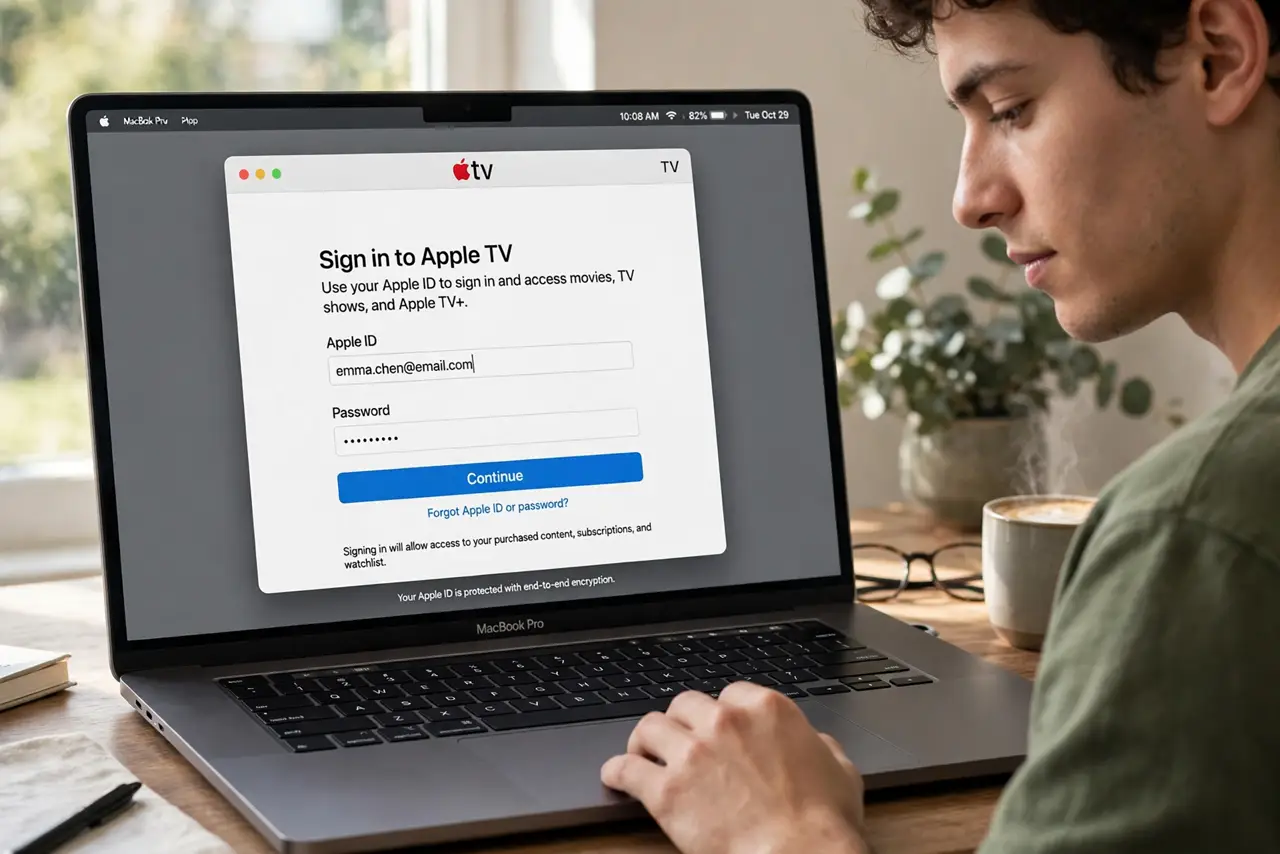
Quick fix: open the TV app on your Mac and sign in with your Apple ID to see your purchased movies and shows. Browse the Store tab to buy or rent, and check Channels for subscriptions. Download movies before a trip for offline viewing.
Follow these steps
- Open the app and sign in. Find the TV app in Applications or Launchpad. Sign in with the Apple ID that holds your purchases — old iTunes movie buys appear in your library automatically once you do.
- Tour the Library tab. Library holds everything you own: purchased movies, shows, and rentals. Rentals show a countdown once you start watching — typically 48 hours to finish. Organize by genre or use search.
- Browse the Store tab. The Store is where you buy or rent new titles. Prices show clearly before you confirm, and 4K upgrades are often free if you owned the HD version. Check for bundle deals on series.
- Understand Channels. Channels are subscriptions inside the TV app — premium networks billed through Apple. They are convenient but each is a separate monthly charge; audit them yearly like any subscription.
- Download for offline viewing. On a movie's page, click the download icon to save it locally. Essential before flights — hotel Wi-Fi will not stream 4K. Downloads expire for rentals, so download close to travel day.
- Manage storage. Downloaded movies are huge. In the app's settings, review downloaded titles and delete watched ones — they stay in your library for re-download anytime.
What NOT to do
- Do not rent a movie weeks before watching. The 48-hour watch window starts when you press play, but rentals expire 30 days after renting even unwatched.
- Do not stack Channels you forget. Each Channel is a separate recurring charge — review them yearly.
- Do not download everything in 4K for a trip. 4K files are enormous; HD looks great on a laptop and fits far more movies.
- Do not buy on the wrong Apple ID. Purchases lock to the account — family sharing avoids most mix-ups.
Frequently asked questions
Where did my iTunes movies go?
They moved to the TV app's Library when Apple split iTunes. Sign in with the same Apple ID and they appear automatically.
Can I watch offline on a plane?
Yes — download the movie before the trip. Rentals must be downloaded close to travel day since they expire.
What is the difference between Channels and the Store?
The Store sells individual movies and shows you keep. Channels are monthly subscriptions to networks, billed through Apple.