Universal Clipboard Not Working? Fix It
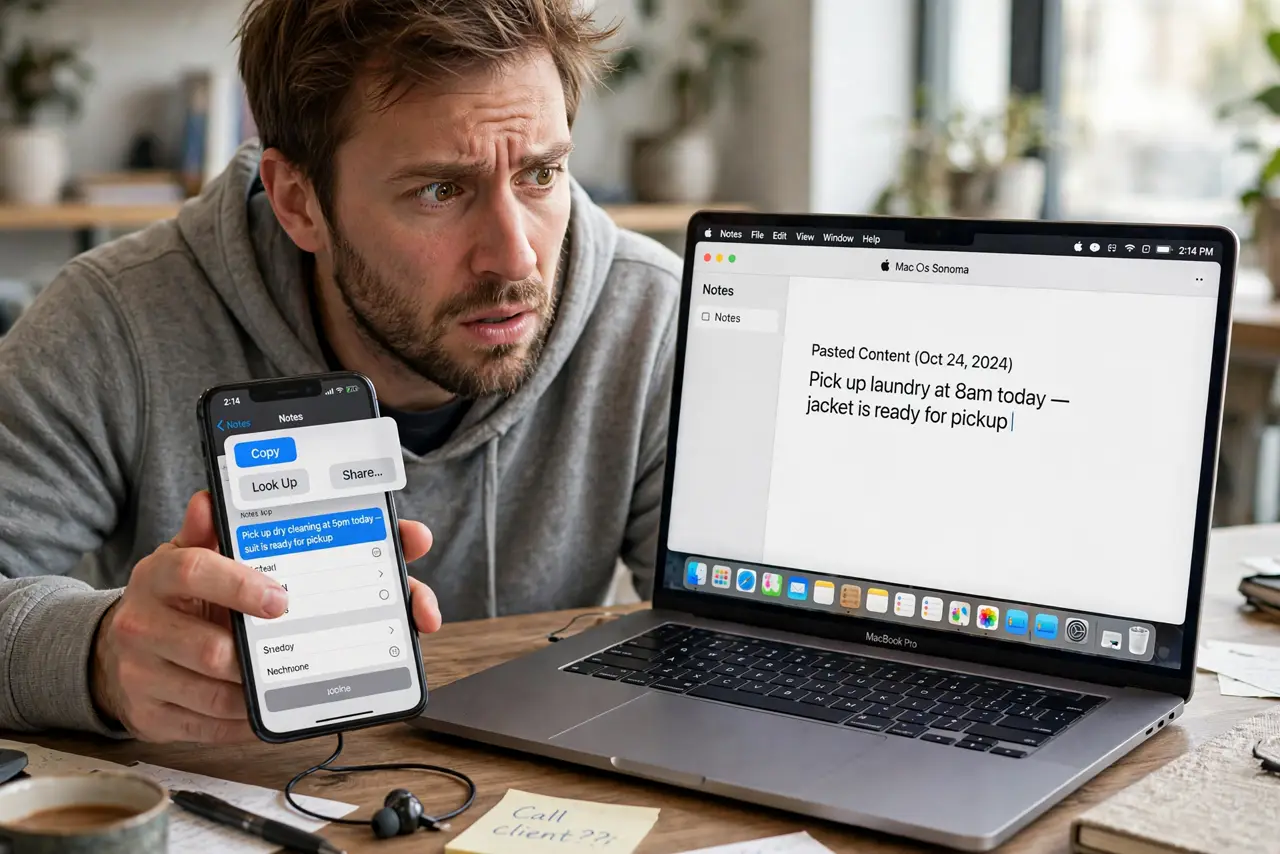
You copy text on your iPhone and it never arrives on the Mac — paste gives you yesterday's clipboard instead. Universal Clipboard needs both devices on the same Apple ID with Wi-Fi, Bluetooth, and Handoff all cooperating. This guide gets copy-paste flowing between devices again.
TL;DR / Quick Fix
Quick fix: confirm both devices use the same Apple ID, with Wi-Fi, Bluetooth, and Handoff enabled on each. Keep the devices close for the first test. If the clipboard stays local, sign out and back into iCloud on one device.
Follow these steps
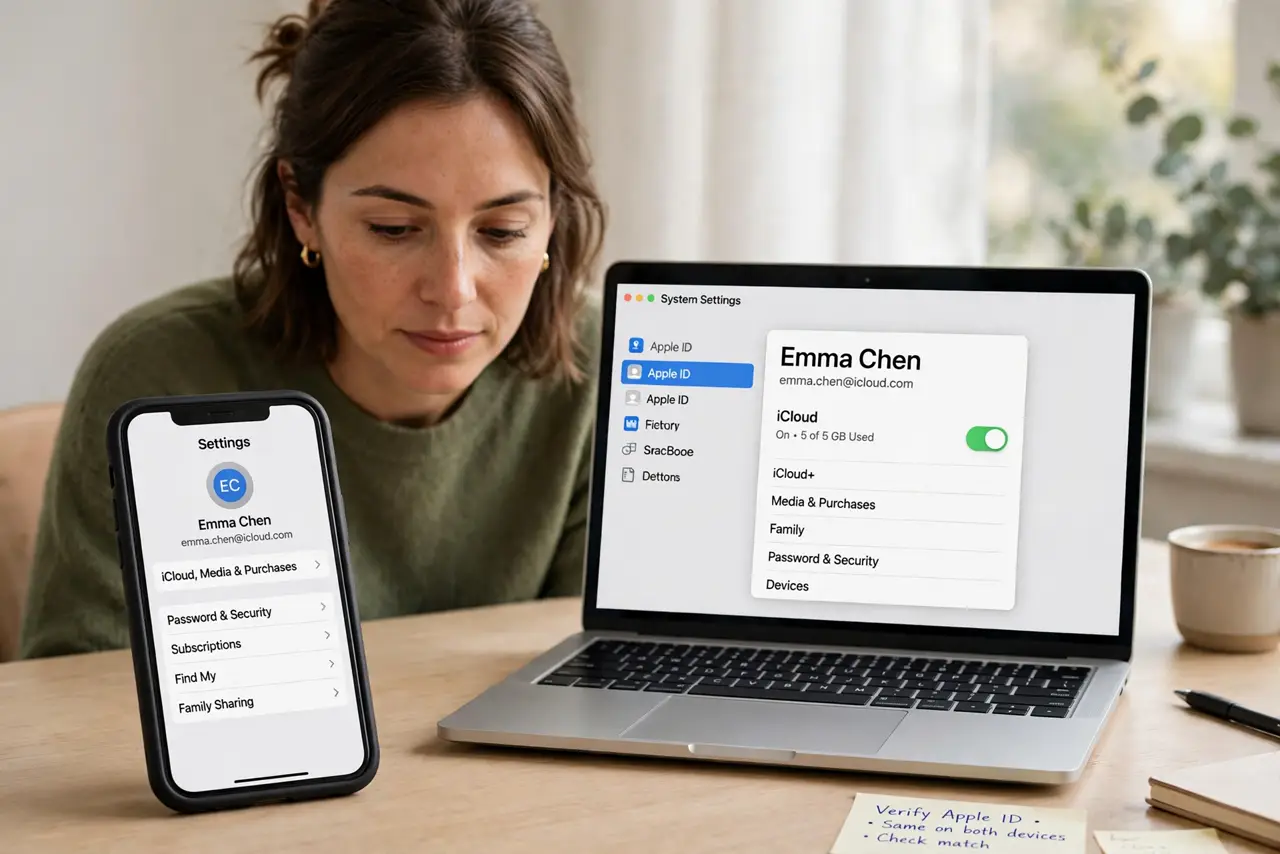
- Verify the same Apple ID. On both devices, check the signed-in Apple ID matches exactly. Universal Clipboard silently fails when the devices belong to different accounts.
- Turn on Wi-Fi and Bluetooth on both. Both radios must be on — not just connected, but on. Universal Clipboard discovers devices over Bluetooth and transfers over Wi-Fi.
- Enable Handoff on both devices. On the Mac: System Settings > General > AirDrop & Handoff > Allow Handoff. On the iPhone: Settings > General > AirPlay & Handoff > Handoff. The clipboard rides on Handoff's rails.
- Keep the devices close. Hold the iPhone within a few meters of the Mac for the first test. Bluetooth discovery fails across rooms, and distance is the silent killer of the first attempt.
- Sign out and back into iCloud. On the Mac, sign out of iCloud and sign back in. This refreshes the device trust that Universal Clipboard depends on — do it on one device only.
- Test with plain text first. Copy a few plain words, wait five seconds, then paste on the Mac. Large images and files take longer; plain text proves the channel works.
What NOT to do
- Do not expect huge files to transfer instantly. Universal Clipboard handles text and small images well; big files belong in AirDrop.
- Do not disable Handoff to 'simplify' things. Handoff is the transport — without it there is no Universal Clipboard at all.
- Do not test with a password manager's auto-clear clipboard. Some managers wipe the clipboard in seconds, which looks like a sync failure.
- Do not sign out of iCloud on both devices at once. One at a time keeps you from locking yourself into verification loops.
Frequently asked questions
Why won't my iPhone copy paste to my Mac?
Different Apple IDs, Wi-Fi or Bluetooth off, or Handoff disabled on one device. Check all three.
Does Universal Clipboard work with third-party keyboards?
Usually yes for the copy step, but test with the system keyboard if pastes fail — some keyboards handle the clipboard oddly.
How long does the copied item last?
Briefly — the shared clipboard expires after a couple of minutes, so paste promptly.