Rewrite Text with Writing Tools
You rewrote that email three times and it still sounds wrong. macOS has a built-in set of Writing Tools — powered by Apple Intelligence — that can proofread, rewrite, and adjust the tone of your text right where you are typing. It works in Mail, Notes, Messages, Safari, and most third-party apps, so you never have to paste your draft into a chatbot. This guide shows where to find it and how to use it well.
TL;DR / Quick Fix
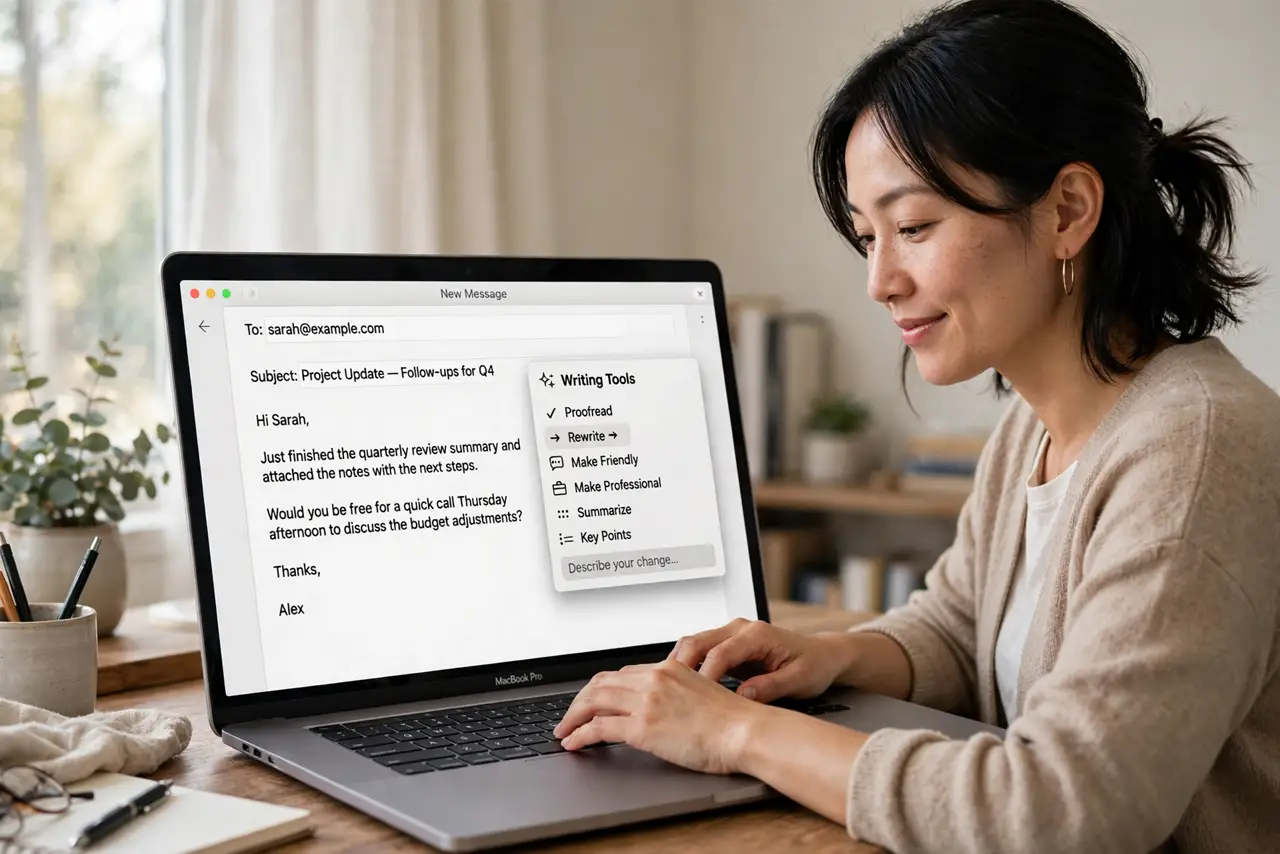
Quick fix: on a Mac with Apple Intelligence, select any text, right-click, and pick Writing Tools to proofread or rewrite it anywhere — Mail, Notes, Safari, even third-party apps. Rewrite is best for tone changes, Proofread for fixing grammar. It works on selected text, not empty pages.
Follow these steps
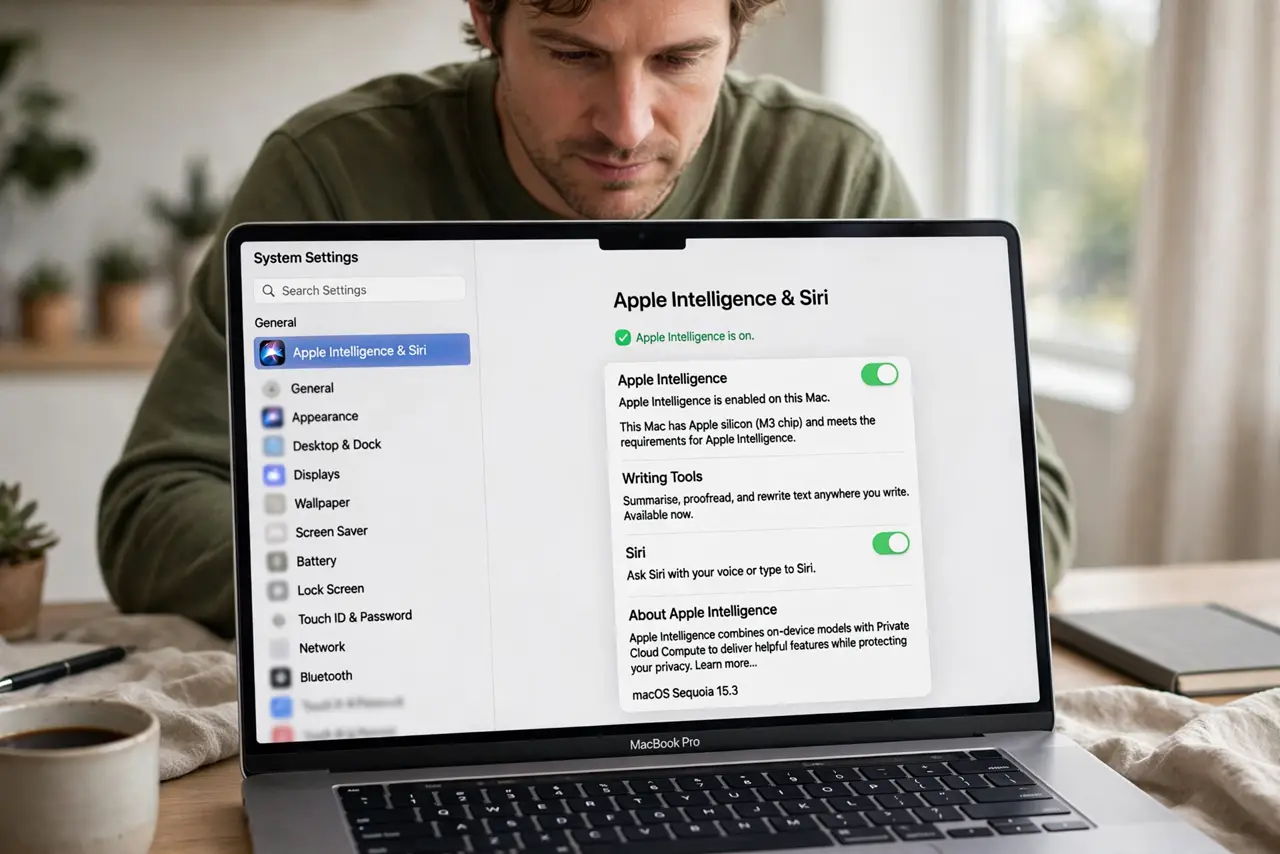
- Check that Apple Intelligence is available. Writing Tools need a Mac with Apple Silicon and Apple Intelligence switched on. Open System Settings, go to Apple Intelligence & Siri, and confirm Apple Intelligence is enabled — without it, the Writing Tools menu simply will not appear.
- Select the text you want to fix. Highlight anything from a sentence to a whole draft in almost any app — Mail, Notes, Pages, even a web form. The key detail: Writing Tools only work on selected text, so nothing happens if you just place the cursor in an empty field.
- Right-click and open Writing Tools. With the text selected, right-click (or Control-click) and choose Writing Tools from the menu. You will see options like Proofread, Rewrite, and buttons for Friendly, Professional, and Concise tones.
- Use Proofread for errors, Rewrite for tone. Proofread fixes grammar, spelling, and punctuation while keeping your words. Rewrite rephrases the passage — pick it when the draft is correct but sounds stiff, too casual, or too long for the situation.
- Review every change before accepting. The tool shows suggested changes with an option to accept or revert. Read the result out loud once; AI rewrites can subtly shift meaning, and you stay responsible for what you send.
- Need images instead of words? Writing Tools only handle text. If the task is a quick custom graphic rather than a draft, the Image Playground app is the matching tool on the same Mac.
What NOT to do
- Do not rewrite sensitive documents with confidential content without thinking. The text is processed by on-device and cloud Apple systems — fine for most use, but check your employer's policy for legal or medical documents.
- Do not accept a Rewrite blindly. It can flatten your personality or change emphasis; always give the result a quick read first.
- Do not expect it in every app. Some apps with custom text fields (certain password managers, code editors) do not expose the standard menu — paste into Notes, fix it there, and copy back.
- Do not use Rewrite to dodge learning. For school or work assignments, a polished draft you cannot explain is a liability, not a skill.
Frequently asked questions
Why don't I see Writing Tools on my Mac?
Three usual causes: an Intel Mac (not supported), Apple Intelligence turned off, or an unsupported region or language setting. Check System Settings under Apple Intelligence & Siri first.
Does it work in Microsoft Word or Google Docs?
In Word for Mac it generally appears via the right-click menu. In Google Docs in a browser, right-clicking may show the browser menu instead — select text and look for the Writing Tools entry, or edit in Notes and paste back.
Is my text sent to Apple?
Apple processes Writing Tools requests with a mix of on-device and private cloud processing, and states it does not store or use them for advertising. For highly sensitive work material, follow your employer's data policy.