Mac ZIP File Expands Nowhere? Find Your Files
You double-click a ZIP file, nothing obvious appears, and you wonder where the files went. The Mac usually extracts them right beside the ZIP, or the archive is incomplete. Check beside the file first, then Downloads and the archive itself.
TL;DR / Quick Fix
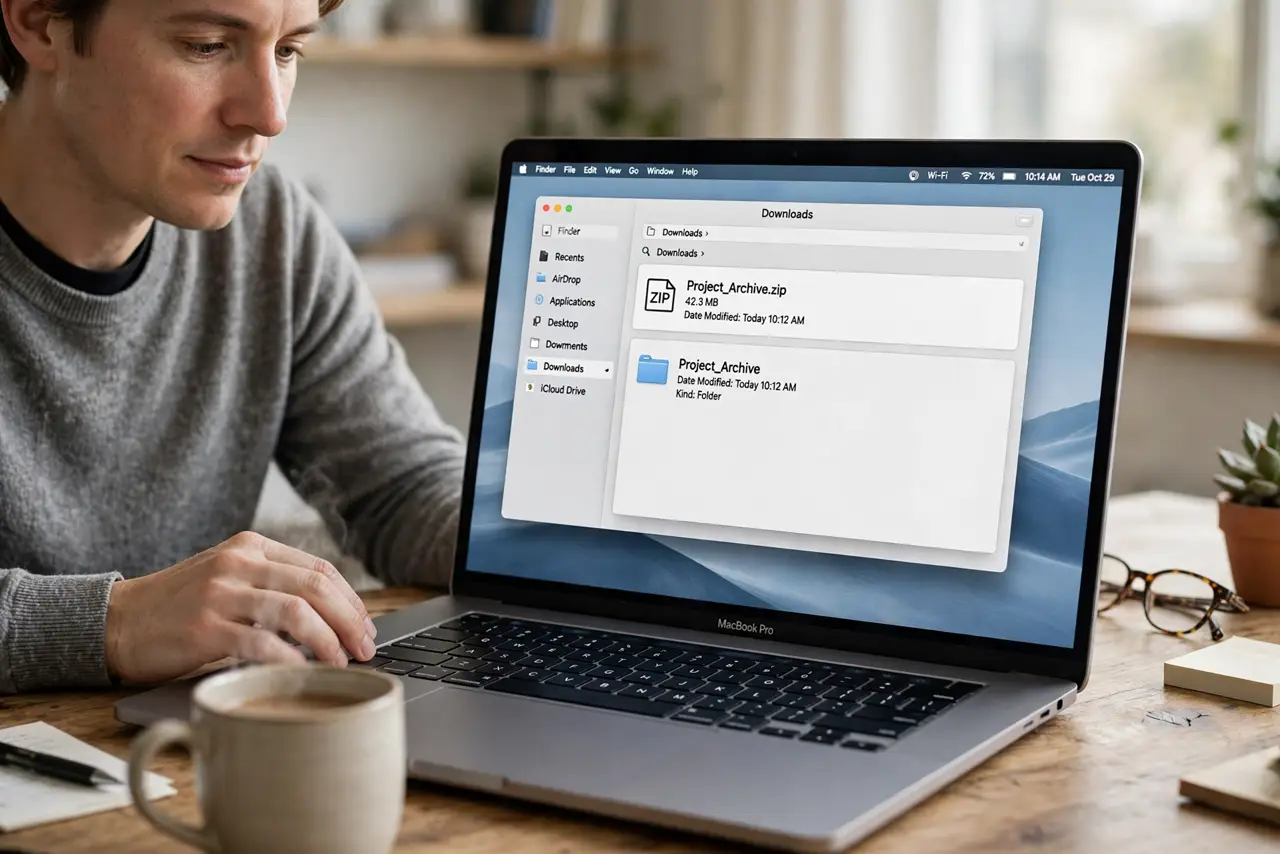
Quick fix: look in the same folder as the ZIP file for a new folder with the same name. Check Downloads if you downloaded it there, and confirm the ZIP fully downloaded before expanding again. Then test the fix for a full day before changing anything else.
Follow these steps
- Look beside the ZIP file. Open the folder containing the ZIP and look for a new folder with the same name. The Mac extracts there by default, without asking where to put files.
- Check Downloads. If you downloaded the ZIP, open Downloads in Finder and look for the extracted folder there. Downloads is the most common hiding place.
- Confirm the download finished. Check the ZIP file size and, if you downloaded it, the browser download list. An incomplete download cannot expand fully and may seem to vanish.
- Double-click the ZIP again. If no folder appeared, double-click the ZIP once more and watch the folder. Wait for extraction to finish before moving or opening files.
- Try Archive Utility directly. Right-click the ZIP, choose Open With, then Archive Utility, and watch for an error message. An error here means the archive itself is damaged.
- Download the ZIP again if damaged. If Archive Utility reports damage, delete the partial ZIP and download a fresh copy. A fresh download fixes most expansion failures.

What NOT to do
- Do not keep double-clicking a damaged ZIP. Repeated attempts do not repair a broken archive and can create partial folders.
- Do not move the ZIP during extraction. Moving it mid-extraction can interrupt the process and leave files scattered.
- Do not install an extractor app for a normal ZIP. The built-in Archive Utility handles standard ZIP files without extra software.
- Do not delete the extracted folder in frustration. Check it first; it may hold exactly the files you were looking for.
Frequently asked questions
Where do extracted files go on a Mac?
Usually into a new folder beside the ZIP file, with the same name as the archive, in the same folder.
Why does nothing happen when I double-click?
The folder may already exist beside the ZIP, or the archive may be incomplete. Check the folder and the download first.
What if Archive Utility says the file is damaged?
Download a fresh copy. A damaged archive cannot be repaired by retrying the same broken file.