Zip Files on Mac? Basics
You need to send a folder of files by email, or shrink a batch of documents to save space. Zipping compresses files into a single tidy archive — and on a Mac it is built right into Finder, no extra app needed. Two clicks and you have a .zip anyone can open. Here is how to zip, and what to know about it.
TL;DR / Quick Fix
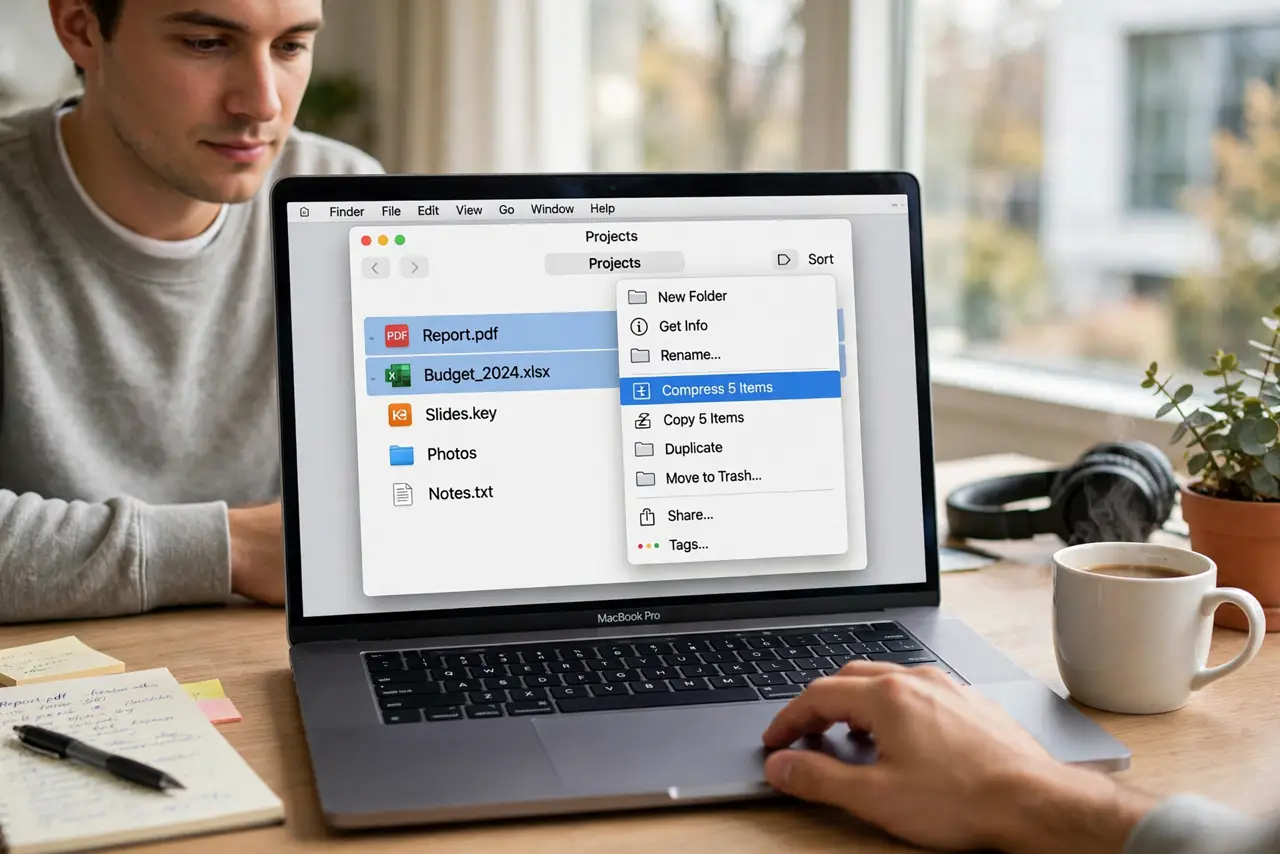
Quick fix: in Finder, select the files or folder, right-click (or Control-click), and choose Compress. macOS creates a .zip next to the originals — the originals stay untouched. Rename the zip to something clear before sending it. Anyone can open a .zip on any device, no special software needed.
Follow these steps
- Select what to zip. In Finder, click to select files or a whole folder — Command-click for several separate items. Zipping a folder preserves its internal structure, which is usually what you want.
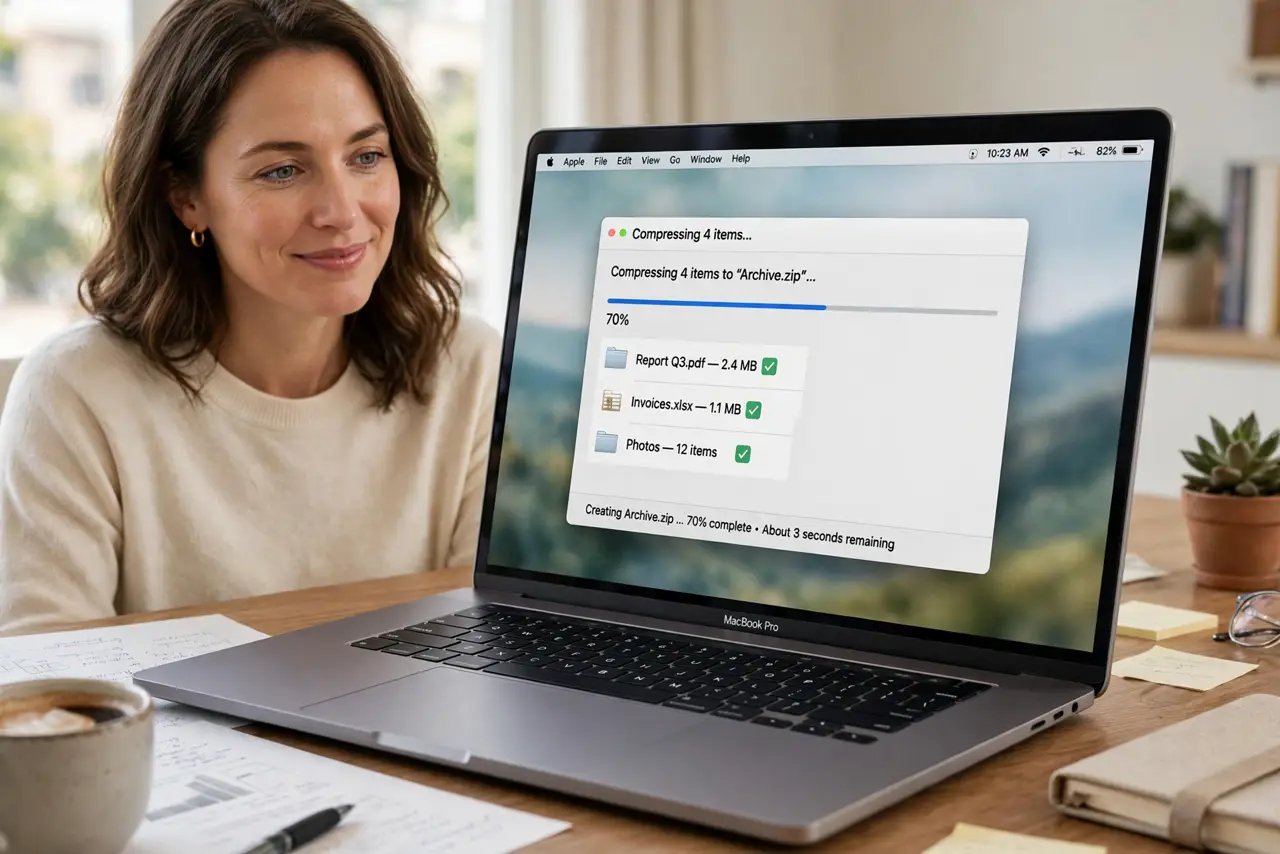
- Compress with two clicks. Right-click (or Control-click) the selection and choose Compress. For one item it is named after the file; for several, it becomes Archive.zip. Your originals are untouched — the zip is a new file.
- Rename the archive. The default name (Archive.zip) tells the recipient nothing. Rename it immediately to something descriptive like 'Q3-report-files.zip' — future you will thank present you.
- Know what zipping does and doesn't do. Zip shrinks text, documents, and code dramatically; photos and videos barely shrink (they are already compressed). Zipping is about bundling as much as saving space.
- Password-protect sensitive zips. Finder's Compress has no password option — for sensitive files, use the built-in Archive Utility alternatives or Terminal's zip with encryption. Never email sensitive files in a plain zip.
- Send it the right way. Small zips attach to email fine; big ones belong on cloud storage with a shared link. Most email caps attachments around 25 MB — check before you send.
What NOT to do
- Do not delete the originals until the zip is verified. Open the zip once to confirm everything is inside — then clean up.
- Do not expect photos to shrink. JPEGs and MP4s are already compressed; zipping them mostly just bundles them together.
- Do not email huge zips. Anything over ~25 MB will bounce — use a cloud link instead of fighting attachment limits.
- Do not zip a file that is already open in another app. Open files can zip incompletely — save and close first.
Frequently asked questions
Why is my zip barely smaller?
Your files are already compressed (photos, videos, PDFs). Zip excels at text and raw data — for media, the win is bundling, not shrinking.
Can Windows users open Mac zips?
Yes — .zip is universal. One quirk: Mac zips sometimes include hidden metadata files Windows users see as clutter; harmless, just untidy.
How do I unzip a file I received?
Double-click it — macOS extracts automatically. For the details, see our unzipping guide.