How to Organize Your Gmail Inbox in 30 Minutes
An overflowing inbox is rarely a sign that you get too much email. It is usually a sign that email has nowhere to go. In about thirty minutes you can give every kind of message a home, so tomorrow's mail sorts itself and your inbox shows only what still needs you.
TL;DR / Quick Fix
Quick fix: Archive everything you have already handled. Create a small set of labels. Set up filters for mail that sorts itself. Unsubscribe from what you never read. Decide on each remaining message once. Keep the inbox empty from now on.
Follow these steps
- Archive everything you have already handled. Go through your inbox and archive any message you have read, answered, or no longer need to act on. Archiving removes it from the inbox but keeps it searchable, so nothing is lost. Your inbox should hold only messages that still need a decision or a reply.
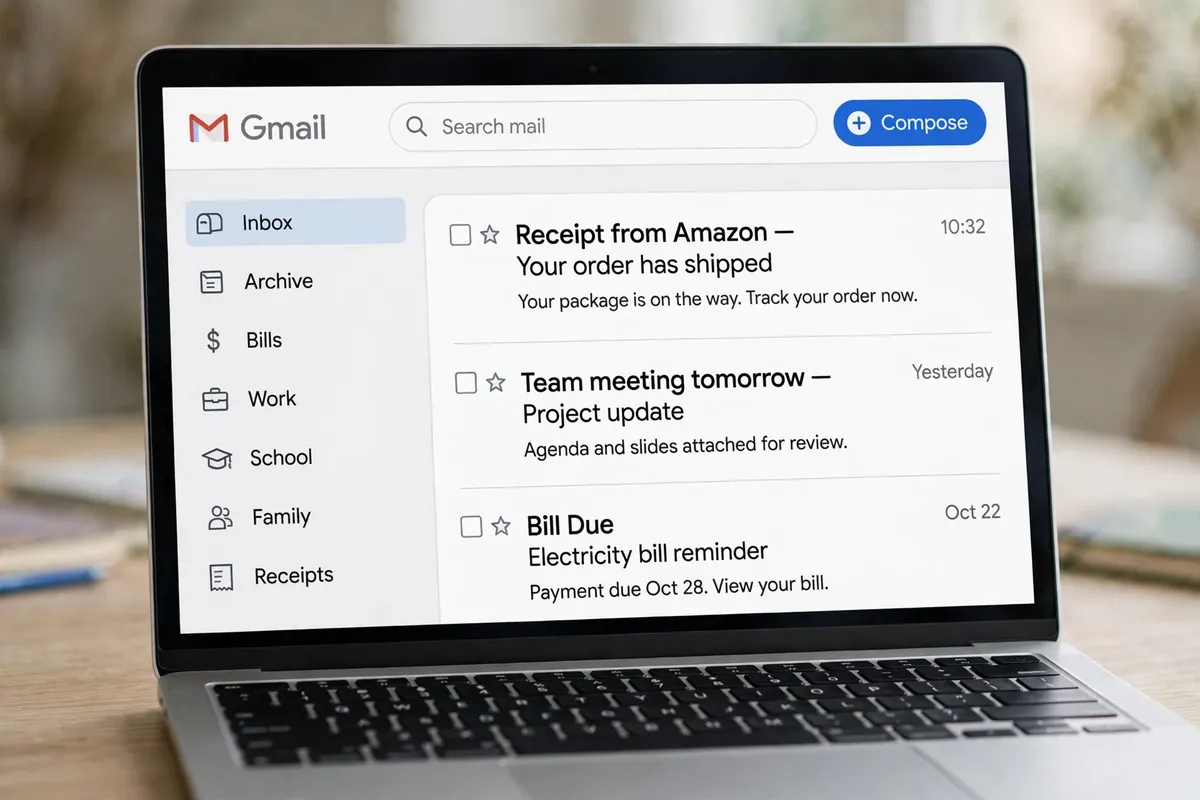
- Create a small set of labels. In Gmail, a label works like a folder, except one message can have more than one label. Create five or fewer labels for your real life, such as Bills, Work, School, Family, and Receipts. Fewer labels are easier to remember and use.
- Set up filters for mail that sorts itself. Open a message from a sender you always file the same way, choose the option to create a filter, and tell Gmail to apply a label and skip the inbox. Do this for bills, newsletters, and receipts first — they are the easiest wins and the biggest source of clutter.
- Unsubscribe from what you never read. As you work through the inbox, unsubscribe from newsletters and promotions you skip every time. If you hesitate, unsubscribe anyway: you can always sign up again. Fewer incoming messages matter more than any filing system.
- Decide on each remaining message once. For what is left, make one decision per message: reply now if it takes under two minutes, label and archive it if you need it later, or delete it if it is junk. Do not leave messages sitting in the inbox because you might need them someday.
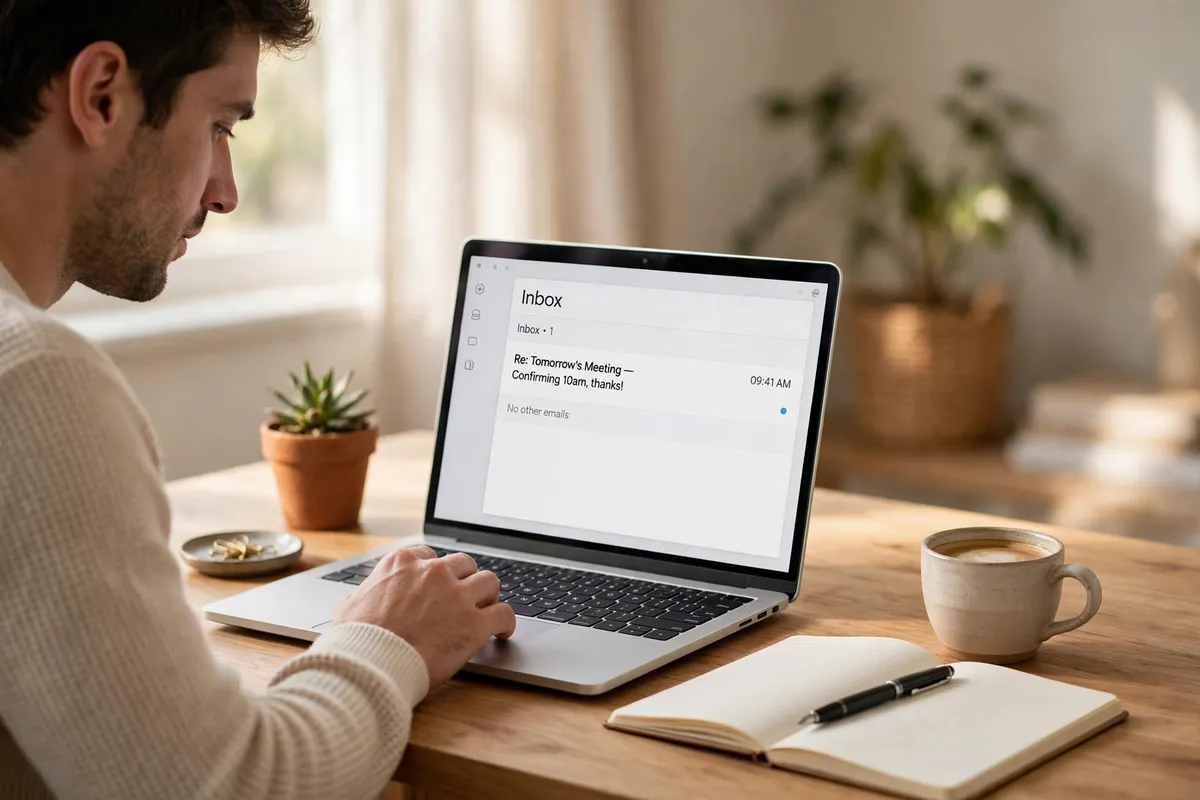
- Keep the inbox empty from now on. Once a day, spend a few minutes archiving, labeling, or replying to new mail until the inbox is empty again. An empty inbox is not about being perfect — it is a quick daily check that stops a new pile from forming.
What NOT to do
- Do not create a label for every sender or topic. A long label list is just a second inbox, and you will stop using it.
- Do not use the inbox as a to-do list. If a message needs action later, label it and archive it, or move the task to a list or calendar where you will actually see it.
- Do not delete messages you may need for bills, orders, or proof of payment. Archive them instead — deleting is permanent, and searching an archive costs nothing.
- Do not mark everything as read to make the pile look smaller. Unread markers are useful information, and hiding them just moves the problem out of sight.
After thirty minutes your inbox should be close to empty and your filters should be doing the routine work. If it fills up again, repeat the same steps for ten minutes — the system gets easier each time you use it.
Frequently asked questions
What is the quickest fix in this guide?
Archive everything you have already handled.
What should I avoid doing?
Do not create a label for every sender or topic.
What do I check after I finish?
Keep the inbox empty from now on.