Home Internet Down? Use Your Phone as a Backup
When the home connection dies, your phone’s mobile data can keep the essentials going — email, messages, and a video call — until the home service returns. The trick is using it wisely, because mobile data is usually limited and can run out fast if you treat it like home broadband.
TL;DR / Quick Fix
Quick fix: Turn on the phone’s hotspot. Connect only the device you need. Use USB tethering for a steadier link. Keep the phone charged and near a window. Watch your data allowance closely. Lower video quality and pause updates. Switch back as soon as home internet returns.
Follow these steps
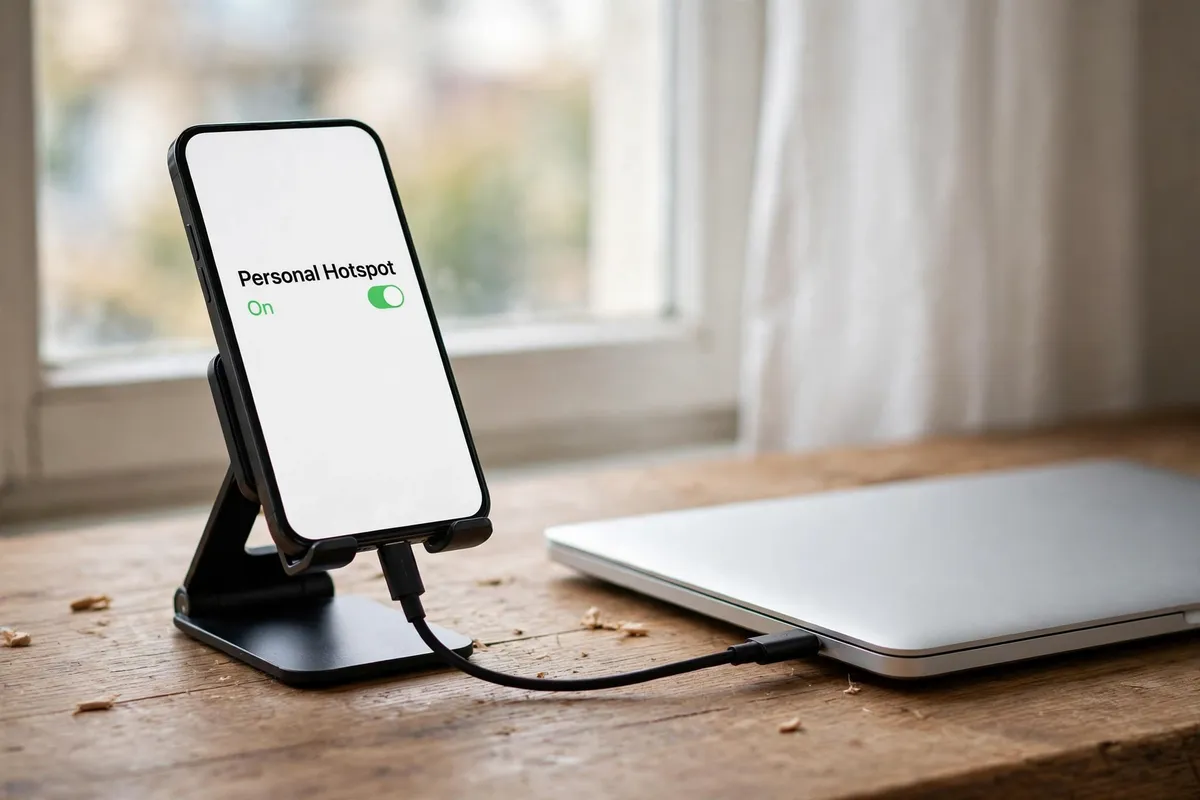
- Turn on the phone’s hotspot. In the phone’s settings, find Personal Hotspot or Mobile Hotspot, turn it on, and set a strong password. Then connect the laptop or tablet to the hotspot’s network name exactly as you would to home Wi-Fi.
- Connect only the device you need. Connect one device at a time, and only the one doing essential work. Every extra device connected to a hotspot shares the same mobile connection and the same data allowance, so a tablet streaming in the background can burn through it quickly.
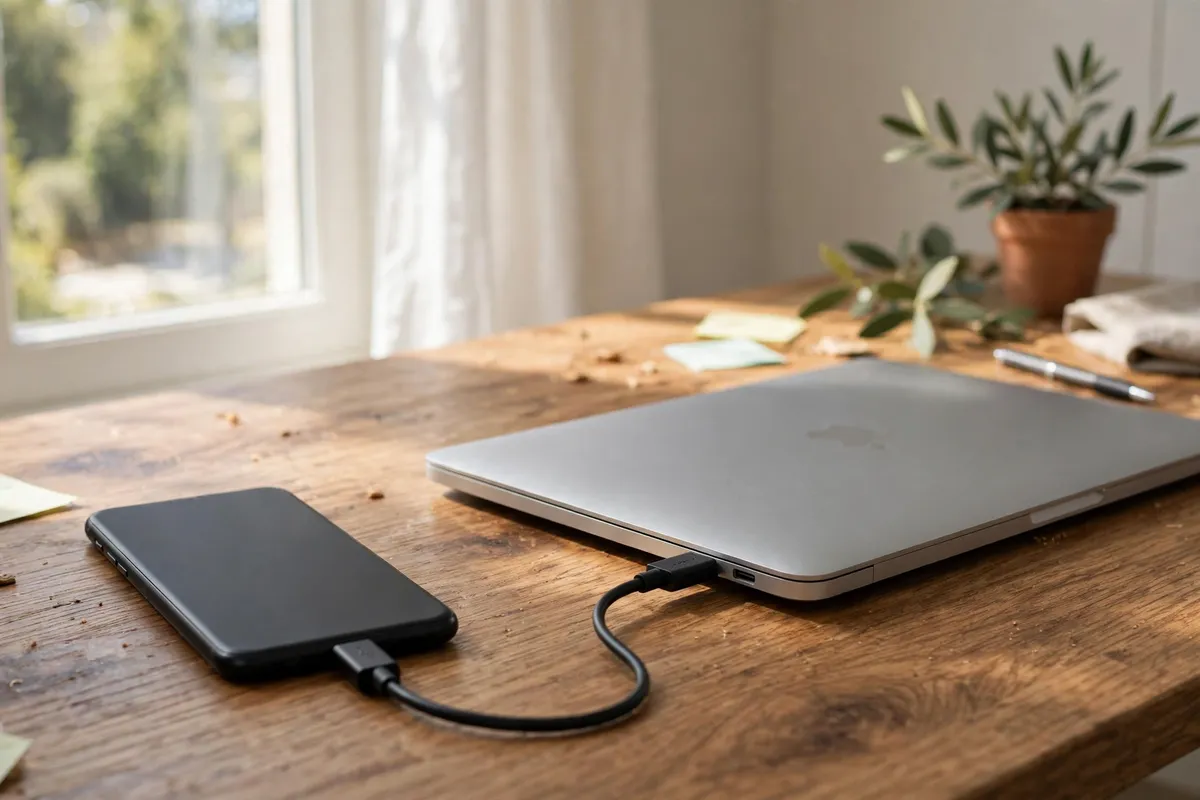
- Use USB tethering for a steadier link. If the laptop supports it, connect the phone to the laptop with a USB cable and enable USB tethering in the phone’s hotspot settings. A cable link is steadier than Wi-Fi hotspot, uses less phone battery, and charges the phone at the same time.
- Keep the phone charged and near a window. Hotspot use drains a phone battery fast, so keep it plugged in if you can. If the mobile signal is weak indoors, moving the phone nearer a window can improve it noticeably, which in turn improves the shared connection.
- Watch your data allowance closely. Check your mobile data usage in the phone’s settings or your carrier’s app before streaming video. Video calls and streaming use far more data than email and messaging, so save video for essentials and keep everything else light.
- Lower video quality and pause updates. Set video calls to a lower quality, pause cloud backups and app updates on the connected laptop, and avoid large downloads. These small choices stretch a limited allowance a long way during an outage.
- Switch back as soon as home internet returns. When the home connection is back, turn the hotspot off and reconnect devices to home Wi-Fi. Leaving the hotspot on by accident is an easy way to keep using mobile data after you no longer need to.
What NOT to do
- Do not stream films or download large files over a hotspot unless you know your data allowance covers it.
- Do not leave a hotspot open with no password, even briefly; anyone nearby could connect and use your data.
- Do not connect every device in the house to the hotspot; prioritise the one doing essential work.
- Do not forget to turn the hotspot off when home internet returns — background use continues otherwise.
A phone backup is a bridge, not a replacement for home broadband: enough for the work that cannot wait, used carefully until the home connection returns. If outages are frequent, that pattern is worth raising with your provider.
Frequently asked questions
What is the quickest fix in this guide?
Turn on the phone’s hotspot.
What should I avoid doing?
Do not stream films or download large files over a hotspot unless you know your data allowance covers it.
What do I check after I finish?
Switch back as soon as home internet returns.