How to Review App Permissions in 10 Minutes
Apps ask for access to your camera, microphone, contacts, and more — and once granted, those permissions often stay forever, even for apps you rarely open. A ten-minute review, permission by permission, is one of the fastest privacy wins you can get.
TL;DR / Quick Fix
Quick fix: Open the permission settings. Start with camera and microphone. Check contacts and photos next. Review location and tracking permissions. Remove permissions from apps you no longer use. Set a reminder to repeat the check. Follow these steps in order, then check the result below.
Follow these steps
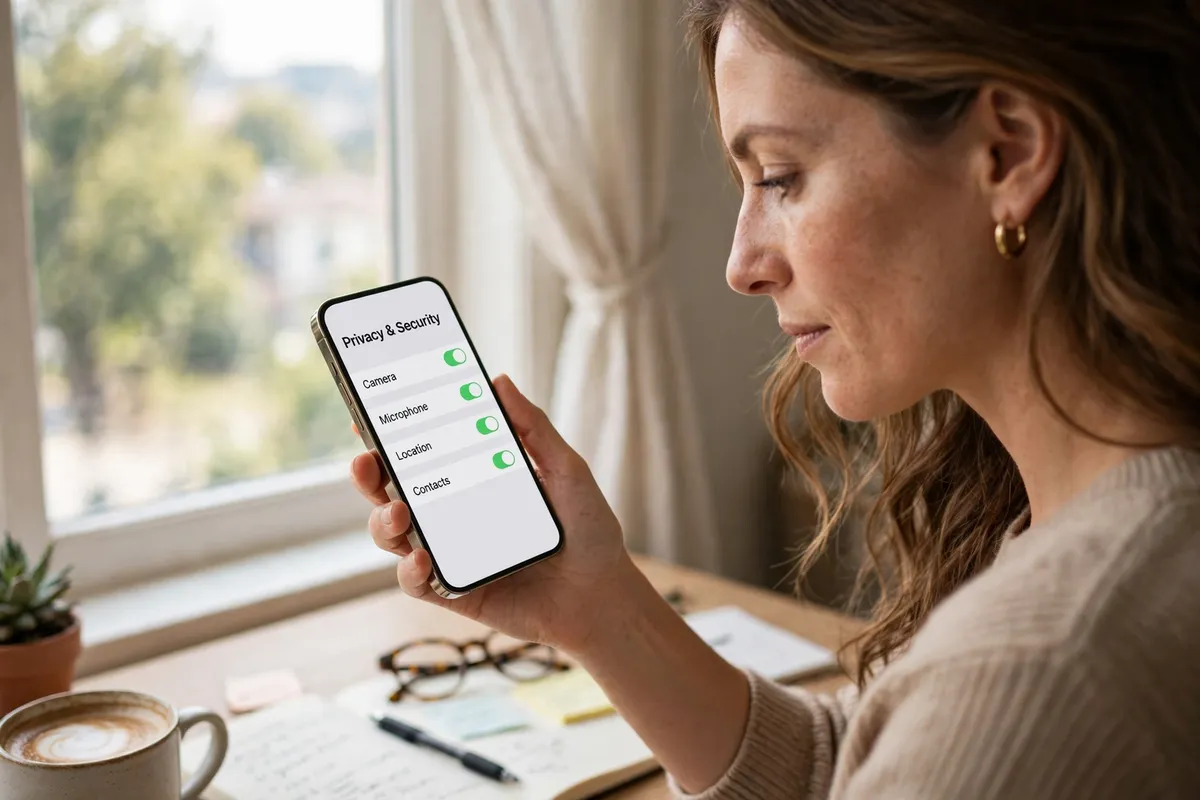
- Open the permission settings. On an iPhone, go to Settings, then Privacy & Security, where permissions are grouped by type. On Android, go to Settings, then Privacy, then Permission manager, which shows the same grouping.
- Start with camera and microphone. Open the camera permission first, then the microphone. For each app, ask whether it genuinely needs that access to work. A video-calling app does; a shopping or game app usually does not.
- Check contacts and photos next. Do the same for contacts and photos. Many apps ask for full access when they only need one photo or one contact. Where your phone offers limited photo access or one-time access, choose that instead.
- Review location and tracking permissions. Check which apps can see your location and which can track you across other apps. Change Always access to While Using, and remove tracking permission from apps that do not need it.
- Remove permissions from apps you no longer use. If an app you have not opened in months still holds sensitive permissions, remove them — or delete the app entirely. Unused apps should not keep access to your camera, microphone, or contacts.
- Set a reminder to repeat the check. Permissions creep back with new installs and updates. Repeat this review every few months, and say no — or While Using only — whenever a new app asks for more than it needs.
What NOT to do
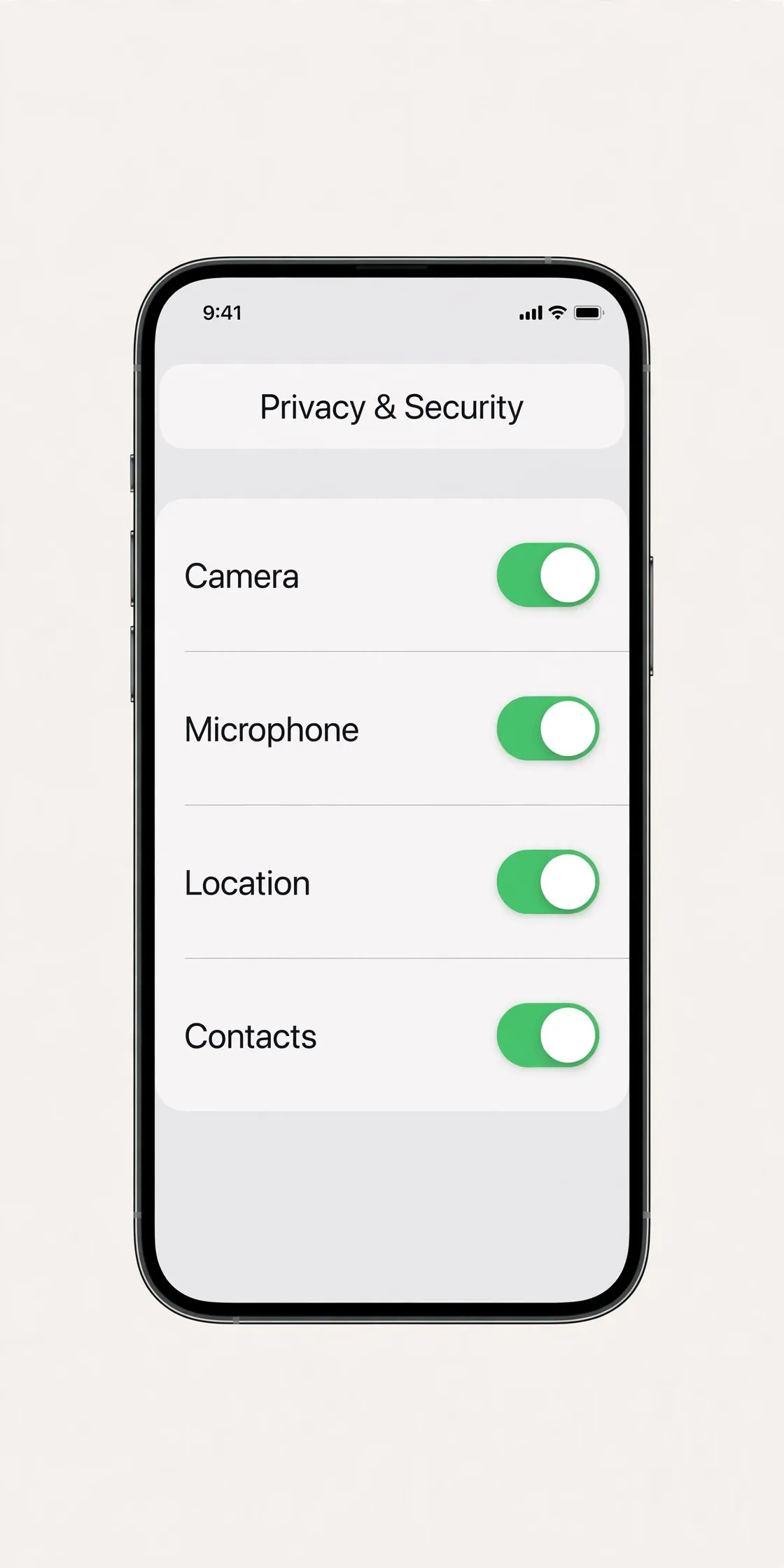
- Do not grant every permission an app asks for just to get past the setup screens.
- Do not leave Always access on for apps you only use occasionally.
- Do not assume deleting an app's data removes its permissions — check the permission list itself.
- Do not give full photo or contact access when a limited or one-time option is offered.
Ten minutes now means far fewer apps listening, watching, or reading your contacts in the background. The apps you actually use keep working, and the rest simply lose access they never needed.
Frequently asked questions
What is the quickest fix in this guide?
Open the permission settings.
What should I avoid doing?
Do not grant every permission an app asks for just to get past the setup screens.
What do I check after I finish?
Set a reminder to repeat the check.