How to Set Up Parental Controls on Your Router
Parental controls on a router let you set rules for the whole home network at once, so they apply to any device that connects — including game consoles and tablets that may not have their own controls. They work best as clear, agreed boundaries rather than secret restrictions.
TL;DR / Quick Fix
Quick fix: Open the router’s admin page. Identify each child’s devices. Set a schedule first. Add a content filter next. Set per-device rules, not one rule for everyone. Test the rules with the child’s device. Tell children what the rules are and why.
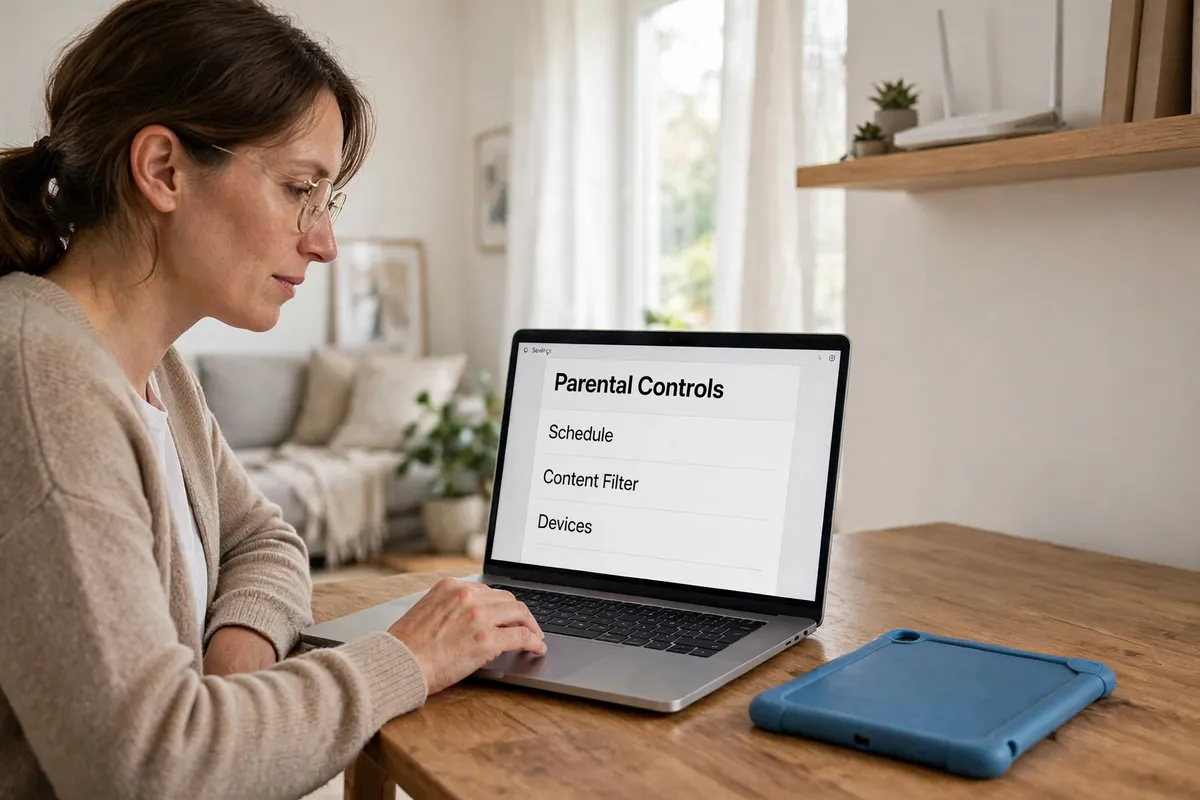
Follow these steps
- Open the router’s admin page. From a connected device, open the router’s admin page using the address on the router label, and log in with the admin details. Parental controls are usually under a section called parental controls, access control, or family settings.
- Identify each child’s devices. In the connected devices list, work out which device belongs to whom — a tablet’s name usually gives it away, and you can rename devices in many routers to keep track. Rules applied to the wrong device are the most common parental control mistake.
- Set a schedule first. Start with time rules: for example, no internet for a child’s devices after bedtime, or during homework hours. Schedules are the simplest control to explain and the least likely to cause arguments, because the rule is about time, not content.
- Add a content filter next. Turn on the router’s content filter or safe-search style option, and choose a level that fits the child’s age. Filters are not perfect — they can block harmless sites and miss harmful ones — so treat them as a safety net, not a replacement for conversation.
- Set per-device rules, not one rule for everyone. Apply stricter rules to younger children’s devices and lighter ones to older children’s, rather than one blanket rule for the whole house. Per-device rules avoid punishing an older child for a younger sibling’s limits, and vice versa.
- Test the rules with the child’s device. Borrow the device, try loading a site after bedtime and a filtered category, and confirm the block works as expected. Testing avoids the frustration of discovering a rule does not work — or blocks schoolwork — at the worst moment.
- Tell children what the rules are and why. Explain the schedule and the filter in plain terms, and agree what happens if a rule is hit by mistake, such as homework being blocked. Controls work far better when children understand them than when they feel like a trap to work around.
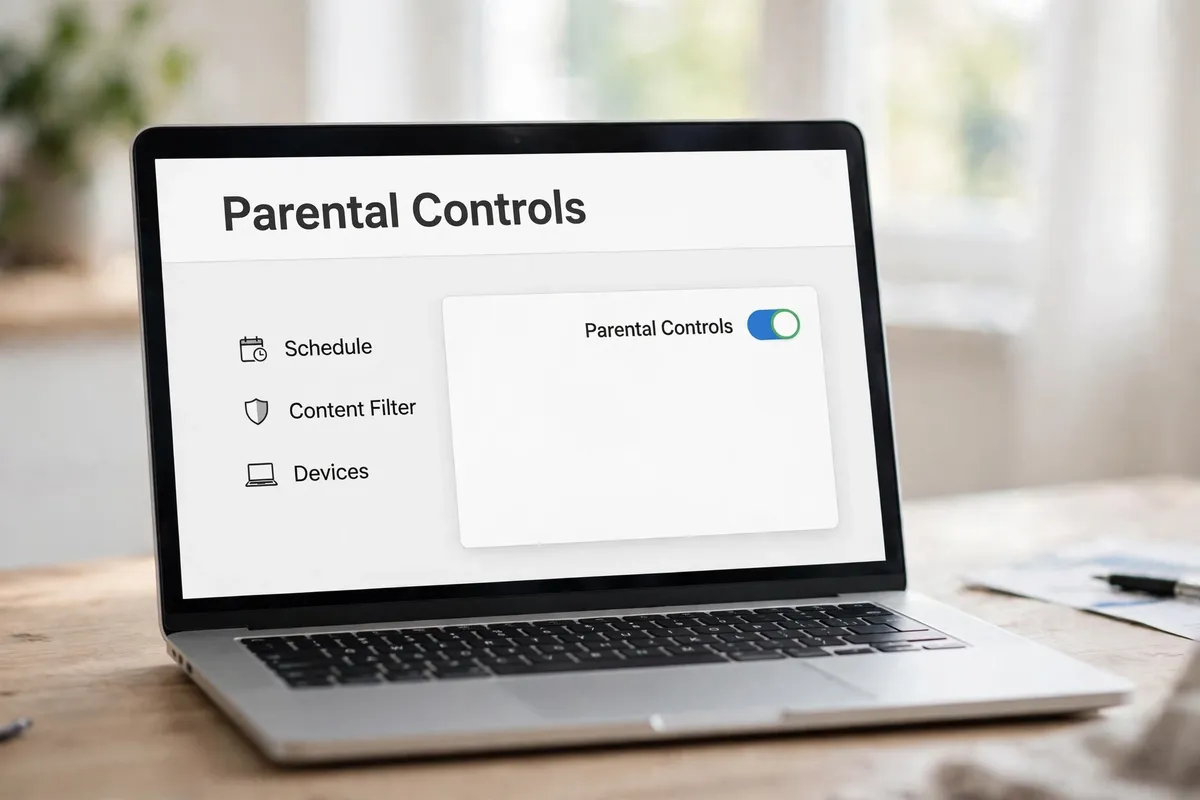
What NOT to do
- Do not rely on router controls alone for safety; no filter catches everything, and conversation matters more.
- Do not set one harsh rule for every device in the house; per-device rules cause fewer arguments and fewer mistakes.
- Do not keep the router’s default admin password; anyone who guesses it can switch the controls off.
- Do not use parental controls to monitor private messages; router controls manage access, not spying, and trust matters.
Start with a schedule, add a filter, and test both before calling it done. If a school site gets blocked, most routers let you add it to an allowed list — a small adjustment beats switching the whole system off.
Frequently asked questions
What is the quickest fix in this guide?
Open the router’s admin page.
What should I avoid doing?
Do not rely on router controls alone for safety; no filter catches everything, and conversation matters more.
What do I check after I finish?
Tell children what the rules are and why.