How to Secure Your Router's Admin Panel
Your router's admin panel is the control room for your home network — and many routers still use a default admin password that anyone can look up. Securing it takes a few minutes and stops a stranger from changing your network settings or locking you out.
TL;DR / Quick Fix
Quick fix: Find the admin address and login. Change the admin password first. Update the firmware. Turn off remote administration. Check the connected devices list. Save, then test that everything still works. Follow these steps in order, then check the result below.
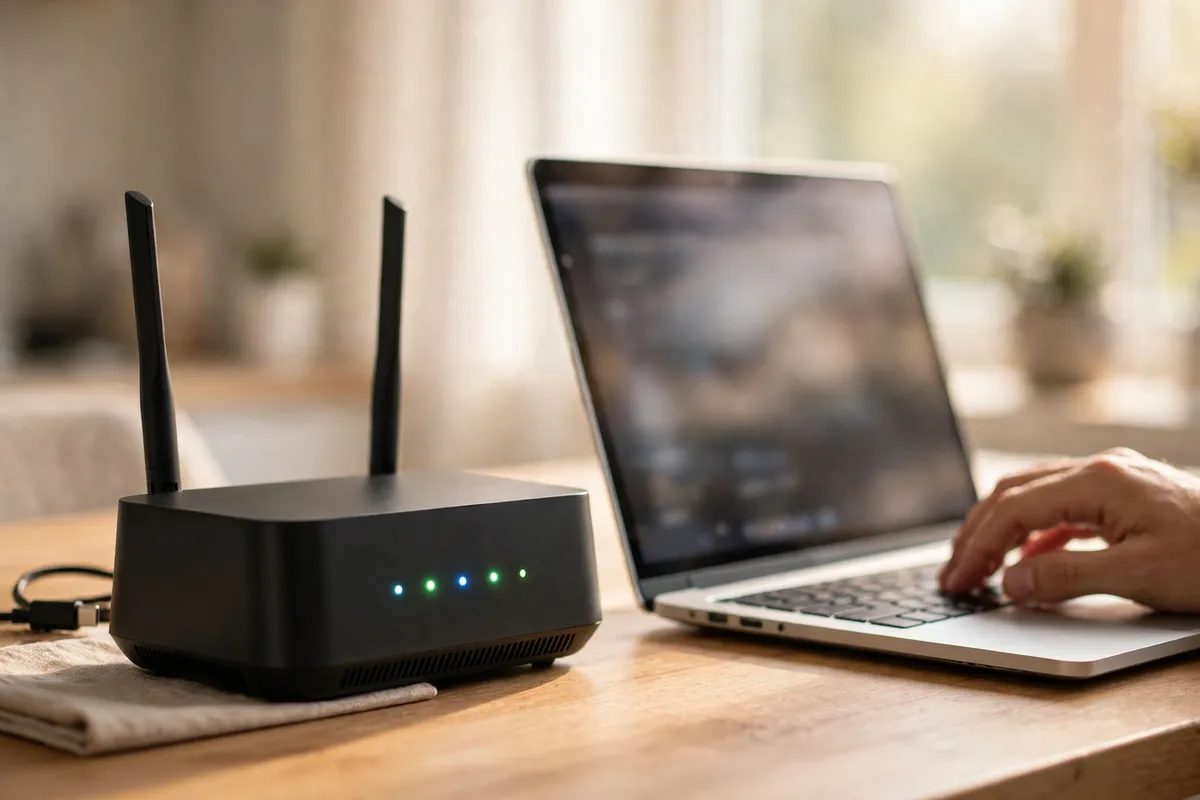
Follow these steps
- Find the admin address and login. Look for a label on the bottom or back of your router. It usually lists the admin address and the default username and password. Type the address into your browser and sign in with those details.
- Change the admin password first. In the admin settings, find the password or administration section and change the admin password to a long, unique one. Write it down somewhere safe at home — this is not the same as your Wi-Fi password.
- Update the firmware. Look for a firmware or software update section and install any available update. Firmware updates fix security problems in the router itself, so check again every few months.
- Turn off remote administration. Find the remote access or remote management setting and make sure it is off. Remote access lets someone manage the router from outside your home, and most households never need it.
- Check the connected devices list. Look at the list of devices connected to your network. If you see a device you do not recognize, change your Wi-Fi password, which will disconnect it, and check again.
- Save, then test that everything still works. Save each change as you go, then check that your devices still connect. If something stops working, you can sign back into the admin panel and undo the last change.
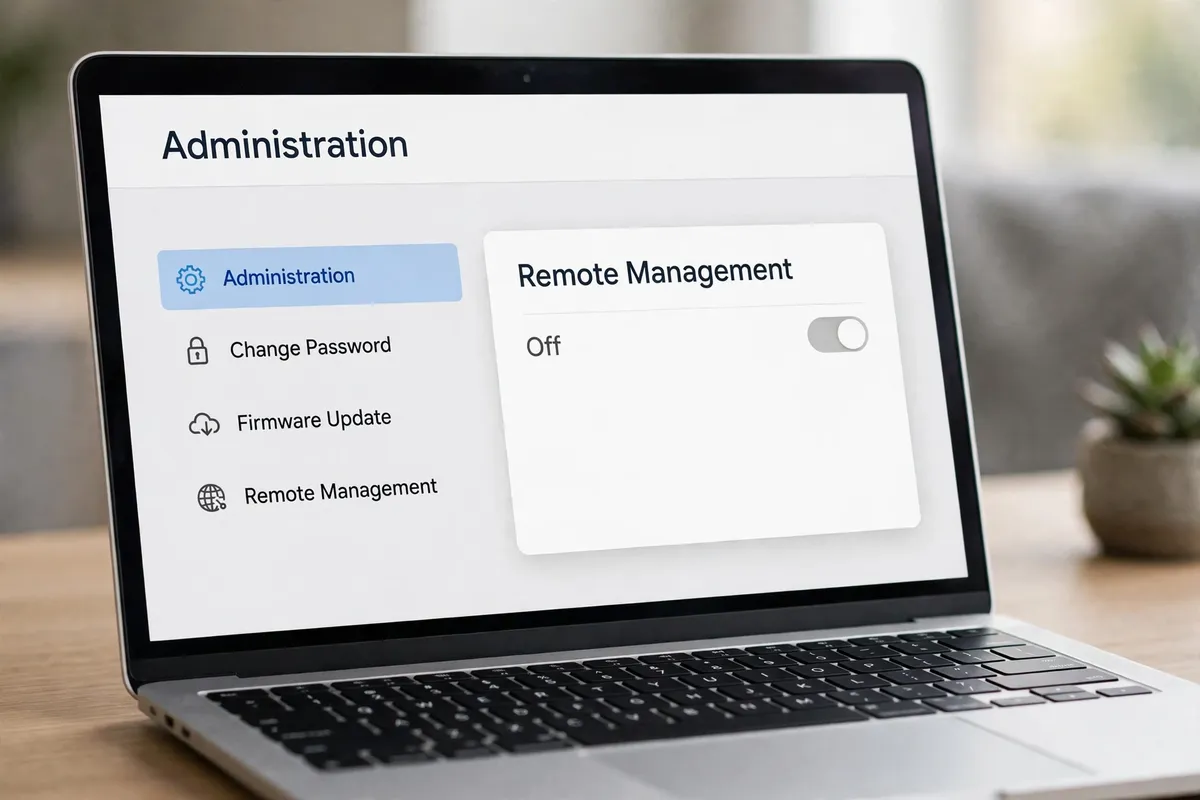
What NOT to do
- Do not leave the default admin password in place — it is the first thing an attacker tries.
- Do not turn on remote administration unless you have a specific reason and understand the risk.
- Do not share your admin password or write it where visitors can see it.
- Do not reset the router to factory settings as a first step — that wipes your settings and returns the default password.
With a unique admin password, current firmware, and remote access off, your router is no longer the easy target it was. Note the new password somewhere safe, and revisit the firmware check a few times a year.
Frequently asked questions
What is the quickest fix in this guide?
Find the admin address and login.
What should I avoid doing?
Do not leave the default admin password in place — it is the first thing an attacker tries.
What do I check after I finish?
Save, then test that everything still works.