How to Set Up Two-Factor Authentication on Google, Apple, and Microsoft
Two-factor authentication, often called 2FA, adds a second check after your password — usually a code from an app on your phone. Even if someone learns your password, they still cannot get in without that code. Here is how to turn it on for the three accounts most people rely on.
TL;DR / Quick Fix
Quick fix: Get an authenticator app first. Turn it on for Google. Turn it on for Apple. Turn it on for Microsoft. Save your backup codes straight away. Test a sign-in before you finish. Follow these steps in order, then check the result below.
Follow these steps
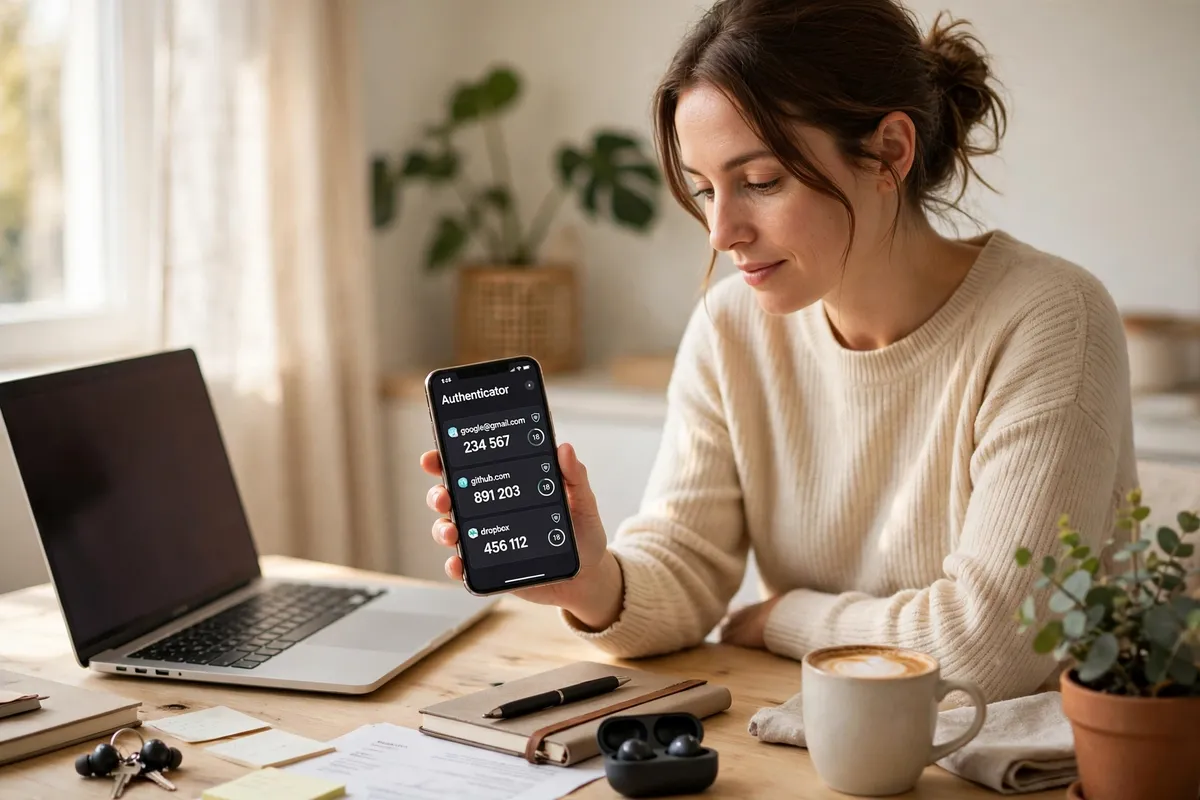
- Get an authenticator app first. Install an authenticator app from your phone's official app store and keep it on the phone you normally carry. It generates short codes that change regularly, and it works without an internet connection.
- Turn it on for Google. Sign in to your Google Account, open Security, and find 2-Step Verification. Choose the authenticator app option, scan the code shown with your authenticator app, and enter the code it generates to confirm.
- Turn it on for Apple. On an iPhone, open Settings, tap your name, then Sign-In & Security, and turn on Two-Factor Authentication. Apple will verify a trusted phone number and send codes to your trusted devices when you sign in.
- Turn it on for Microsoft. Sign in to your Microsoft account, open Security, and look for Advanced security options or Two-step verification. Choose the authenticator app option, scan the code, and enter the generated code to confirm.
- Save your backup codes straight away. Each provider offers backup or recovery codes for the day you cannot reach your authenticator app. Write them down or save them somewhere safe and separate from your phone — not in a photo album anyone can browse.
- Test a sign-in before you finish. Sign out and sign back in once, using a code from your authenticator app. If it works, you know the setup is right, and you will recognize the process next time.
What NOT to do
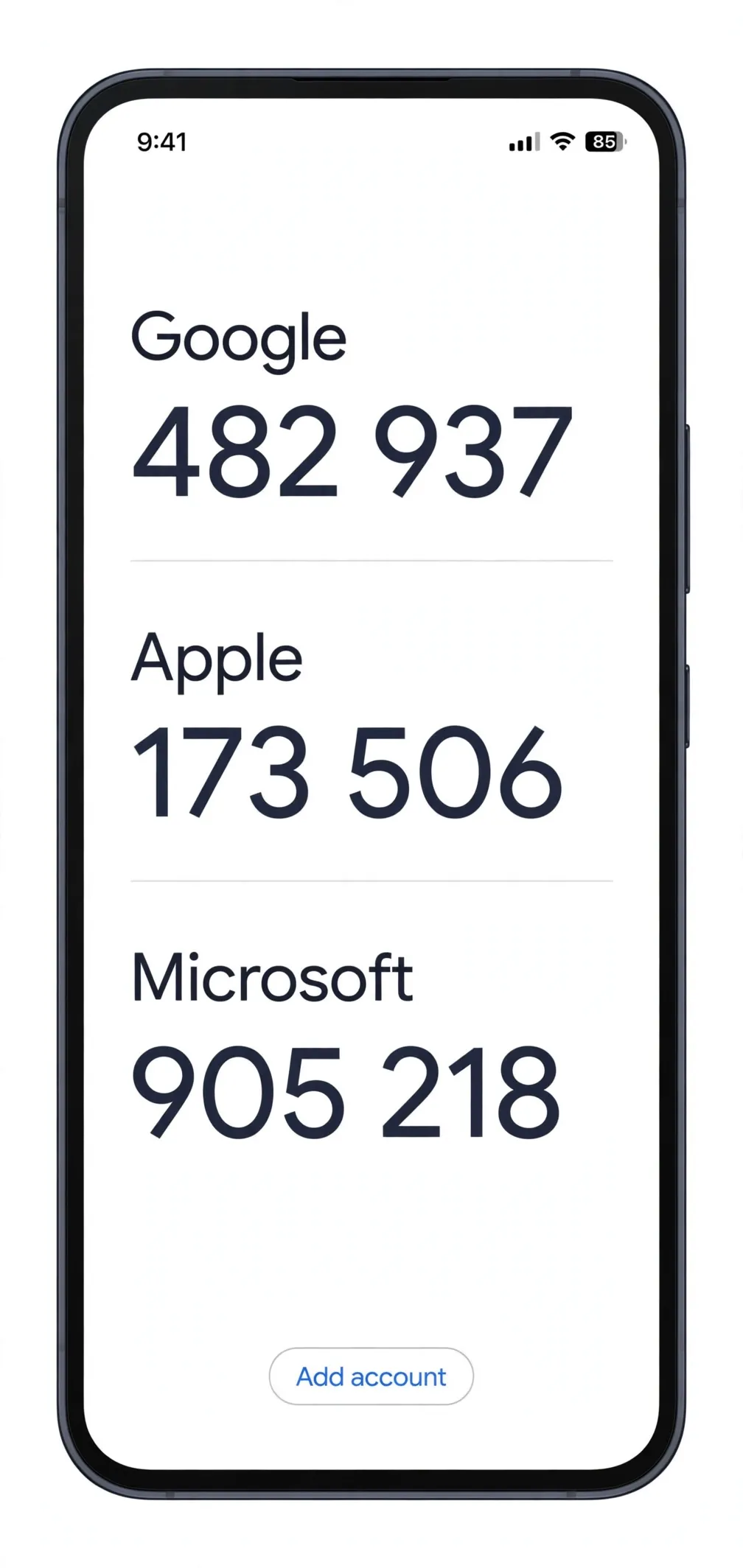
- Do not use text-message codes as your only second factor if an app option is available — app codes are harder to intercept.
- Do not share a verification code with anyone, even someone claiming to be support.
- Do not skip saving your backup codes. Without them, losing your phone can mean losing access to your account.
- Do not set up 2FA on a device you do not control, such as a shared or borrowed phone.
Once the three big accounts are protected, turn on 2FA for your email, banking, and social accounts next — your email matters most, because it can reset almost everything else.
Frequently asked questions
What is the quickest fix in this guide?
Get an authenticator app first.
What should I avoid doing?
Do not use text-message codes as your only second factor if an app option is available — app codes are harder to intercept.
What do I check after I finish?
Test a sign-in before you finish.