How to Stop Spam Calls and Texts
Spam calls and texts are annoying at best and a scam risk at worst. You cannot block every number, but you can cut the volume right down with the settings on your phone and a little help from your carrier.
TL;DR / Quick Fix
Quick fix: Silence calls from numbers you do not know. Turn on your carrier's spam filtering. Block and report individual numbers. Filter unknown messages into a separate list. Never reply, tap links, or call back. Follow these steps in order, then check the result below.
Follow these steps
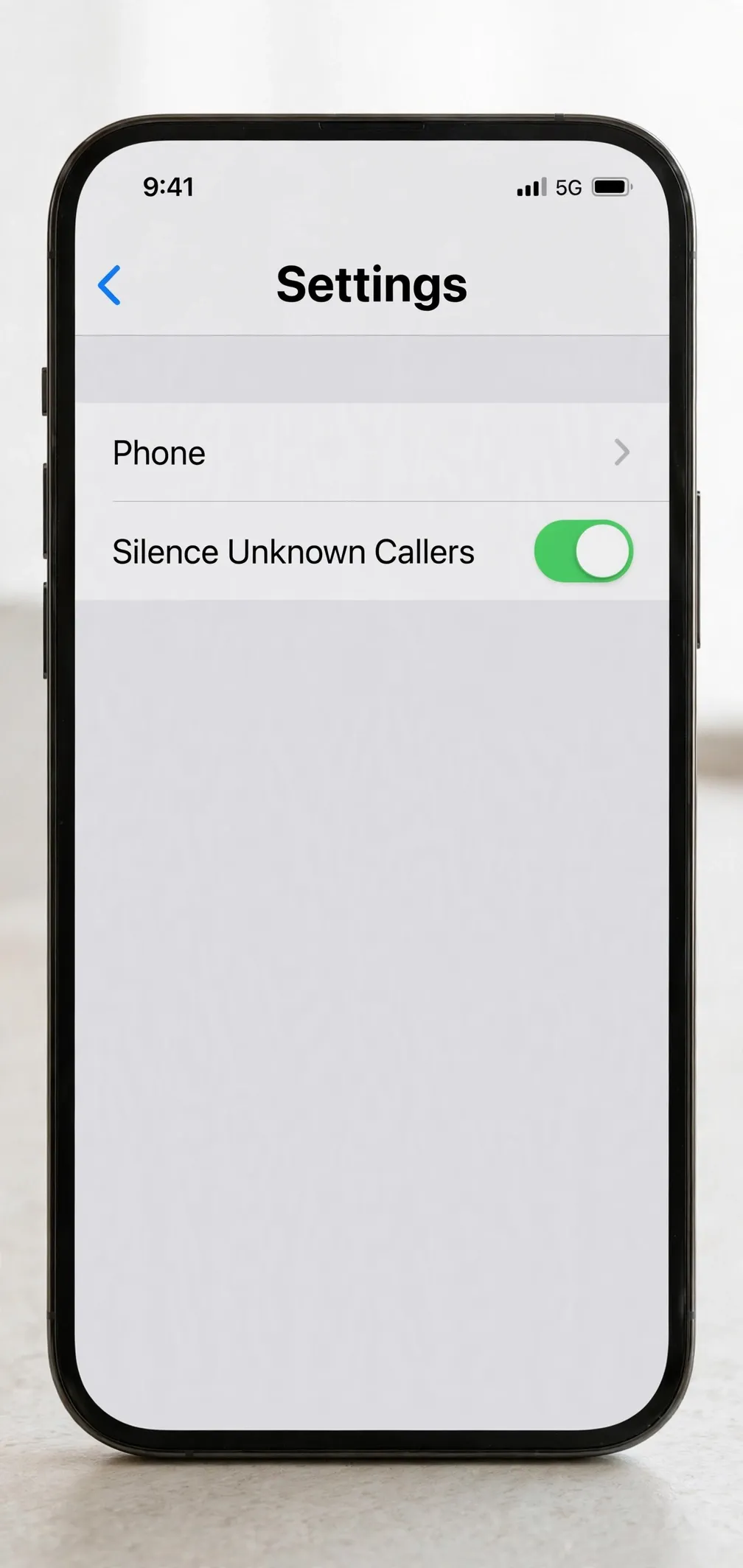
- Silence calls from numbers you do not know. On iPhone, go to Settings, then Phone, then Silence Unknown Callers: calls from numbers not in your contacts go straight to voicemail. On Android, open the Phone app, go to Settings, then Blocked numbers or Spam, and turn on the equivalent spam and blocked-call filtering. Genuine callers can still leave a message.
- Turn on your carrier's spam filtering. Most carriers offer free spam and scam call filtering, either built into their app or as a setting on your account. Check your carrier's app or account page for spam protection and turn it on. This catches many calls before they reach your phone at all.
- Block and report individual numbers. When a spam call or text does get through, block the number in your Phone or Messages app, and use the Report Spam or Report Junk option where your phone offers it. Reporting helps the carrier and the phone maker filter that number for everyone.
- Filter unknown messages into a separate list. On iPhone, go to Settings, then Messages, and turn on Filter Unknown Senders: messages from numbers not in your contacts move to a separate list. On Android, the Messages app offers spam protection and a Spam and blocked folder. Check that folder occasionally in case a genuine message lands there.
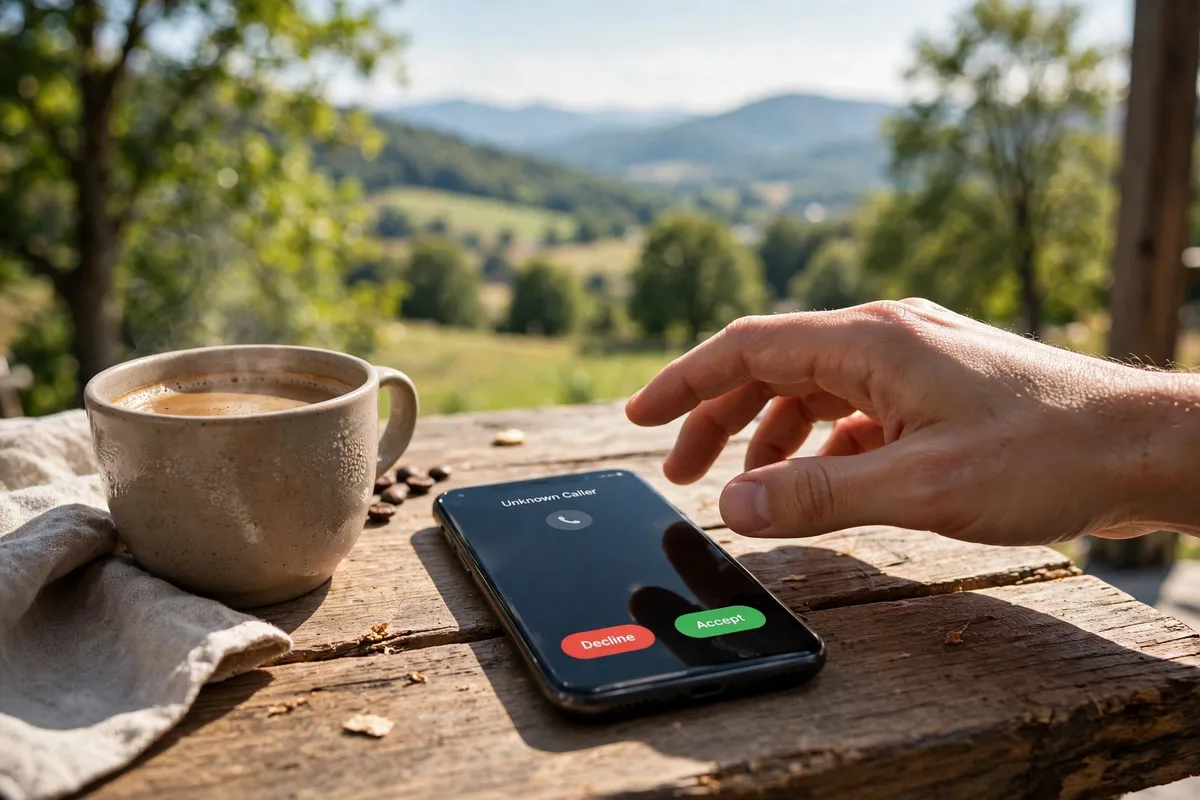
- Never reply, tap links, or call back. If a message claims you have won something, owe money, or must act urgently, do not reply, do not tap its links, and do not call the number back. Replying confirms your number is active and can bring more spam. Delete the message after reporting it.
What NOT to do
- Do not answer a call just to tell the caller to stop. Answering confirms your number is live.
- Do not tap links or download attachments in spam texts, even out of curiosity.
- Do not trust a message that pressures you to act immediately. Urgency is the oldest trick in the spam playbook.
- Do not pay for a blocking app before trying your phone's built-in filtering and your carrier's free tools.
If spam still gets through after these steps, it will be far less than before, and the few that slip through are easy to block and report in seconds. If a message ever asks for passwords, bank details, or payment, treat it as a scam and delete it.
Frequently asked questions
What is the quickest fix in this guide?
Silence calls from numbers you do not know.
What should I avoid doing?
Do not answer a call just to tell the caller to stop.
What do I check after I finish?
Never reply, tap links, or call back.