How to Stop Windows Notifications From Interrupting You
Notifications are useful when they tell you something urgent, and exhausting when every app wants your attention. Windows lets you silence everything for a while, and then choose, app by app, which notifications are allowed back. Set it up once, and the interruptions mostly stop.
TL;DR / Quick Fix
Quick fix: Turn on Do Not Disturb when you need quiet. Choose which apps can notify you at all. Keep notifications for the apps that matter. Turn off notification sounds and banners separately. Check Notification Center instead of reacting instantly. Silence notifications during presentations.
Follow these steps
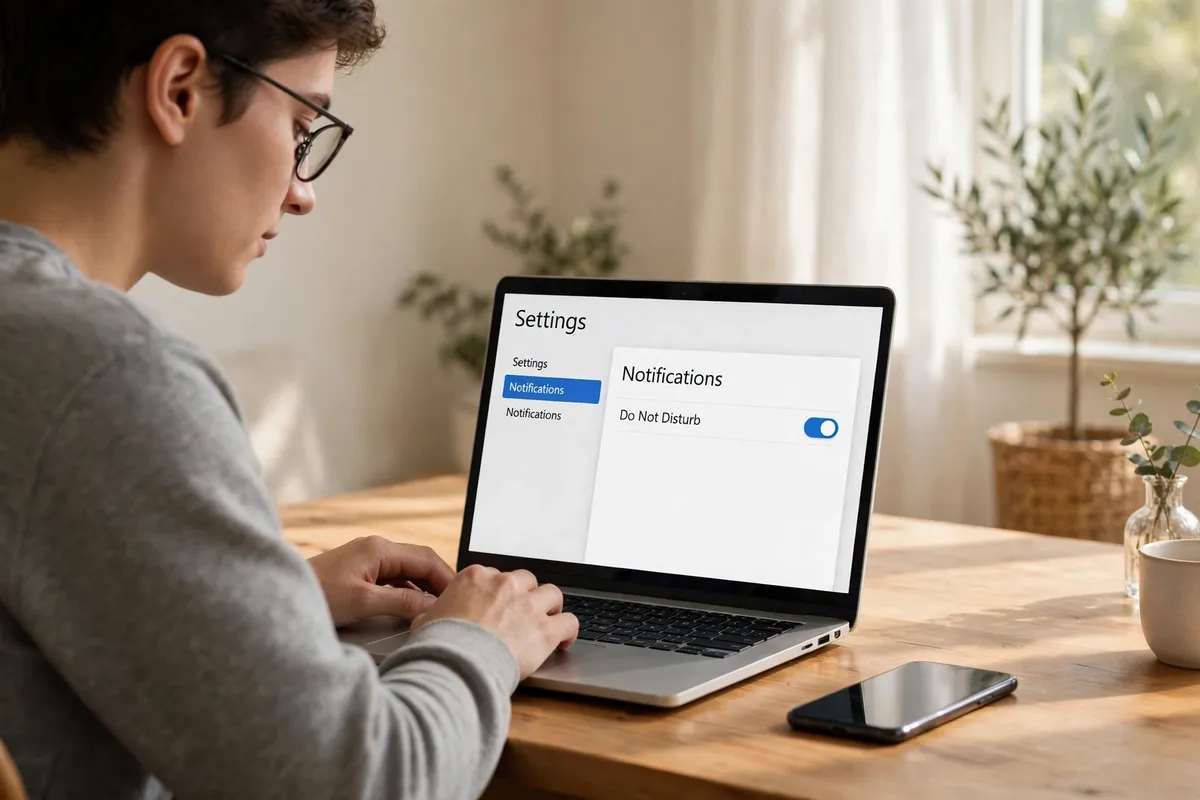
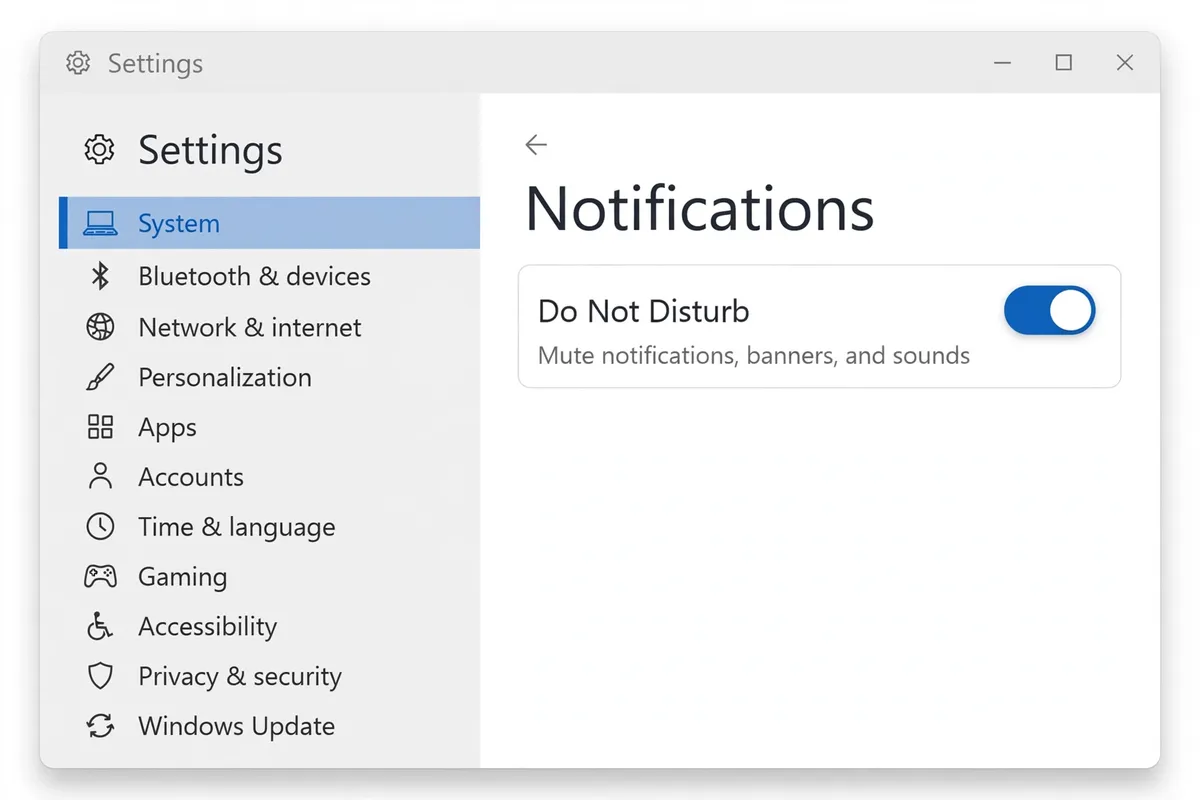
- Turn on Do Not Disturb when you need quiet. Open Settings, then System, then Notifications, and turn on Do Not Disturb. You can also set it to turn on automatically at certain times, such as during work hours or overnight, so you do not have to remember each time.
- Choose which apps can notify you at all. In the same Notifications screen, scroll to the list of apps and turn off notifications for apps that interrupt you without giving you anything useful, such as games, shopping apps, or news apps you rarely read.
- Keep notifications for the apps that matter. Leave notifications on for messaging, calendar, and security apps you genuinely need to hear from. The point is not silence, it is making sure the few alerts that get through are worth stopping for.
- Turn off notification sounds and banners separately. For an app you want to keep but quiet down, open its notification settings and turn off Show notification banners or Play a sound, while leaving the notification itself in Notification Center. You will still see it when you check, but it will not pop up over your work.
- Check Notification Center instead of reacting instantly. When you are ready for a break, open Notification Center from the taskbar and catch up on anything you missed. This turns notifications from interruptions into something you check on your own schedule.
- Silence notifications during presentations. Before sharing your screen, turn on Do Not Disturb. This stops personal messages and app alerts from appearing in front of an audience, which is both embarrassing and avoidable.
What NOT to do
- Turn off all notifications forever, including security and calendar alerts. You will miss things that actually matter, like a low-battery warning or a meeting reminder.
- Turn off notifications inside every app one by one instead of using Windows settings. That takes far longer and is easy to lose track of.
- Ignore the problem by muting the whole computer. Muting also silences calls, videos, and alarms you may want to hear.
- Delete apps just to stop their notifications. Turning off the notification is faster, reversible, and keeps the app available when you need it.
Once Do Not Disturb is set and only a few apps can interrupt you, notifications go back to being useful. If a particular app still breaks through, open its own settings, because some apps add their own notification options on top of Windows.
Frequently asked questions
What is the quickest fix in this guide?
Turn on Do Not Disturb when you need quiet.
What should I avoid doing?
Turn off all notifications forever, including security and calendar alerts.
What do I check after I finish?
Silence notifications during presentations.