How to Write Faster With Voice Typing on Phone and Computer
Voice typing — speaking instead of typing — can be much faster than typing for drafts, messages, and notes, especially on a phone. It is not perfect, and it is not right for every task, but with a few setup steps and cleanup habits it becomes a genuinely useful way to get words down quickly.
TL;DR / Quick Fix
Quick fix: Turn on dictation on your phone first. Turn on dictation on your computer next. Speak punctuation out loud. Use voice typing for drafts, not final copies. Clean up in one short editing pass. Know when not to use voice typing.

Follow these steps
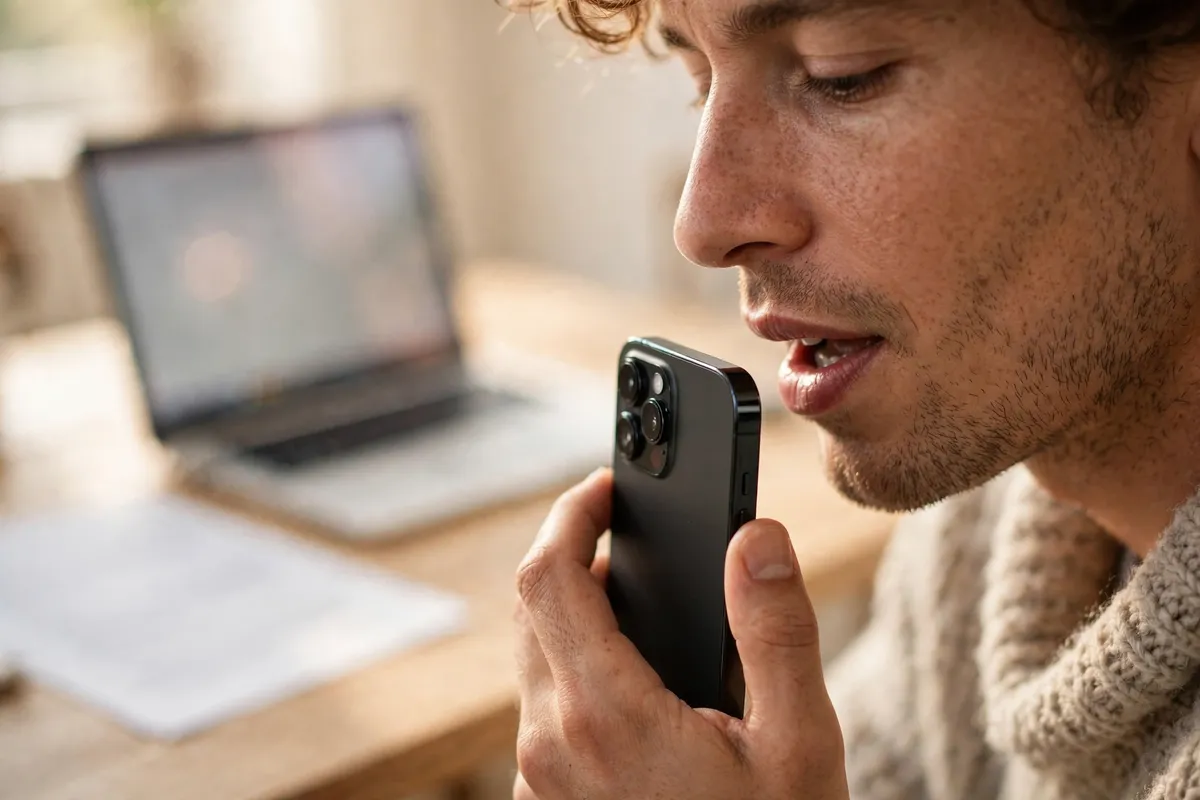
- Turn on dictation on your phone first. On both iPhone and Android, the keyboard includes a microphone button that starts voice typing. Tap it, speak clearly at a normal pace, and watch the words appear. Phones are the easiest place to start because dictation is already built in and needs no setup.
- Turn on dictation on your computer next. Both Windows and Mac include built-in voice typing, found in the accessibility or keyboard settings. Turn it on once, learn its start shortcut, and try it in a document. Computer dictation is ideal for longer drafts that would take a while to type by hand.
- Speak punctuation out loud. Say comma, full stop, new paragraph, and question mark as you speak, instead of adding them later. Speaking punctuation feels odd at first, but it saves most of the cleanup time and produces text that needs far less editing.
- Use voice typing for drafts, not final copies. Dictation shines for first drafts, brainstorming, messages, and notes — places where getting ideas down fast matters more than perfect wording. For final documents, dictate the draft and then edit it by typing, where precision is easier.
- Clean up in one short editing pass. After dictating, read through once and fix misheard words, split long sentences, and remove filler words. One focused editing pass is enough for most text. Do not edit word by word as you dictate, or you lose the speed advantage entirely.
- Know when not to use voice typing. Skip dictation in noisy places, for private or sensitive information, or when exact formatting matters, such as code, addresses, or passwords. In those cases typing is faster, safer, and more accurate — voice typing is a tool, not a replacement for typing.
What NOT to do
- Do not dictate sensitive information where others can hear it. Passwords, account details, and private messages should always be typed, not spoken aloud.
- Do not send dictated text without reading it first. Voice typing mishears words, and an unchecked message can say something quite different from what you meant.
- Do not expect perfect accuracy on the first try. Dictation improves as you learn to speak clearly and use punctuation commands, but it always needs a quick editing pass.
Try dictating your next message or short draft instead of typing it, then do one quick cleanup pass. If it felt faster and the result reads well, voice typing has earned a place in your everyday toolkit.
Frequently asked questions
What is the quickest fix in this guide?
Turn on dictation on your phone first.
What should I avoid doing?
Do not dictate sensitive information where others can hear it.
What do I check after I finish?
Know when not to use voice typing.