Airplane Wi-Fi Is Paid but Gives No Internet
You bought the in-flight Wi-Fi pass and the money left your account, but pages will not load. Before asking for a refund, run the checks that fix most paid-but-dead airplane connections.
TL;DR / Quick Fix
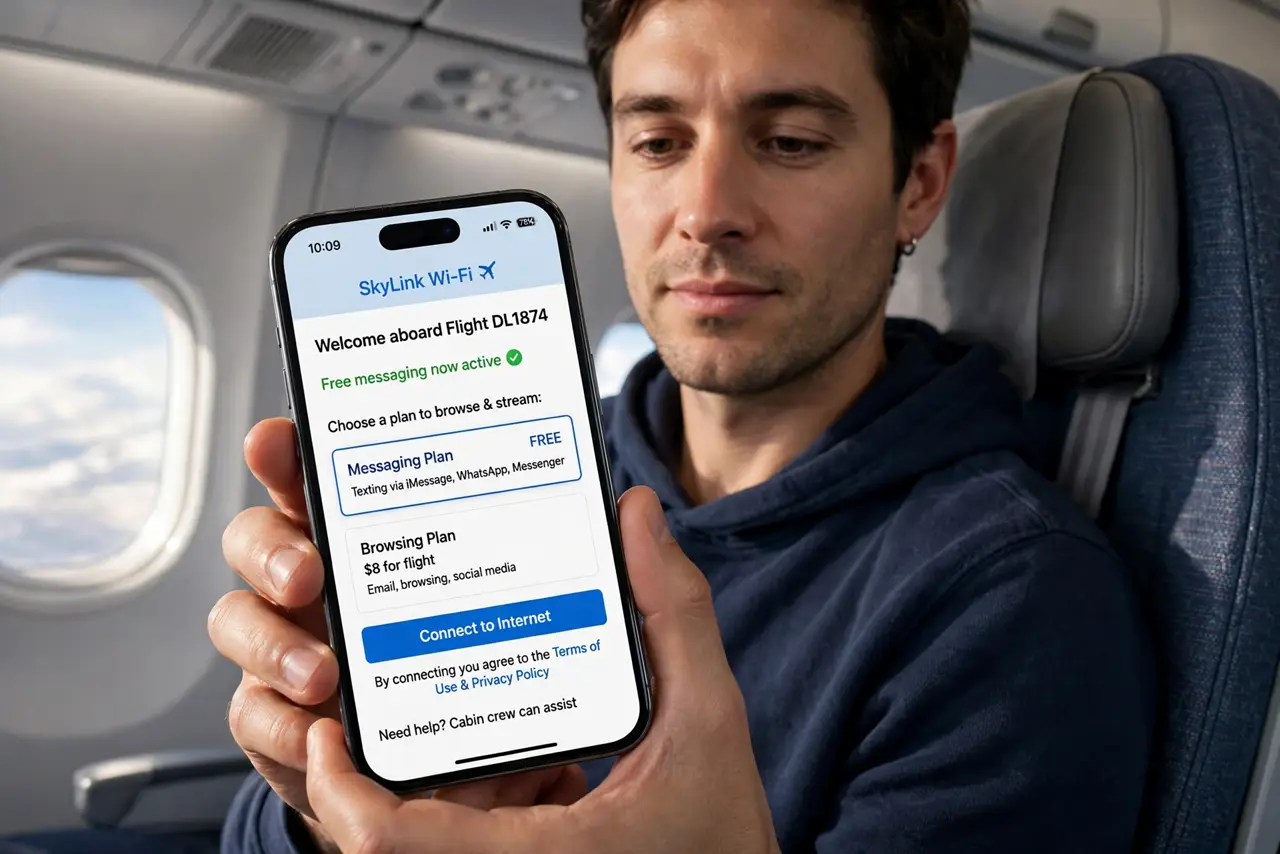
Quick fix: turn airplane mode off and on with Wi-Fi left enabled, then forget the airline network and rejoin it. Disable the VPN, open the airline's portal page fresh, and confirm the pass is active on your seat before requesting support or a refund.
Follow these steps
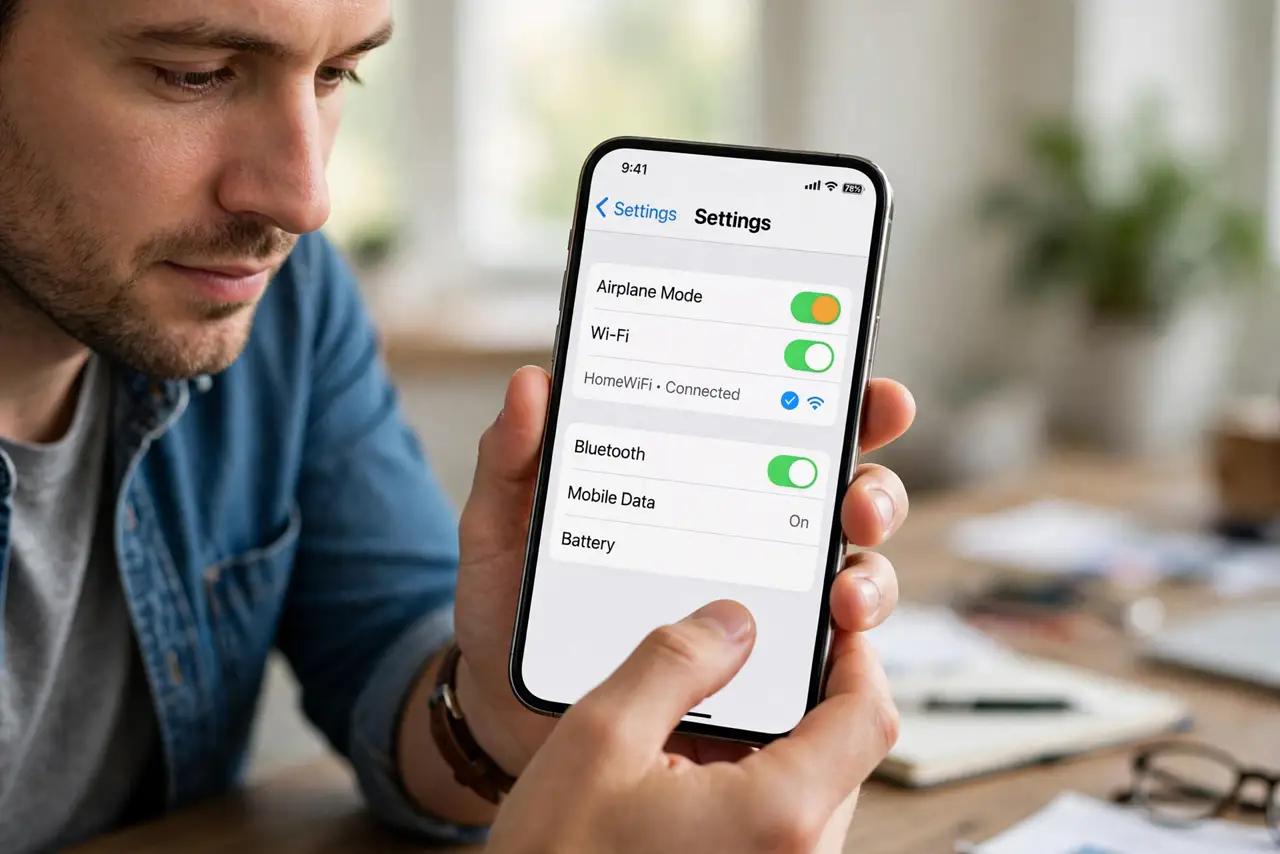
- Cycle the connection cleanly. Turn airplane mode on, wait ten seconds, turn it off, and make sure Wi-Fi stays enabled. This clears a half-joined state that a simple toggle sometimes leaves behind.
- Forget the network and rejoin. Remove the airline Wi-Fi from your saved networks and join it fresh. A stale saved entry can hold an expired portal session that blocks the paid pass — the same reason a captive portal will not load.
- Turn the VPN off temporarily. A VPN can block the airline's portal from validating your pass. Disable it until pages load, then re-enable it for the rest of the flight.
- Open the portal page by hand. Type the airline's Wi-Fi address or open a plain non-secure page to trigger the portal. Sometimes the pass is active but the portal never popped up to confirm it.
- Confirm the pass covers your device. Some passes are per device, and your phone's pass does not cover your laptop. Check the purchase receipt for device limits before assuming it is broken.
- Screenshot everything for the refund. If it never works, screenshot the receipt, the portal error, and the time. Airlines refund dead Wi-Fi passes readily with proof, and crew can note the fault during the flight.
What NOT to do
- Do not buy a second pass before checking the first. Two passes for one flight is the most common way this problem gets expensive.
- Do not stream video to test the connection. Airplane Wi-Fi is thin by design, so a failed video test proves nothing — load a simple page instead.
- Do not leave the VPN on and declare the Wi-Fi dead. The VPN blocks portal validation on many airlines, so test with it off first.
- Do not wait until after landing to report it. Tell the crew during the flight, since a live report is worth more than a complaint the next day.
Frequently asked questions
I paid but nothing loads. Is it broken?
Not necessarily. A stale session, an active VPN, or a portal that never popped up explains most paid-but-dead connections.
Does the pass cover all my devices?
Often not. Many airline passes are per device, so check the receipt before expecting the laptop to ride on the phone's pass.
Will the airline refund dead Wi-Fi?
Usually yes, with proof. Keep the receipt and a screenshot of the failure, and ask during the flight or right after.